Programming macros with key composer™ \(shuttlep, 6programming macros with key composer – Contour Design Shuttle-Xpress NLE Multimedia Controller (Black) User Manual
Page 26
6
Programming macros with Key Composer™
(ShuttlePRO v2 only)
This section will analyze in detail how to create new macros for your
ShuttlePRO v2
with the
Key Composer.
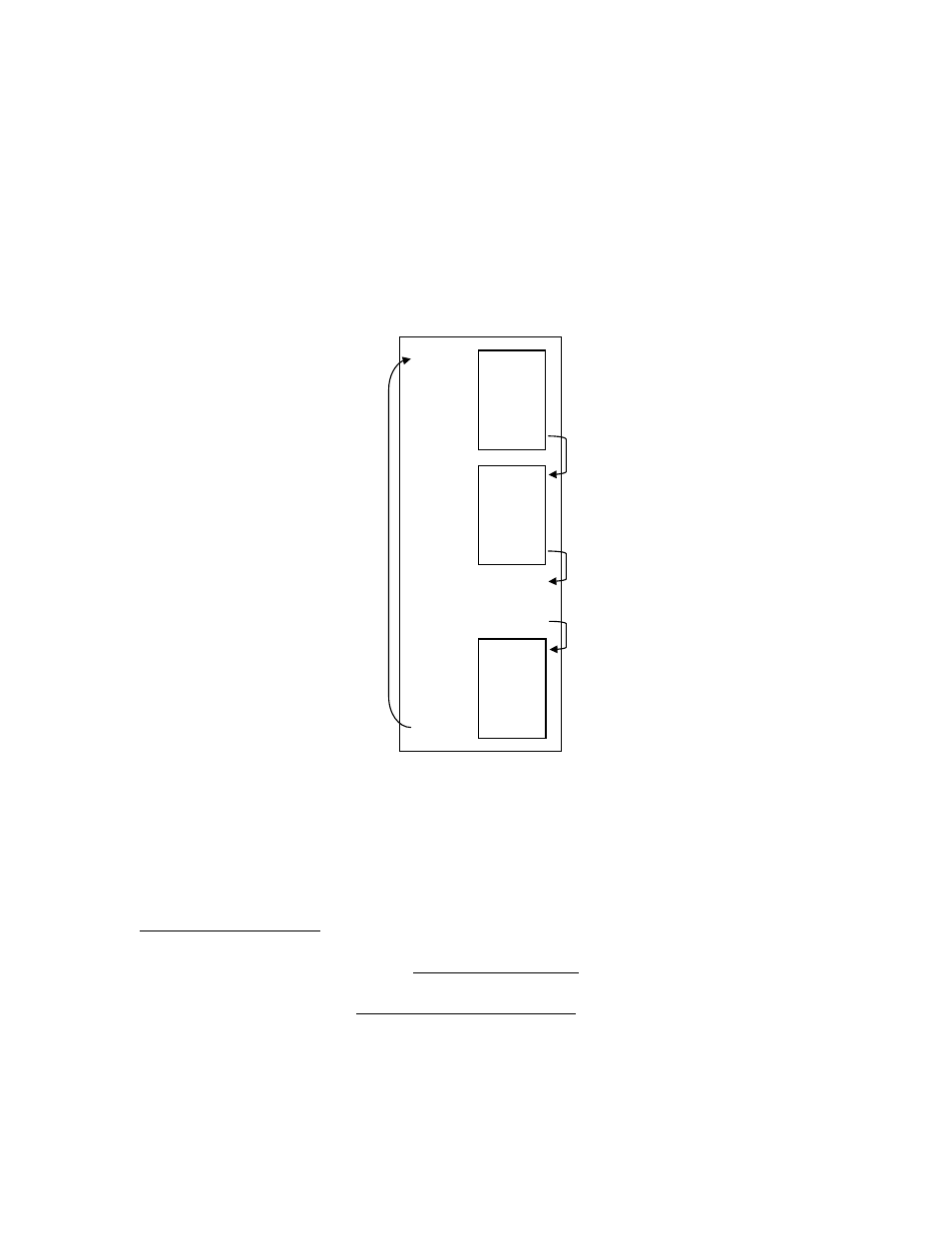
A macro is an automated sequence of actions (divided in one or more groups) that can be
stored and then recalled with a single Shuttle component. By action we mean: keystroke
combinations, keystroke sequences (text) or pause events. An event on the Shuttle component
associated to a macro corresponds to the execution of
one single
group of action(s).
Macro
Group n action 1
action 2
|
|
|
Group 2
Group 1
|
|
|
action 1
action 2
|
|
|
action 1
action 2
|
|
|
1 event on the
Shuttle component
1 event on the
Shuttle component
1 event on the
Shuttle component
1 event on the
Shuttle component
This definition leads to two different kinds of macros:
−
macros composed by one group of actions,
−
macros composed by two (2) or more groups of actions, also called step-by-step macros.
Step-by-step macros are very useful to switch views or to toggle between tools.
In order to create a new macro, you first have to:
1. Open the Control Panel (please refer to paragraph 2.2 for guidance on how to accomplish
this)
2. In the Application Settings Menu, select the application for which you want to create a
macro.
3. From the User Action Menu, select the Shuttle component you want to associate a macro to.
4. Select
Run Macro
from the Computer Response Menu.
5. Click on the
Key Composer™
button. This will launch the Key Composer application that
will allow you to create your macro.
Contour Shuttle Multimedia Controllers
20