Macro with one group of multiple actions – Contour Design Shuttle-Xpress NLE Multimedia Controller (Black) User Manual
Page 27
Once the Key Composer is open:
1. Click on
New
in the Key Composer window.
2. Choose a name for the new macro then click
OK
. The name of the macro will now appear in
the Macro Selection Menu.
3. In the Action Sequence window, click on
New Action
to create a new action in an existing
group, click on
New Group
to create a new empty group.
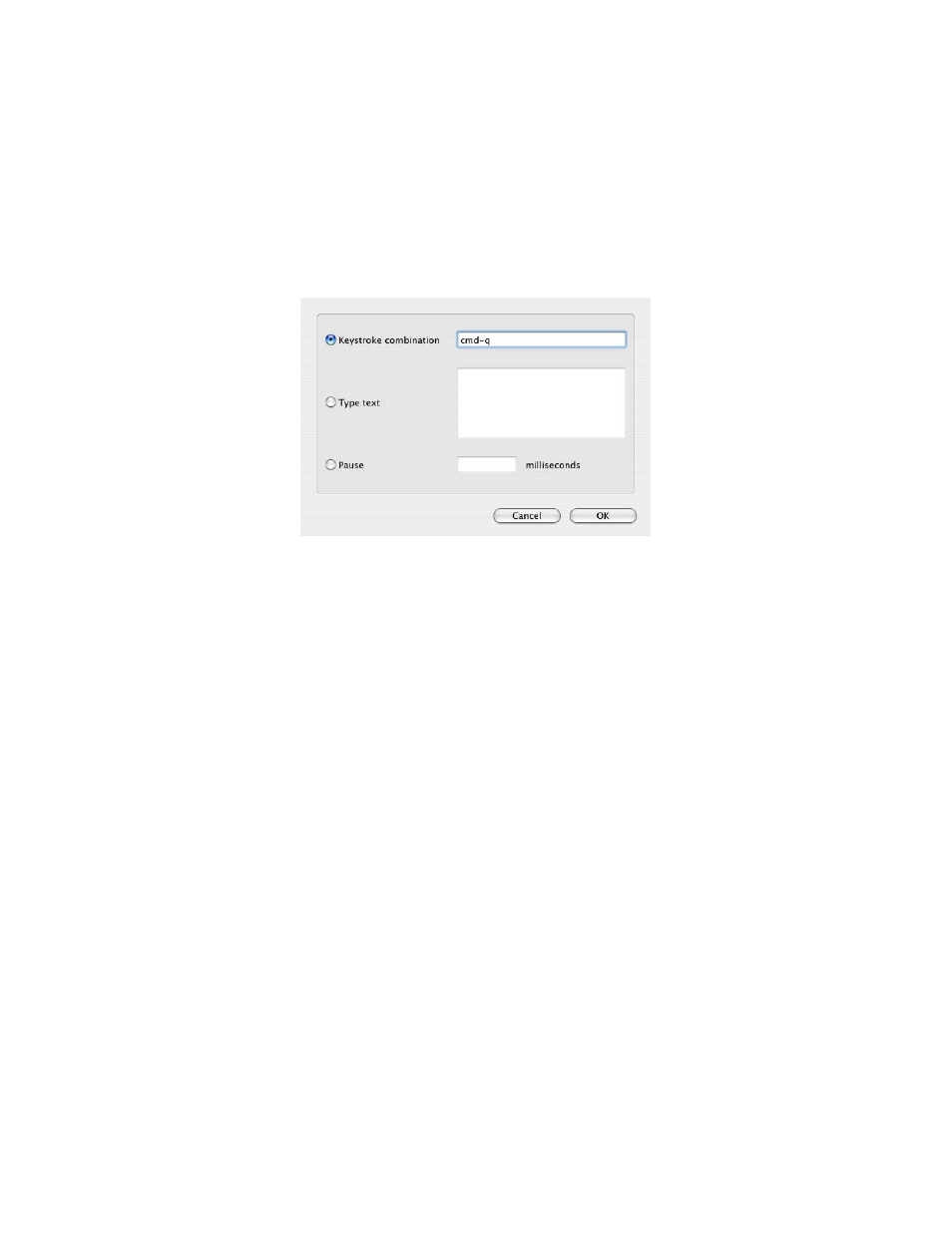
4. By clicking on New Action, a dialog box will prompt you to choose if you want to type a
keystroke combination or some text, or if you want to associate a pause event.
Select the option you prefer, than click
OK
in the lower right hand corner of the dialog box.
The newly created action will appear in the Action Sequence window in the previously
selected group.
5. Repeat steps 1 and 4 for as many macros and actions as you want to add.
Let’s explain how macros work through two examples. We will create:
−
one macro composed by one group of multiple actions,
−
one macro composed by multiple groups of actions.
6.1 Macro with one group of multiple actions
Let’s create a macro that will add Contour Design’s signature (with the bold font) in TextEdit
and let’s say we want to associate this macro to Button 1 of your ShuttlePRO v2.
Here are all the actions we would perform within TextEdit to type the signature:
1. enable the bold style by pressing cmd-b
2. type “Contour Design, Inc.”
3. press the Return key
4. type “10 Industrial drive”
5. press the Return key
6. type “Windham, NH 03038”
7. press the Return key
8. disable the bold style by pressing cmd-b
Contour Shuttle Multimedia Controllers
21