Contour Design Shuttle-Xpress NLE Multimedia Controller (Black) User Manual
Page 28
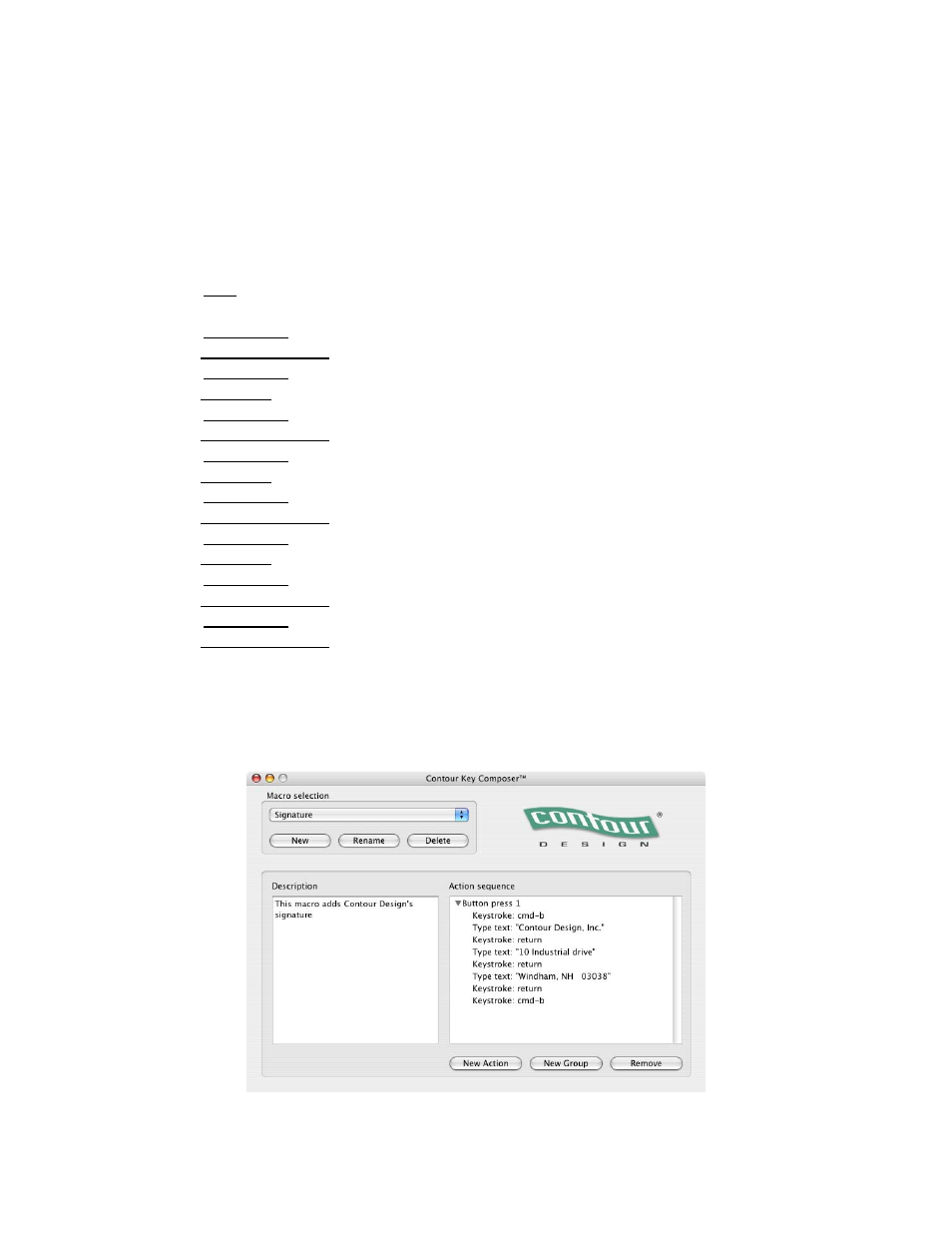
Let’s create a macro based on these actions:
In the Shuttle device Control Panel:
1. In the Application Settings Menu, select
Apple TextEdit
2. From the User Action Menu, select
Button 1
.
3. Select
Run Macro
from the Computer Response Menu.
4. Click on the
Key Composer™
button to launch the Key Composer application.
In the Key Composer window:
5. Click on New in the Macro selection window.
6. Type
Signature
then click OK.
7. Click on New Action in the Action Sequence window.
8. Choose Keystroke combo from the dialog box and type
cmd-b
(to enable the bold font).
9. Click on New Action in the Action Sequence window.
10. Choose Type text from the dialog box and type
Contour Design, Inc.
.
11. Click on New Action in the Action Sequence window.
12. Choose Keystroke combo from the dialog box and hit
return
.
13. Click on New Action in the Action Sequence window.
14. Choose Type text from the dialog box and type
10 Industrial drive
.
15. Click on New Action in the Action Sequence window.
16. Choose Keystroke combo from the dialog box and hit
return
(to enable Font Style field).
17. Click on New Action in the Action Sequence window.
18. Choose Type text from the dialog box and type
Windham, NH 03038
.
19. Click on New Action in the Action Sequence window.
20. Choose Keystroke combo from the dialog box and hit
return
.
21. Click on New Action in the Action Sequence window.
22. Choose Keystroke combo from the dialog box and type
cmd-b
(to disable the bold font).
23. Type the description of your choice in the description field, for example: This macro adds
Contour Design’s signature.
24. Close the Key Composer application.
Your newly created macro will be displayed as depicted in Fig. 6-1.
Fig. 6-1
Contour Shuttle Multimedia Controllers
22