Contour Design Shuttle-Xpress NLE Multimedia Controller (Black) User Manual
Page 30
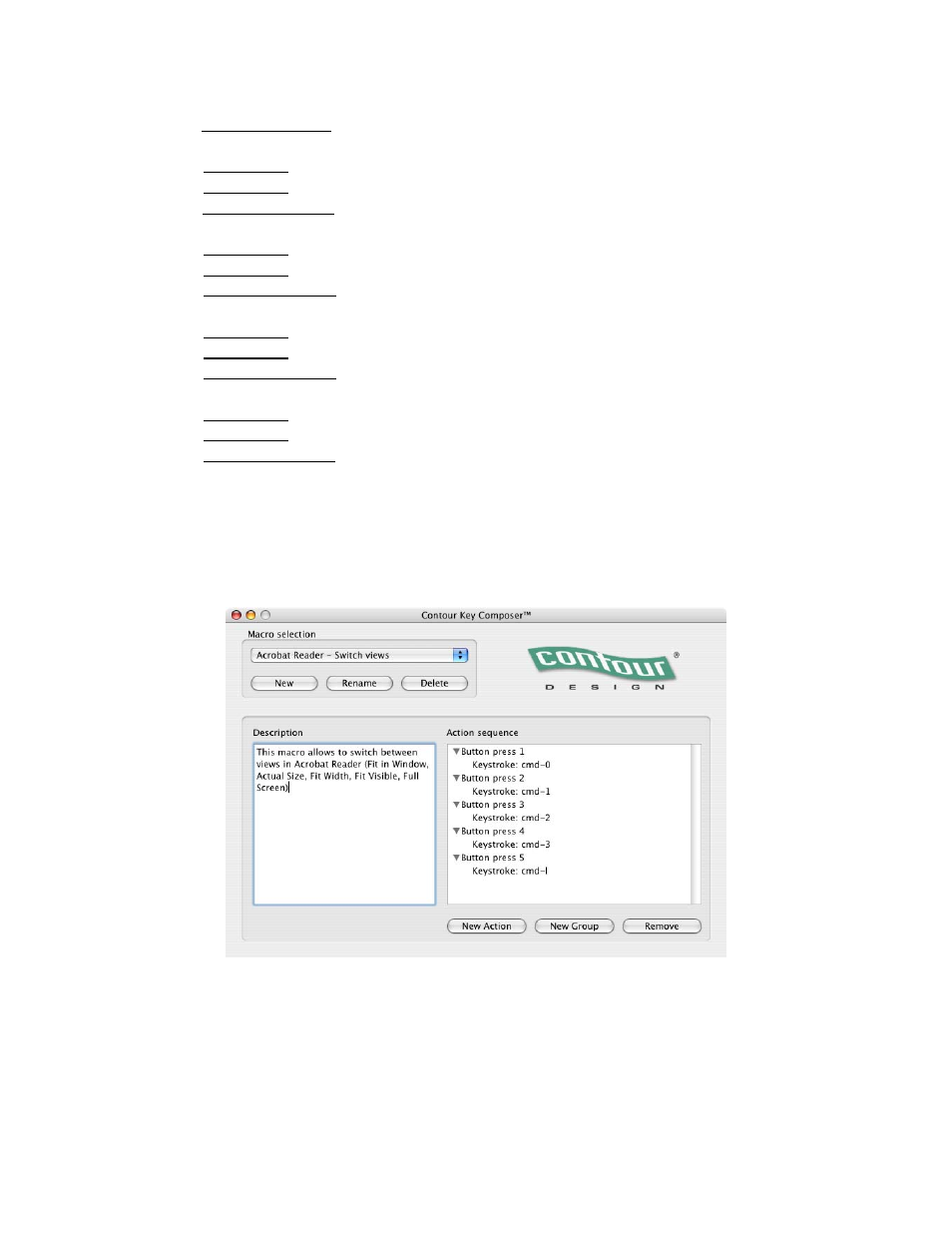
8. Choose Keystroke combo from the dialog box and type
cmd-0
(to select the Fit in Window
view).
9. Click on New Group in the Action Sequence window.
10. Click on New Action in the Action Sequence window.
11. Choose Keystroke combo from the dialog box and type
cmd-1
(to select the Actual Size
view).
12. Click on New Group in the Action Sequence window.
13. Click on New Action in the Action Sequence window.
14. Choose Keystroke combo from the dialog box and type
cmd-2
(to select the Fit Width
view).
15. Click on New Group in the Action Sequence window.
16. Click on New Action in the Action Sequence window.
17. Choose Keystroke combo from the dialog box and type
cmd-3
(to select the Fit Visible
view).
18. Click on New Group in the Action Sequence window.
19. Click on New Action in the Action Sequence window.
20. Choose Keystroke combo from the dialog box and type
cmd-l
(to select the Full Screen
View).
21. Type the description of your choice in the description field, for example: This macro allows
to switch between views in Acrobat Reader.
22. Close the Key Composer application.
Your newly created macro will be displayed as depicted in Fig. 6-3.
Fig. 6-3
Contour Shuttle Multimedia Controllers
24