Installing shuttle device software, System requirements, Installation procedure – Contour Design Shuttle-Xpress NLE Multimedia Controller (Black) User Manual
Page 9
1.1 Installing Shuttle Device Software
It is recommended to
install the software before plugging
your Shuttle device into any
available USB port.
Shuttle devices are “plug and play”: there is no need to shutdown and restart your computer
when you plug or unplug the device from a USB port.
1.1.1
1.1.2
System
Requirements
•
System running Mac OS 10.1 or later.
•
Available USB port. (A direct USB port connection is desirable, but a hub connection will
also work. Contour recommends using powered hubs and against using conversion
devices, such as USB adapters.)
•
10 Mbyte
of hard disk space for the Shuttle device driver installation.
Installation
Procedure
Notes:
1) It is recommended that you close all other applications that may be running on your
system and that you disable any virus protection software until after the installation is
complete.
2) If you have any previous Shuttle devices driver installed on your system, please refer to
chapter 7 (Updating or Uninstalling your Shuttle device Software) before proceeding.
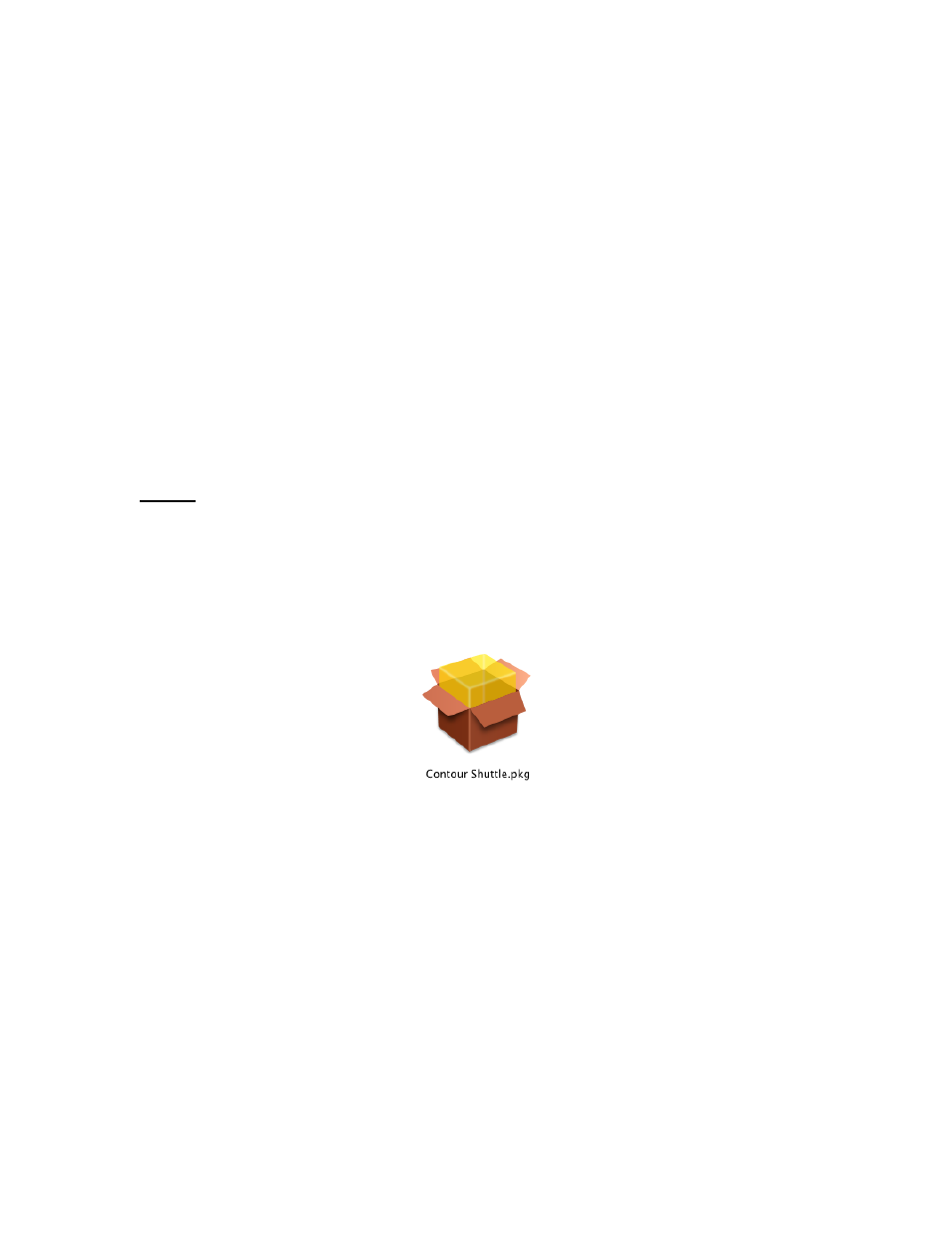
Step 1.
Locate and
double-click
the .pkg file.
Step 2.
Step 3.
Step 4.
Step 5.
The Authenticate dialog box will prompt you: “Installer requires that you type your
passphrase.” Type your login password then click
Ok
.
A dialog box will prompt you through the rest of the installation process.
Select a destination disk to install the Software and click
Continue
.
Once installation is complete you should receive a message stating “The software
was successfully installed.” Click
Restart
to restart your computer.
Contour Shuttle Multimedia Controllers
3