Associating a function with a shuttle component, Modifying existing settings, 3 associating a function with a shuttle component – Contour Design Shuttle-Xpress NLE Multimedia Controller (Black) User Manual
Page 17: 4 modifying existing settings
3.3 Associating a Function with a Shuttle Component
When you modify an existing or newly created setting, you want to modify the function
associated with the Shuttle components.
These steps are general and we will refer to this paragraph often hereafter.
First open the Control Panel and select one application setting in the Target Application Menu.
1. Through the User Action Menu, select the Shuttle component you want to assign the
function to. You can choose between:
button
jog
Shuttle position
Shuttle transition.
2. Click on the
Computer Response Menu
and select the function you wish the Shuttle
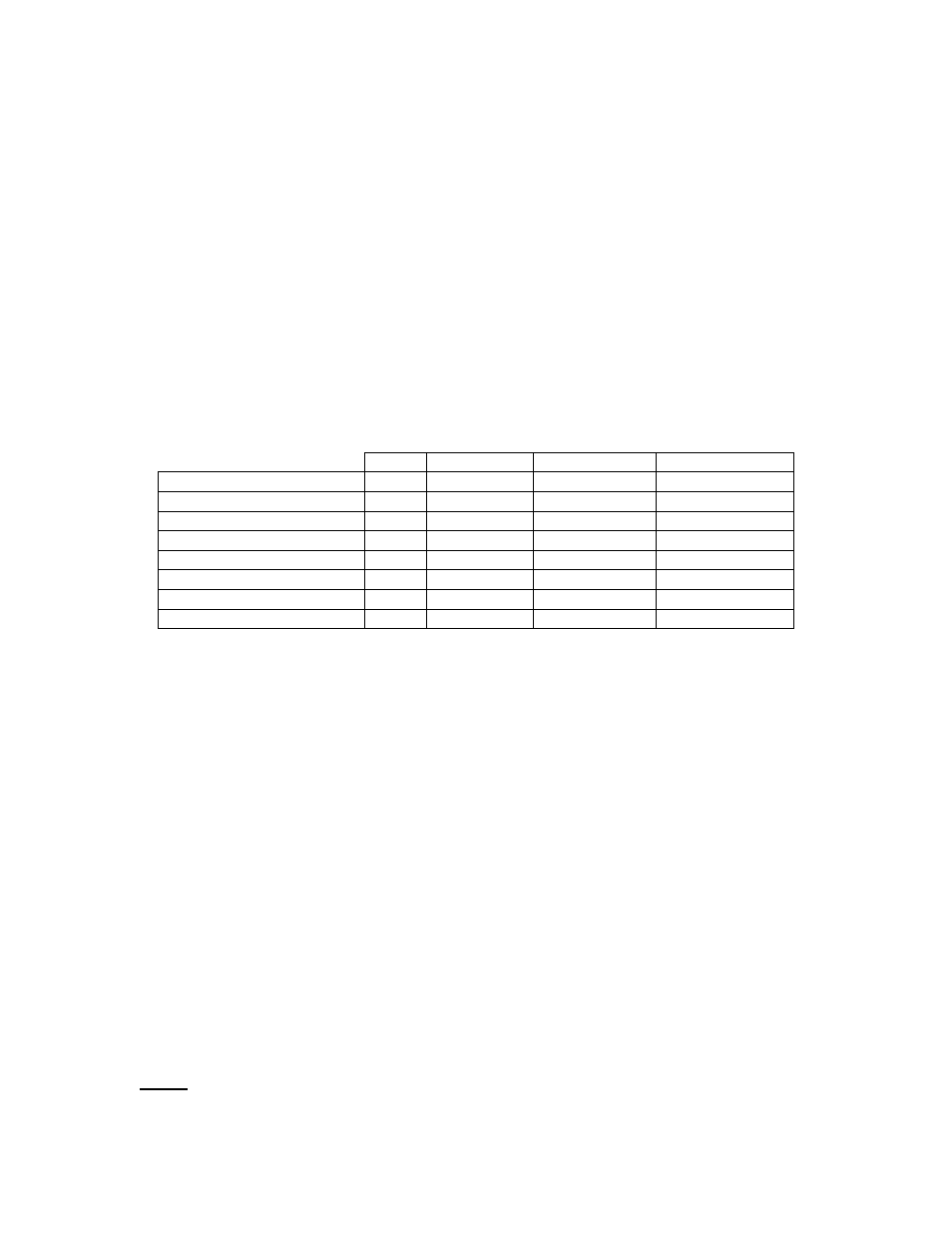
component to perform. Choose according to the following table:
Button Jog Direction Shuttle Position Shuttle Transition
Do Nothing
X
X
X
X
Same as Lower Value
NA NA
X
NA
Press Modifiers
X
X
X
X
Type Keystroke
X
X
X
X
Mouse Click
X
X
X
X
Mouse Wheel
X
X
X
X
Switch settings
X
X
X
X
Macro (ShuttlePRO v2 only)
X
X
X
X
3. Add a description of the requested action in the Comment Field
4. Click
Apply
when completed.
3.4 Modifying Existing Settings
This section explains how to modify a function of the Shuttle device for an existing application
setting.
1. Click on the
Target Application Menu
and select the application setting you would like to
modify.
2. Click on the
User Action Menu
and select the Shuttle component whose function you wish
to change. Once chosen, you should see it highlighted in the User Action Menu. In order to
modify its function, refer to paragraph 3.3 for guidance on how to accomplish this.
3. Repeat step 2 for each Shuttle component you would like to modify.
4. Once you have completed the desired changes, click
Apply
. The new settings will
immediately take effect. (There is no need to restart the computer.) Next time you reload
the setting, you will notice that the label below the Target Application Menu will appear as
“Customized Settings”, instead of “Factory settings” to indicate you made changes to the
application setting.
5. You can now close the Shuttle device Control Panel and use your Shuttle device.
Note:
you can always use the Options menu item Revert to Factory Setting, or remove the
setting and re-import it to reverse your changes later.
Contour Shuttle Multimedia Controllers
14