Macro with multiple groups of multiple actions – Contour Design Shuttle-Xpress NLE Multimedia Controller (Black) User Manual
Page 29
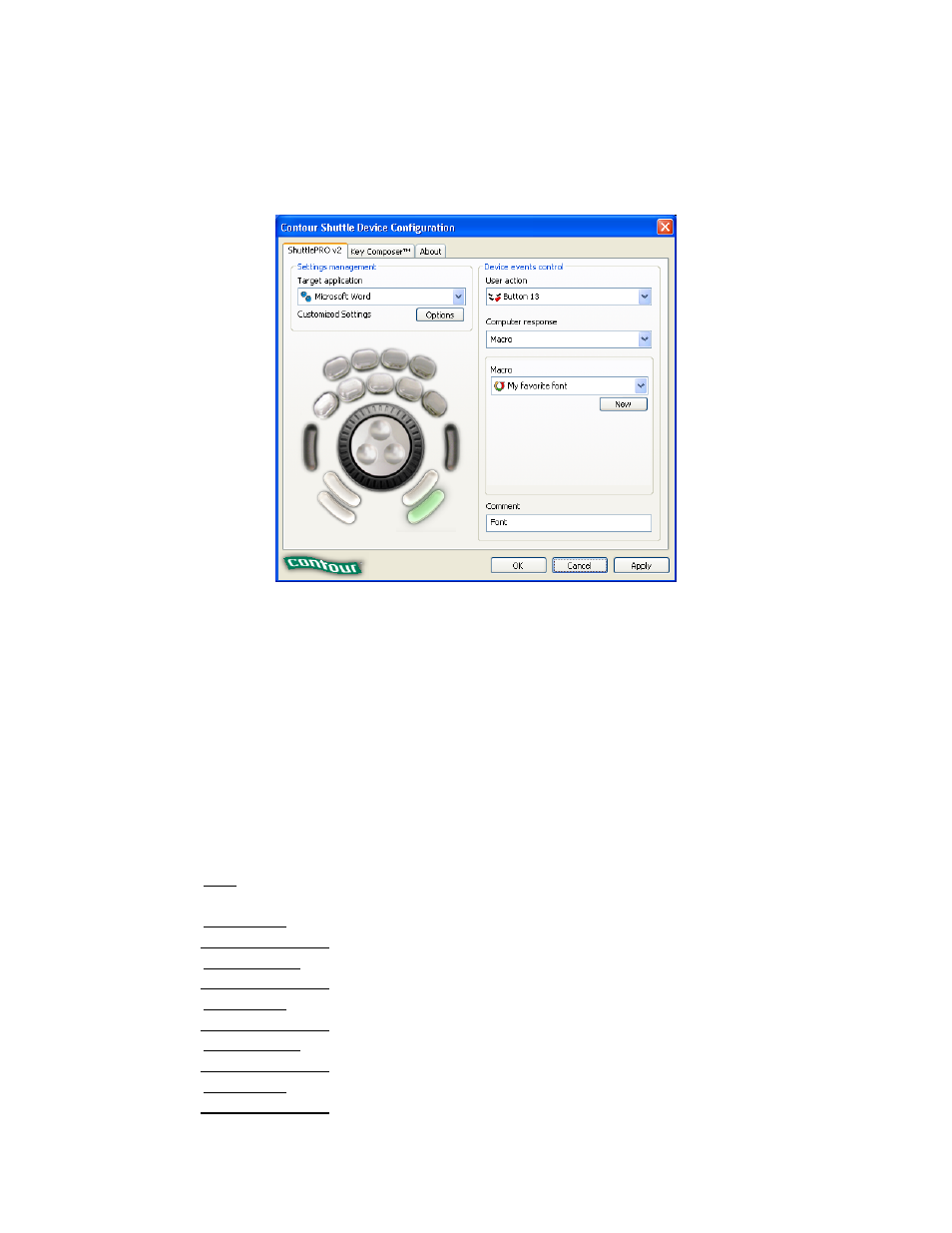
From your ShuttlePRO v2 tab you will now be able to associate the newly created macro to a
Shuttle component, let’s say Button 13 (refer to paragraph 3.3 for guidance on how to
accomplish this) as shown in Fig. 6-2.
Pressing Button 13 will play through
all the actions
shown in the Action sequence window.
Fig. 6-2
6.2 Macro with multiple groups of multiple actions
Let’s create a macro that allows you to toggle views (Normal, Web Layout, Print Layout,
Outline) in Microsoft Word.
You usually select views by using the mouse or by typing a keystroke sequence on your
keyboard, specifically by clicking on View on the standard toolbar (or typing Alt+V), then going
down to Normal (or typing N), Web Layout (or typing W), Print Layout (or typing P), Outline (or
typing O).
Let’s create a step-by-step macro based on these actions:
1. Click on New in the Macro selection window.
2. Type
Word - views
then type Enter.
3. Click on New group in the Action Sequence window.
4. Choose Keystroke combo from the dialog box and type
Alt+V
(to enable the View tab).
5. Click on Add in group in the Action Sequence window.
6. Choose Keystroke combo from the dialog box and type
N
(to select the Normal view).
7. Click on New group in the Action Sequence window.
8. Choose Keystroke combo from the dialog box and type
Alt+V
(to enable the View tab).
9. Click on Add in group in the Action Sequence window.
10. Choose Keystroke combo from the dialog box and type
W
(to select the Web Layout view).
11. Click on New group in the Action Sequence window.
12. Choose Keystroke combo from the dialog box and type
Alt+V
(to enable the View tab).
Contour Shuttle Multimedia Controllers
26