Updating your application settings list manually, Uninstalling shuttle device software – Contour Design Shuttle-Xpress NLE Multimedia Controller (Black) User Manual
Page 32
7.3 Updating your Application Settings List manually
In order to begin, you must complete the following:
1. Log on to our website and locate the
Downloads
section.
2. Download the Shuttle device Application Settings only and store the file in a folder of your
choice on your system.
3. Open the Shuttle device Application Settings Folder.
4. Peruse the list and see which Application Setting you are apt to use.
5. Open the Contour Shuttle device Control Panel and import the settings you wish to use.
Refer to paragraph 5.7 for guidance on how to accomplish this.
7.4 Uninstalling Shuttle Device Software
This section describes how to uninstall the Shuttle Device software.
Step 1.
Step 2.
Click on the
Start Menu
in the lower left corner of your screen.
only for Windows 98 and 2000 users: Go up to
Settings
.
Step 3.
Step 4.
Step 5.
Step 6.
Step 7.
Step 8.
Step 9.
Select
Control Panel
.
Double-click on
Add/Remove Programs
.
Locate and click on
Contour Shuttle
.
Click on Change/Remove.
In the dialog box select
Uninstall Contour Shuttle
, then click
Next
.
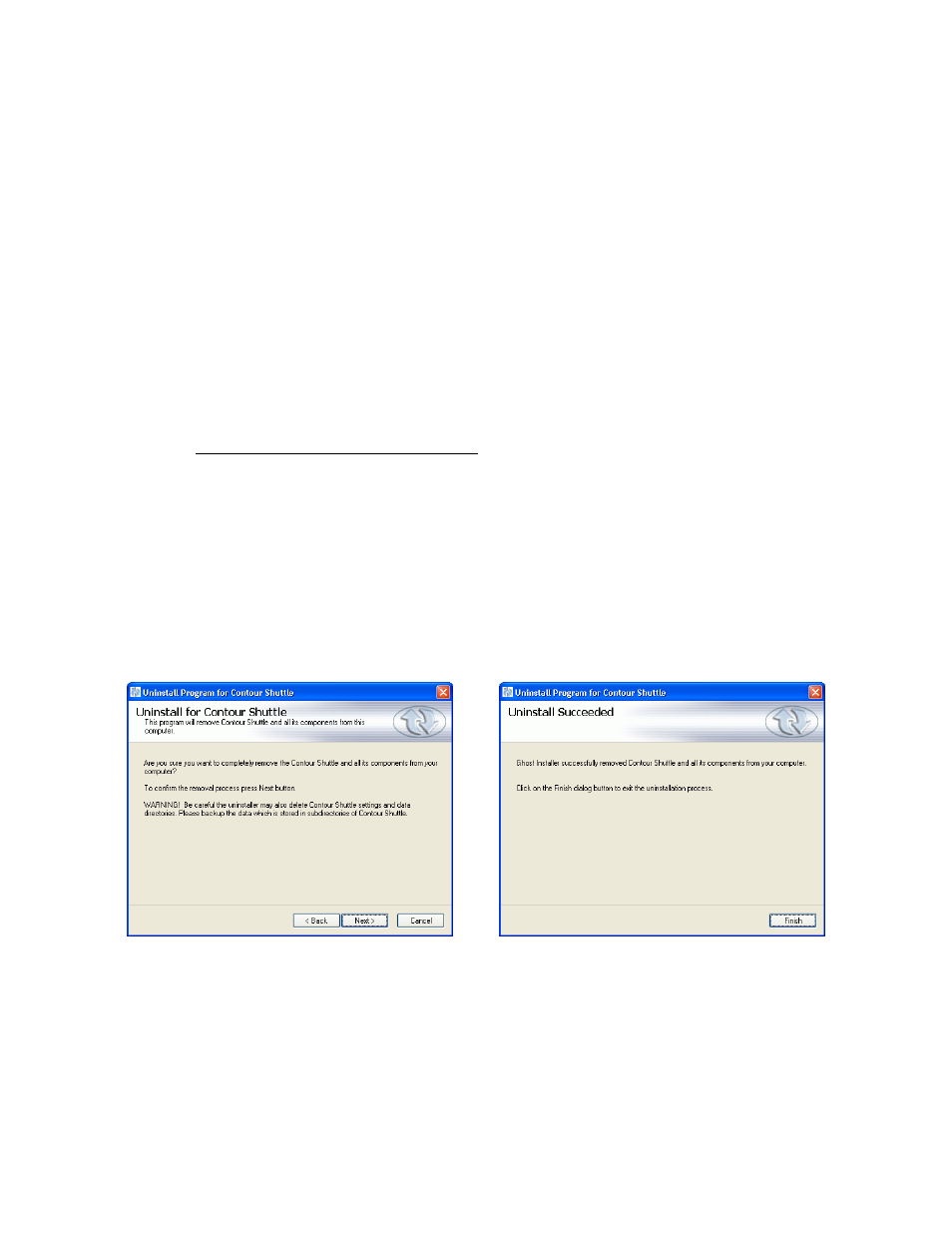
The dialog box shown in Fig. 7-1 will ask you to confirm the removal process. Click
Next
.
A dialog box (Fig. 7-2) will now prompt you stating that “Ghost Installer successfully
removed Contour Shuttle and all its components from your computer. Click on the
Finish
dialog button to exit the uninstallation process.”
Fig. 7-1
Fig. 7-2
Contour Shuttle Multimedia Controllers
29