Yamaha DTX-Multi12 Multi-Pad Electronic Percussion Instrument User Manual
Page 14
Setting Up
14
Owner’s Manual
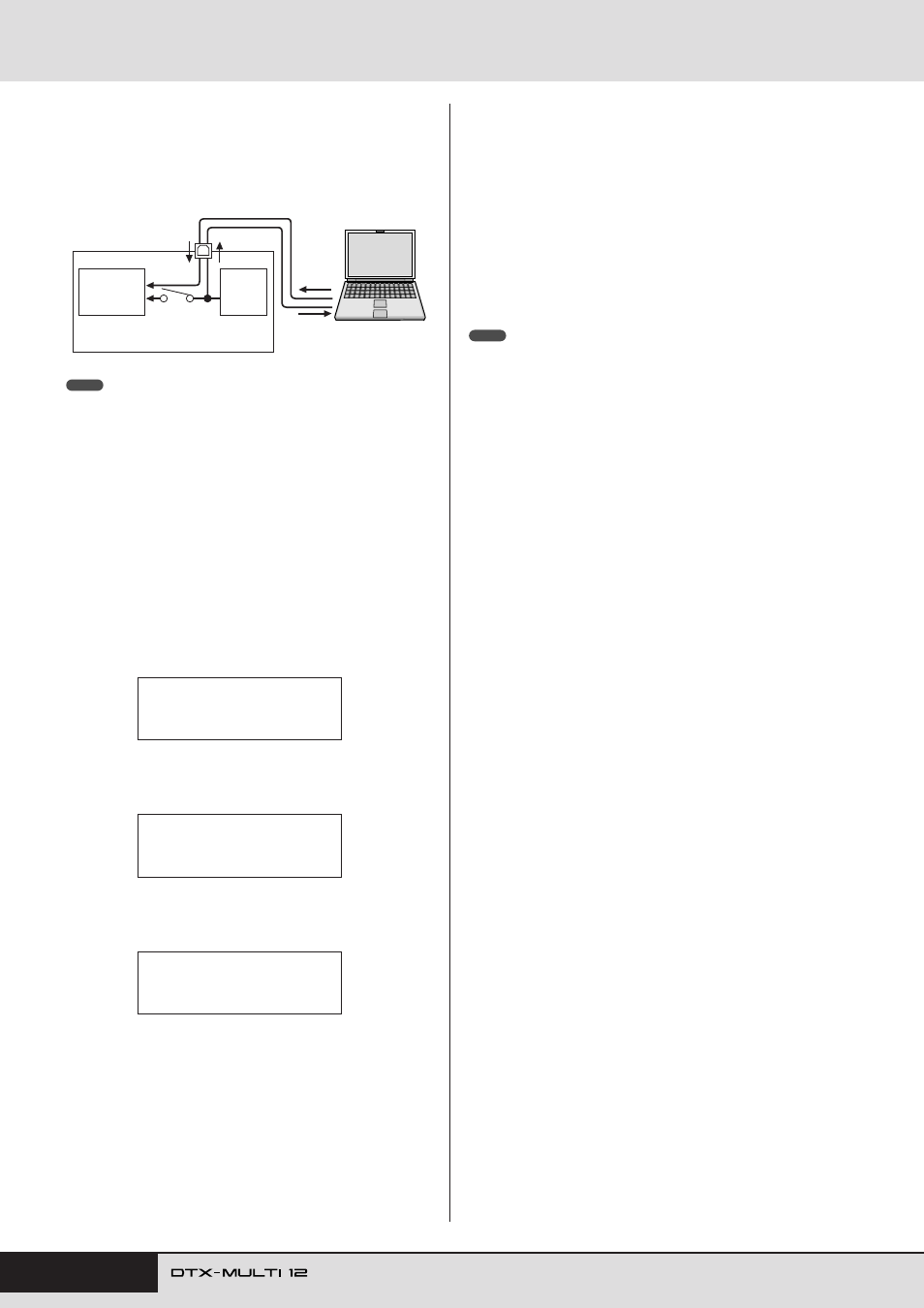
Most DAW applications allow MIDI Thru to be turned on, and
therefore, you can setup your system as shown below with local
control of the DTX-MULTI 12 turned off and the DAW applica-
tion returning performance data to the tone generator. In this way,
performances can be recorded in comfort without each strike
being heard twice.
• DAW is an abbreviation of digital audio workstation. DAW applications such
as Cubase can be used to record, edit, and mix audio and MIDI data on a
computer.
We will now describe how to setup parameters for recording your
performances, first on the instrument itself, and then within the
DAW application.
●
DTX-MULTI 12 settings
Turn off local control as follows.
1
Press the [UTILITY] button to access the UTILITY
setting area, navigate to the MIDI section (UTIL6)
using the [
B
B
B
B
]/[
C
C
C
C
] buttons, and press the
[ENTER] button.
2
Navigate to the Local Control page (UTIL6-5)
using the [
B
B
B
B
]/[
C
C
C
C
] buttons.
3
Set the LocalCtrl parameter to “off” (using the [-/
DEC] button if necessary).
4
Press the [STORE] button and store this setting.
With local control turned off in this way, performance data pro-
duced by striking the pads will not be sent to the internal tone
generator.
●
Setting DAW-Application Parameters
Within your DAW application, turn on MIDI Thru. This setting
ensures that, when performance data is being recorded on a track
within your application, it is also returned to the external MIDI
system.
For example, let’s assume that performance data is being recorded
on Track 3 by your DAW application. In addition, we’ll also
assume that MIDI Channel 1 has been set for the return of perfor-
mance data. If MIDI Thru is now turned on for Track 3, the DAW
application will return the performance data to the DTX-MULTI
12 as it is being recorded, and the instrument’s internal tone gen-
erator will sound as if it is being played directly (on Channel 1).
• For details on how to turn on MIDI Thru, refer to the manual that came with
your DAW application.
• If local control on the DTX-MULTI 12 and MIDI Thru within your DAW appli-
cation are both turned off, no performance data will be sent to the internal
tone generator, either directly or indirectly. As a result, no sound will be pro-
duced.
■
Playing the DTX-MULTI 12 using MIDI
Data from a DAW Application
As described below, you can setup the DTX-MULTI 12 to operate
as a multi-timbral tone generator for your DAW application. In
this way, you can easily integrate the instrument’s high-quality
MIDI tone generator into your music-production setup. For
details on how to connect the DTX-MULTI 12 to your computer,
see page 13.
1
Set each of the tracks within your DAW applica-
tion to output their MIDI data to the DTX-MULTI
12.
2
Play MIDI performance data using the DAW appli-
cation.
DTX-MULTI 12
USB TO HOST port
MIDI Thru turned
on within DAW
application.
Computer
OUT
IN
OUT
IN
Local control
LocalCtrl =“off”
Pads
Internal
tone
generator
NOTE
UTIL6
≥≥≥≥≥≥MIDI
UTIL6-5≥≥≥<MIDI>
≥LocalCtrl=on
UTIL6-5≥≥≥<MIDI>
≥LocalCtrl=off
NOTE