Assigning preset voices to pads – Yamaha DTX-Multi12 Multi-Pad Electronic Percussion Instrument User Manual
Page 18
18
Owner’s Manual
Producing Sounds with the Pads
Assigning Preset Voices to Pads
In the following simple example, we will create a User kit by
replacing one of the sounds assigned to the pads in a Preset kit.
Specifically, we will assign a voice to Pad 4 from the selected kit,
and we will then save the resultant kit to the empty User kit
U001.
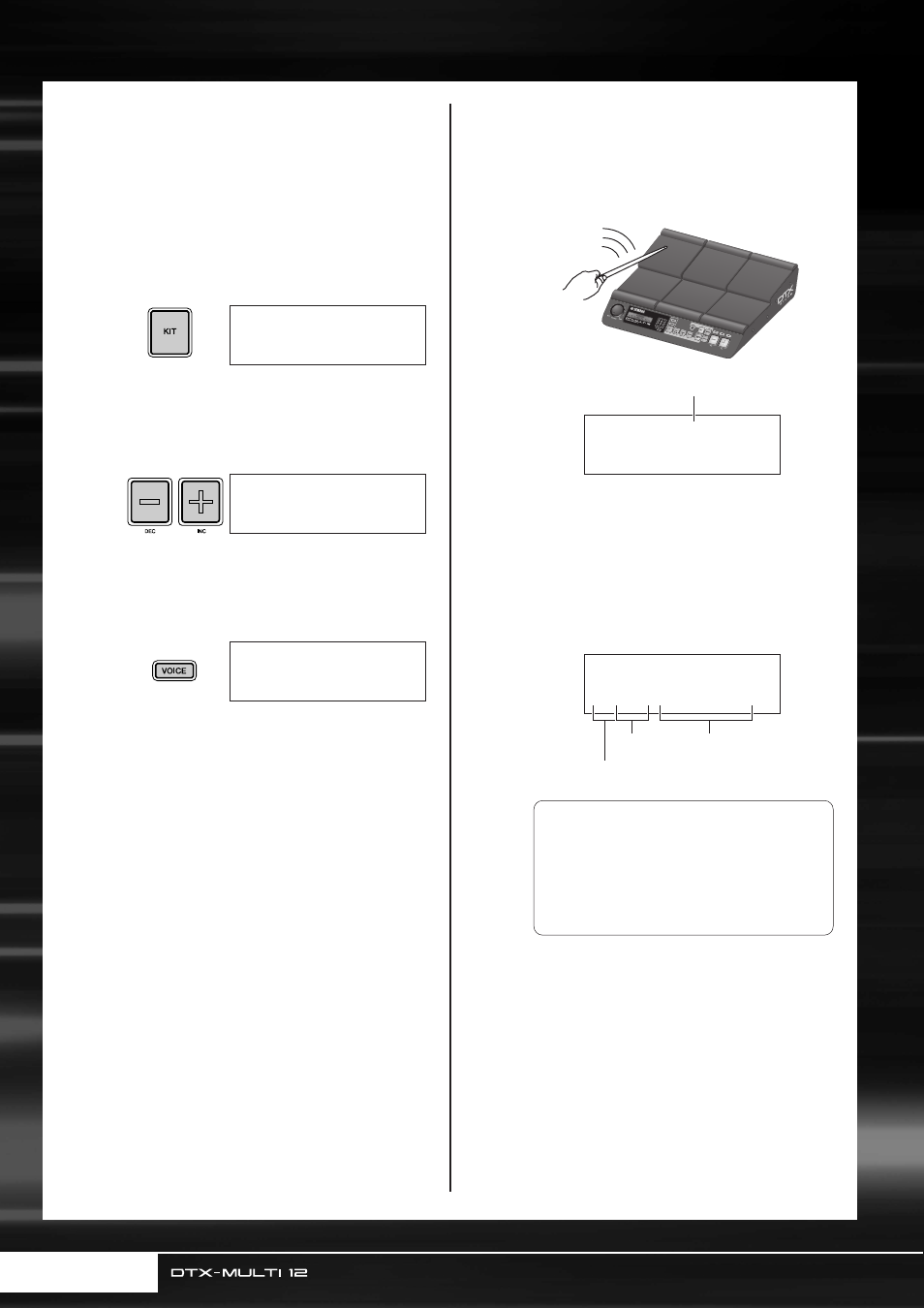
1
Press the [KIT] button to open the Select
Kit page.
2
Use the [-/DEC] and [+/INC] buttons to
select a kit to work with.
3
Press the [VOICE] button to open the
Select Voice page.
4
Strike Pad 4 to select it and to change the
displayed pad number to
.
Alternatively, you can move the flashing cursor to the
pad number, and then change it from
to
using the [-/DEC] and [+/INC] buttons.
5
Select the voice you want to assign to Pad
4.
Move the flashing cursor to the leftmost parameter
from the lower row of text, and using the [-/DEC] and
[+/INC] buttons, select the voice category and voice
number of the voice you wish to assign.
KIT1
P001:PercsMaster
KIT1
P009:Oak≥Custom
VCE01≥≥-º¡-≥≥≥
Cy013:Thin16Eg
-º¢-
-º¡-
-º¢-
VCE01≥≥-º¢-≥≥≥
Tm001:OakCtm≥H
Pad number
VCE01≥≥-º¢-≥≥≥
Sn004:MapleCtm
Voice name
Voice number
Voice category
Voice Categories
Similar voices are grouped together in voice
categories. In addition to melodic instruments
such as timpani and marimba, you can also
select voice categories containing Preset pat-
terns, User patterns, and waves. For more
information, refer to the Data List booklet.