Saving your data on a usb memory device – Yamaha DTX-Multi12 Multi-Pad Electronic Percussion Instrument User Manual
Page 23
Quic
k Guide
Owner’s Manual
23
1
Plug a USB memory device into the USB
TO DEVICE port on the side panel.
• For more details regarding USB memory devices, see the
section Connecting a USB Memory Device on page 11.
2
Press the [UTILITY] button to access the
UTILITY setting area, use the [
B
B
B
B
]/[
C
C
C
C
] but-
tons to navigate to the FILE section
(UTIL7), and then press the [ENTER] but-
ton.
3
Navigate to the Save File page (UTIL7-1),
using the [
B
B
B
B
]/[
C
C
C
C
] buttons if necessary,
and then press the [ENTER] button.
4
Set Type to “All”, using the [-/DEC] and [+/
INC] buttons if necessary.
When you have made this setting, press the [ENTER]
button.
• For details on saving data with a Type setting other than “All”,
5
Enter a name for the file to be saved.
For more details on how to input characters and the
types of character that can be used for file names, see-
see page 47.
• File names can be up to eight characters in length.
6
When you have entered the required name,
press the [ENTER] button.
You will be asked to confirm that you want to save the
file, and the [ENTER] button will flash on and off.
NOTE
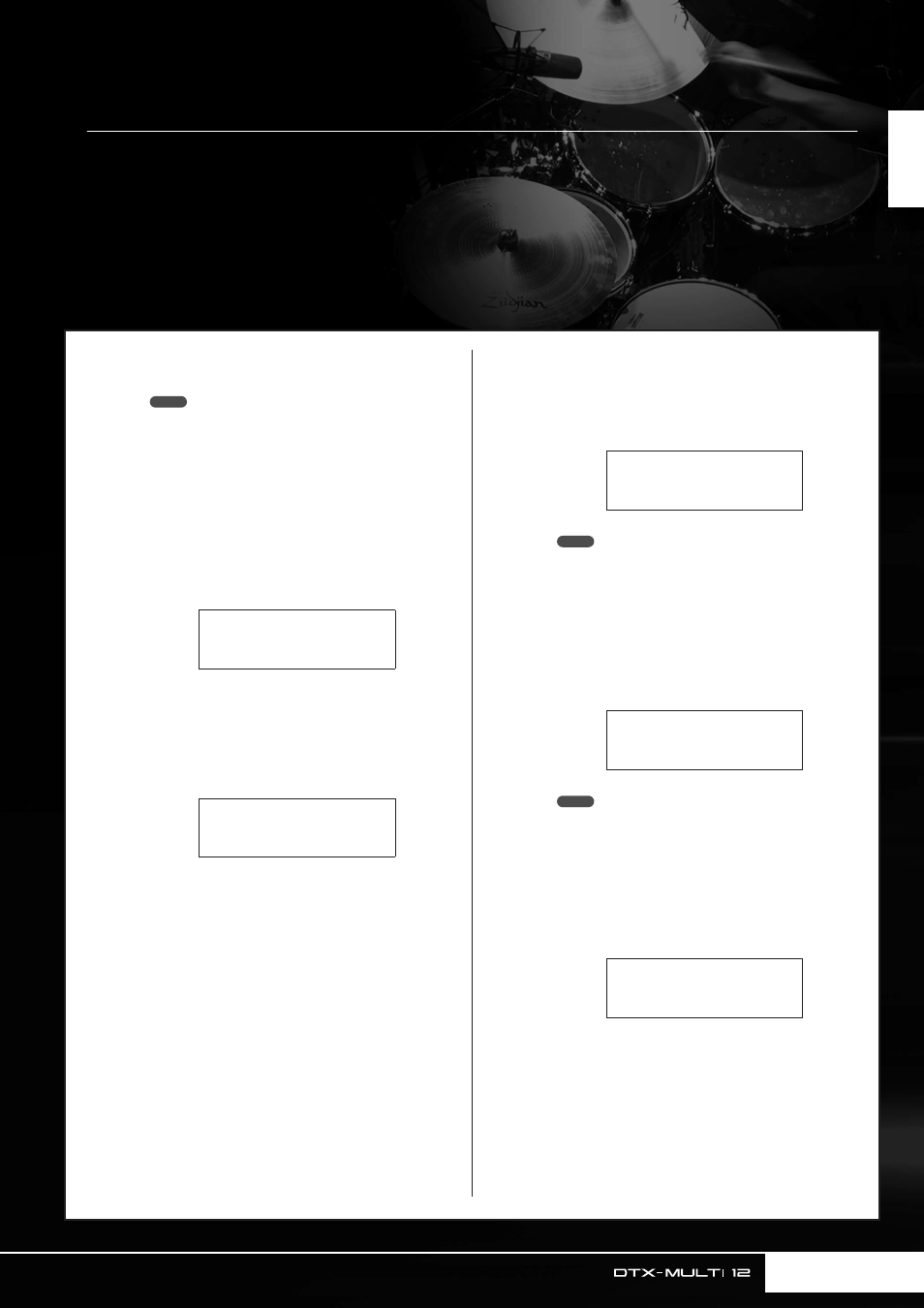
UTIL7
≥≥≥≥≥≥FILE
UTIL7-1
≥≥≥Save≥File
UTIL7-1-1
Type=All
NOTE
UTIL7-1-2
Name[≥≥≥≥≥≥≥≥≥≥]
NOTE
≥≥≥Save≥File
≥Are≥you≥sure?
Saving Your Data on a USB Memory Device
Data that you have made, such as User kits and User patterns, can be conveniently saved as combined files on
a USB memory device. In the following example, we will create a single file containing all of the data created or
modified in the various DTX-MULTI 12 setting areas on a such a device.