Importing audio files – Yamaha DTX-Multi12 Multi-Pad Electronic Percussion Instrument User Manual
Page 25
Quic
k Guide
Owner’s Manual
25
1
Using a computer, place the WAV or AIFF
file(s) for importing at the root directory of
a USB memory device.
2
Unplug the USB memory device from the
computer and plug it into the instrument
via the USB TO DEVICE port on the side
panel.
3
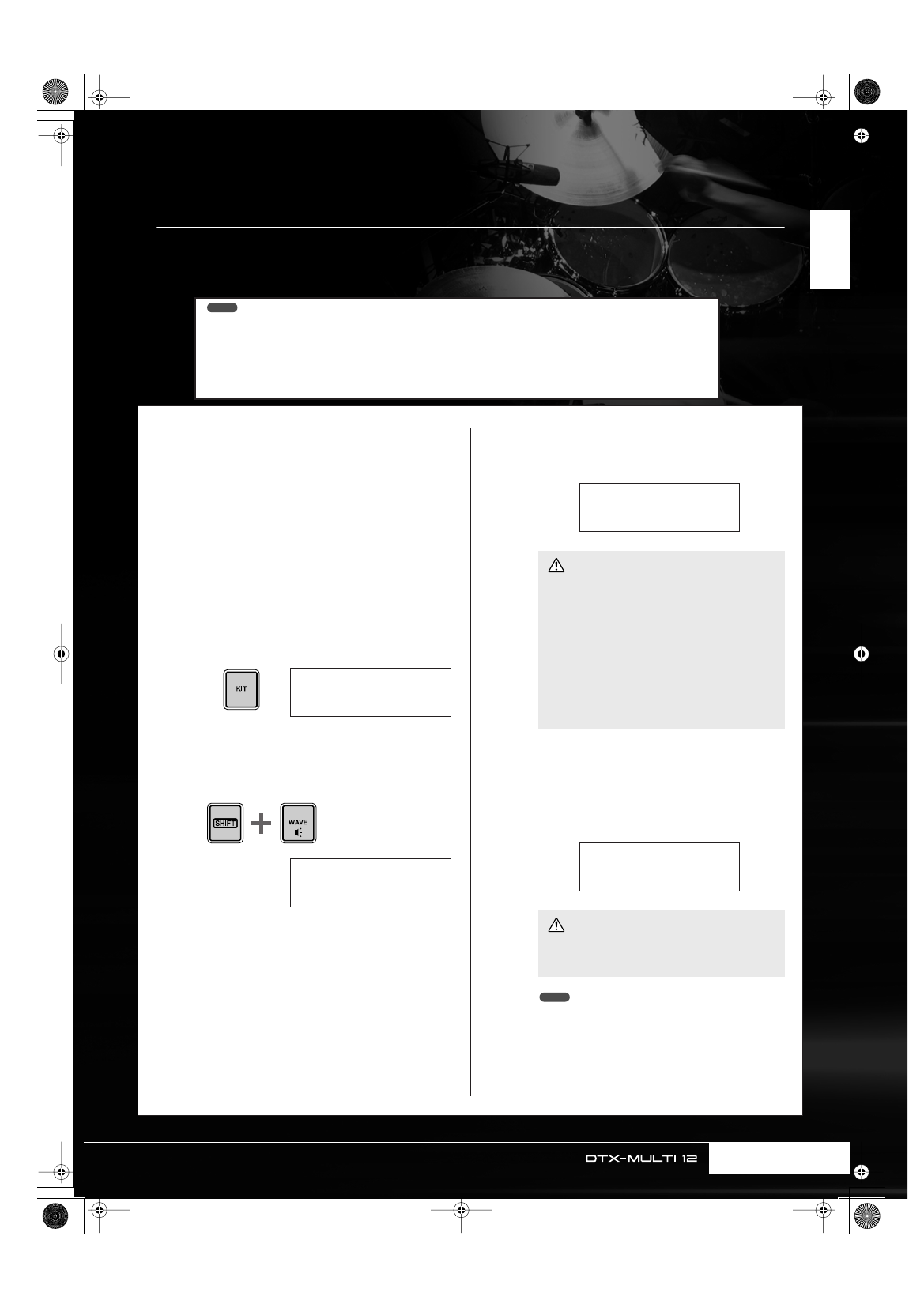
Press the [KIT] button to open the Select
Kit page and then select the drum kit to
which the imported wave(s) will be
assigned.
4
Hold down the [SHIFT] button and press
the [WAVE] button to open the Import page.
5
Select the audio file you want to import
using the [-/DEC] and [+/INC] buttons.
6
When you have made your selection, press
the [ENTER] button to import the file.
7
Once the audio file has been imported, the
Pad Assign page will open. Select the pad
to which the imported wave is to be
assigned and press the [ENTER] button.
• If you set PadAssign to “off”, the imported wave will not be
assigned to any pad.
• Imported AIF and WAV audio files are stored as waves, or in
other words, as one of the three types of DTX-MULTI 12
voices. As such, they can be freely assigned to pads at any
time using the VOICE setting area (see page 56).
KIT1
U001:User≥Kit
IMPORT
≥≥≥Surdo.WAV
• Do not unplug the USB memory device from the USB
TO DEVICE port or turn off either the USB memory
device or the DTX-MULTI 12 while data is being
loaded. Failure to observe this precaution can lead to
the USB memory device or the DTX-MULTI 12 being
permanently damaged.
• If the selected file is not 16-bit, the error message
“Illegal wave data.” will be displayed and the import
process will be halted. In such a case, please convert
the file to 16-bit using, for example, the bundled DAW
software and then repeat the import process.
• If a voice has already been assigned to the selected
pad, it will be deleted and replaced with the imported
wave.
Now≥Importing...
[EXIT]≥to≥cancel
CAUTION
IMPORT
≥PadAssign=º¡
CAUTION
NOTE
Importing Audio Files
WAV and AIFF audio files from your computer and other media can be imported into your DTX-MULTI 12 via
USB memory devices. Referred to as “waves”, these voices can then be assigned to pads and played in the
same way as any other preset voice.
• Only 16-bit audio files can be used with your DTX-MULTI 12. If the audio files you wish to use have been recorded with a differ-
ent bit depth, please convert them to 16-bit in advance using, for example, the bundled DAW software. For details regarding the
conversion method, refer to the DAW software’s manual.
• Your DTX-MULTI 12 can import audio files of up to approximately 23 seconds in length (in the case of 44.1-kHz, 16-bit audio).
• It is important to note that even when the above conditions are satisfied, certain other factors may make audio files incompatible
with the DTX-MULTI 12.
NOTE