Yamaha DTX-Multi12 Multi-Pad Electronic Percussion Instrument User Manual
Page 33
TRIGGER
Ref
erence
KIT
MIDI
V
OICE
UTILITY
W
A
VE
PA
TTERN
Internal Design
Owner’s Manual
33
●
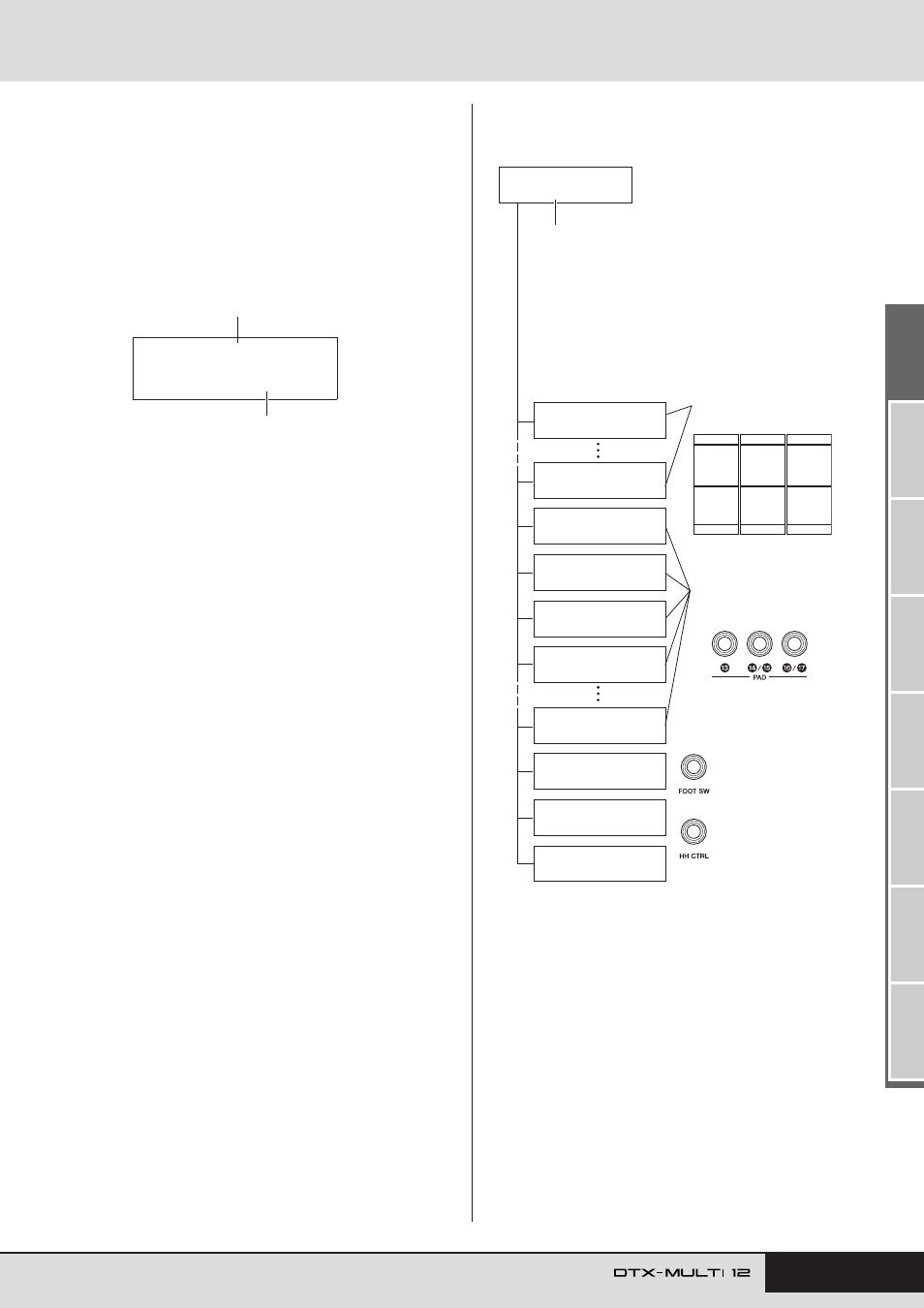
Assigning a voice directly to a pad
In order to assign a voice directly to a pad, we first select
the pad to be set, and then choose the required preset voice,
pattern, or wave.
1
To start, press the [KIT] button to access the KIT setting
area. On the Select Kit page (KIT1), select the kit to be
set. Next, press the [VOICE] button to access the VOICE
setting area and navigate to the Select Voice page
(VCE1).
2
Move the flashing cursor to the upper row of text, and
using the [-/DEC] and [+/INC] buttons, select the pad or
controller you want to set. You can also select a pad by
striking it. The lower row of text will show the voice (i.e.,
a preset voice, pattern, or wave) currently assigned to
the selected pad or controller. Move the flashing cursor
down to the lower row of text, and using the [-/DEC] and
[+/INC] buttons, select the new voice to be assigned.
By repeating this process to assign preset voices, pat-
terns, and waves to all pads and controllers, you can
quickly and conveniently setup your own personalized
drum kit. Furthermore, parameters such as volume, tun-
ing, stereo pan, and effect levels can be set for the
voices assigned to the various pads and controllers.
3
Once you have finished configuring a kit in this way, you
can store it as one of the instrument’s User kits.
VCE1≥≥-º¡-
Cy013:Thin16Eg
Voice assigned to the pad or controller
Pad or controller being set
Example: Working with Preset kit 1
Kit name
KIT setting area
VOICE setting area
Assigning a voice* to a
controller connected
via the HI-HAT CON-
TROL jack.
Assigning a voice* to a
controller or foot
switch connected via
the FOOT SW jack.
Assigning voices to pads
connected via the PAD
jacks
M
to
Q
.
Assigning voices to built-in
pads 1 to 12.
Settings made in KIT setting area
• Volume of the entire kit
• Kit tempo
• Effect settings for the entire kit
• Muting
• Hi-hat settings
etc.
Settings made in VOICE
setting area
• Volume of each pad (or layer)
• Tuning of each pad
• Stereo pan of each pad
• Effect settings for each pad
etc.
*: Voices cannot be assigned to
any controller or foot switch
already having a function
assigned on the Pad Func-
tion page (UTIL4-1).
KIT1
P009:Oak≥Custom
VCE1≥≥-º¡-
Cy013:Thin16Eg
VCE1≥≥-¡™-≥≥≥≥≥ç
HH005:Brite≥Op
VCE1≥≥-¡£-
Sn001:Oak≥Custom
VCE1≥≥-¡£Ω¡-
Sn002:OakCtmOpRm
VCE1≥≥-¡£Ω™-
Sn003:OakCtmClRm
VCE1≥≥-¡¢-
Kk001:OakCtm22
VCE1≥≥-¡¶-≥≥≥≥≥ç
HH006:Brite≥EgOp
VCE1≥≥-√¤‘’-
-----:----------
VCE1≥≥-∂∂œ›-
HH003:Brite≥FtCl
VCE1≥≥-∂∂‘á-
HH004:Brite≥FtOp