Kit management, Kit8 kit management, Copy pad page – Yamaha DTX-Multi12 Multi-Pad Electronic Percussion Instrument User Manual
Page 53: Exchange pads page, Kit8 ≥≥≥≥≥≥job, Kit8-1≥≥≥≥≥<job> ≥≥≥≥copy≥pad, Kit8-1-1≥≥<copy> ≥≥º¡≥≥≥-ß≥≥º
TRIGGER
Ref
erence
KIT
MIDI
V
OICE
UTILITY
W
A
VE
PA
TTERN
KIT Setting Area (KIT)
Owner’s Manual
53
Kit Management
In the JOB section, you can perform a range of management tasks
such as copying, swapping, and initializing of kits and pads. With
the JOB page (KIT8) displayed, press the [ENTER] button to
access its five parameter-setting pages (KIT8-1 to KIT8-5). You
can use the [
B
]/[
C
] buttons to navigate between these pages.
Operations on the JOB section’s parameter-setting pages are per-
formed as follows.
1
Make the required setting(s) and press the [ENTER]
button.
2
You will be asked to confirm that you wish to pro-
ceed.
3
To do so, press the [ENTER] button. Alternatively,
you can press the [EXIT] button to cancel the pro-
cess.
• Use the [STORE] button to open the Store Kit page and save the drum
kit in the DTX-MULTI 12’s internal memory (see page 45). (This is not
necessary when swapping kits on the Exchange Kit page (KIT8-3).)
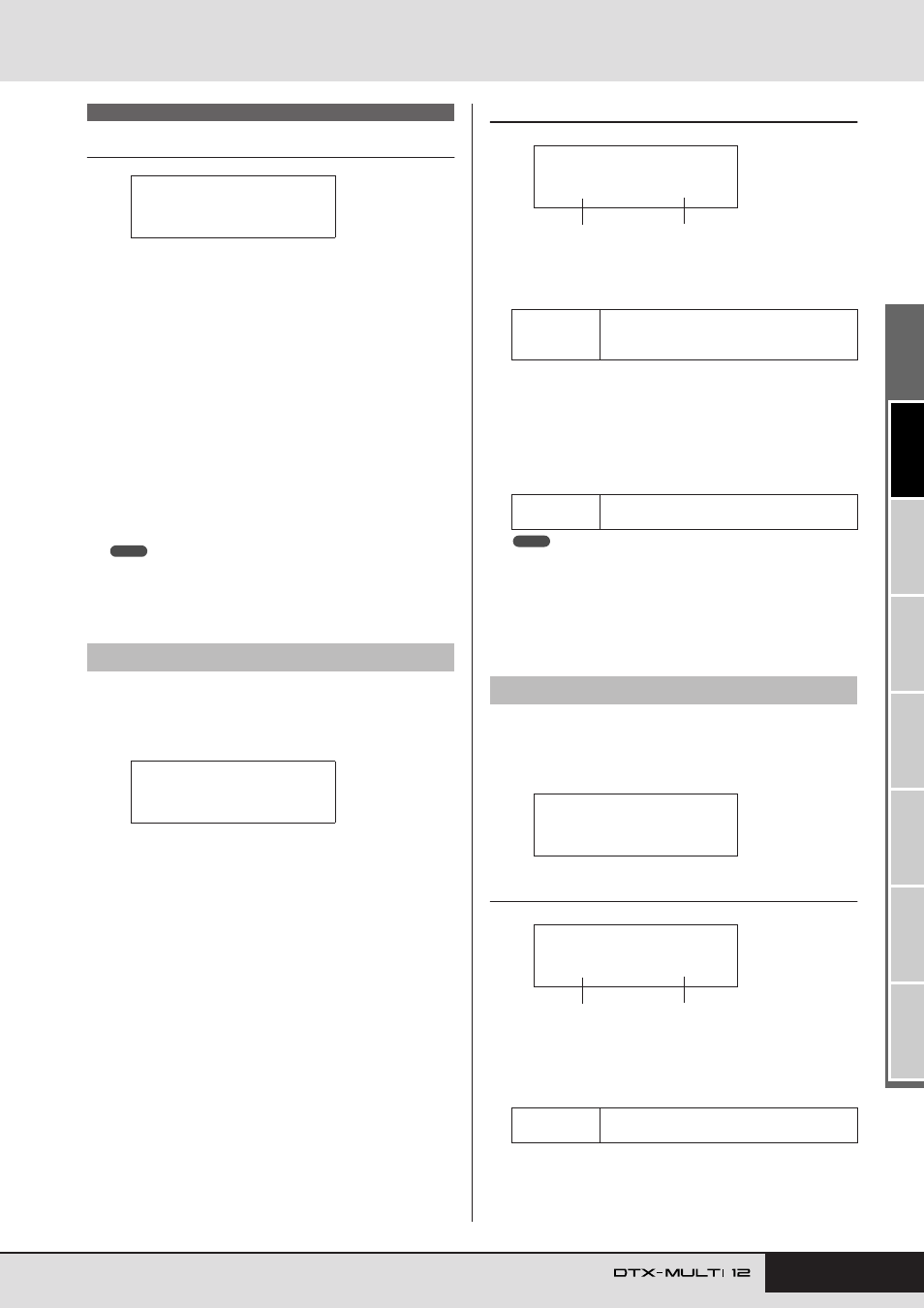
From the Copy Pad page, you can copy settings from one pad to
another in the currently selected drum kit. With this page dis-
played, press the [ENTER] button to open the Copy Pad Settings
page.
KIT8-1-1
Copy Pad Settings page
1
Pad to be copied
Use this parameter to select the pad whose settings are to be
copied.
B
Pad to be replaced
Use this parameter to select the pad whose settings are to be
replaced. Set to “01-12” to copy settings to all of the DTX-
MULTI 12’s built-in pads (i.e., Pad 1 to Pad 12). You can also
set “all” to copy settings to all external pads (13, 13R1, 13R2,
14 to 17, FTSW, HHCL, and HHSP) in addition to all of the
DTX-MULTI 12’s built-in pads.
• All information set for the pad in question and the corresponding layers
(i.e., note numbers) will be copied.
• Certain factors may require that output MIDI note numbers other than
those of the pad being copied are automatically assigned to the layers
of the pad(s) being replaced. You can confirm which output MIDI note
numbers have been set on the MIDI Note page (MIDI1-2).
From the Exchange Pads page, you can swap settings for a pair of
pads within the currently selected kit. With this page displayed,
press the [ENTER] button to open the Exchange Pads Settings
page.
KIT8-2-1
Exchange Pads Settings page
1
Exchange pad 1
B
Exchange pad 2
Use these parameters to select the two pads whose settings are
to be swapped.
KIT8 JOB
KIT8-1
Copy Pad page
KIT8
≥≥≥≥≥≥JOB
NOTE
KIT8-1≥≥≥≥≥<JOB>
≥≥≥≥Copy≥Pad
Settings
01 to 12, 13, 13R1, 13R2, 14 to 17, FTSW
(foot switch), HHCL (hi-hat close), or HHSP
(hi-hat splash)
Settings
01 to 12, 13, 13R1, 13R2, 14 to 17, FTSW,
HHCL, HHSP, 01 to 12, or all
KIT8-2
Exchange Pads page
Settings
01 to 12, 13, 13R1, 13R2, 14 to 17, FTSW,
HHCL, or HHSP
KIT8-1-1≥≥<Copy>
≥≥º¡≥≥≥-ß≥≥º™
1
2
NOTE
KIT8-2≥≥≥≥≥<JOB>
≥≥Exchange≥Pad
KIT8-2-1≥<Exchg>
≥≥º¡≥≥≥åß≥≥º™
1
2