Partially erasing files [partial erase, Partially erasing files [partial, Erase – Olympus LS-P5 Linear PCM Recorder User Manual
Page 113: P.113
113
EN
4
Menu
You can erase unneeded parts of a file.
NOTE
•
Only PCM-format file recorded on
the voice recorder can be erased.
1
Before performing the file
erasing operation, first select
the file you want to erase
(
☞
P.33).
2
Press the
MENU/SCENE
button while the voice recorder
is in stop mode.
3
Press the
`
OK
button to
move the cursor into the list of
setting items.
4
Press the
+
or
−
button to
select [Partial Erase].
5
Press the
`
OK
button.
6
Press the
`
OK
button to play
the file to the desired erasing
point (
☞
•
You can change the playback speed
(
☞
P.66), and fast-forward/rewind
(
☞
7
Press the
F2
button at the
partial erase start position.
TIP
•
Playback continues while [
Start
]
position is set and as with usual
playback, changing the playback
speed and fast-forward/rewind
can be performed and you can
quickly advance to the [
End
]
position.
•
When the end of the file is
reached while the [
End
] position
is not set, that position becomes
the end position of erase.
•
Writing an index mark/temp
mark at the start point and
end point beforehand is handy
(
☞
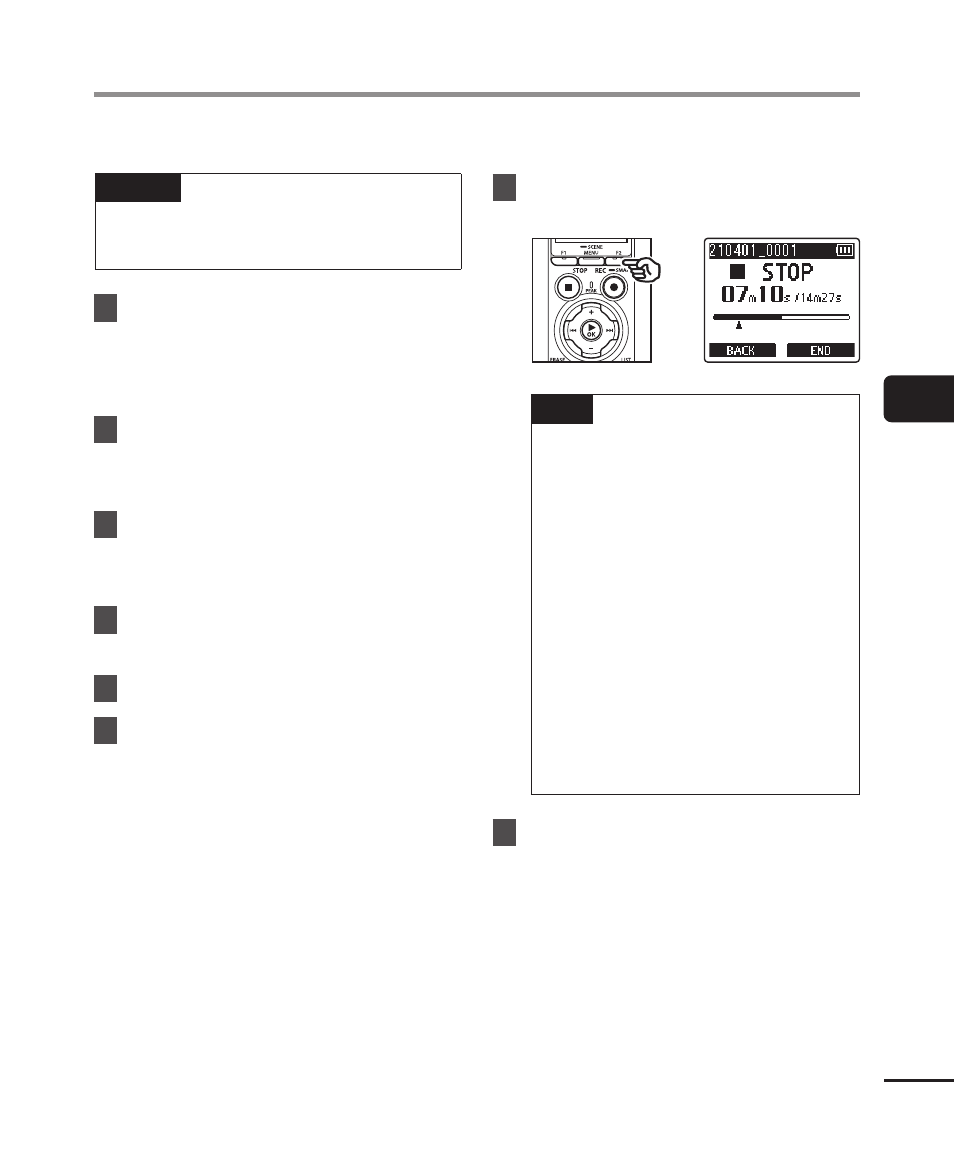
8
Press the
F2
button again at
the position where you want to
end partial erase.
Partially erasing files [Partial Erase]