Fading in/out audio at the beginning/end of a file, Fade in/out, Fading in/out audio at the – Olympus LS-P5 Linear PCM Recorder User Manual
Page 117: Beginning/end of a file [fade in/out, P.117) for the procedure
117
EN
4
Menu
Fading in/out audio at the beginning/end
of a file [Fade in/out]
You can apply fade in/out effect to the beginning/end of a file for approximately 1 second
respectively and save the file as another file.
NOTE
•
Only PCM format files recorded with
this recorder can be faded in/out.
1
Select a file you want to apply
fade in/out effect to (
☞
2
Press the
MENU/SCENE
button while the voice recorder
is in stop mode.
3
Press the
`
OK
button to
move the cursor into the list of
setting items.
4
Press the
+
or
−
button to
select [Fade in/out].
5
Press the
`
OK
button.
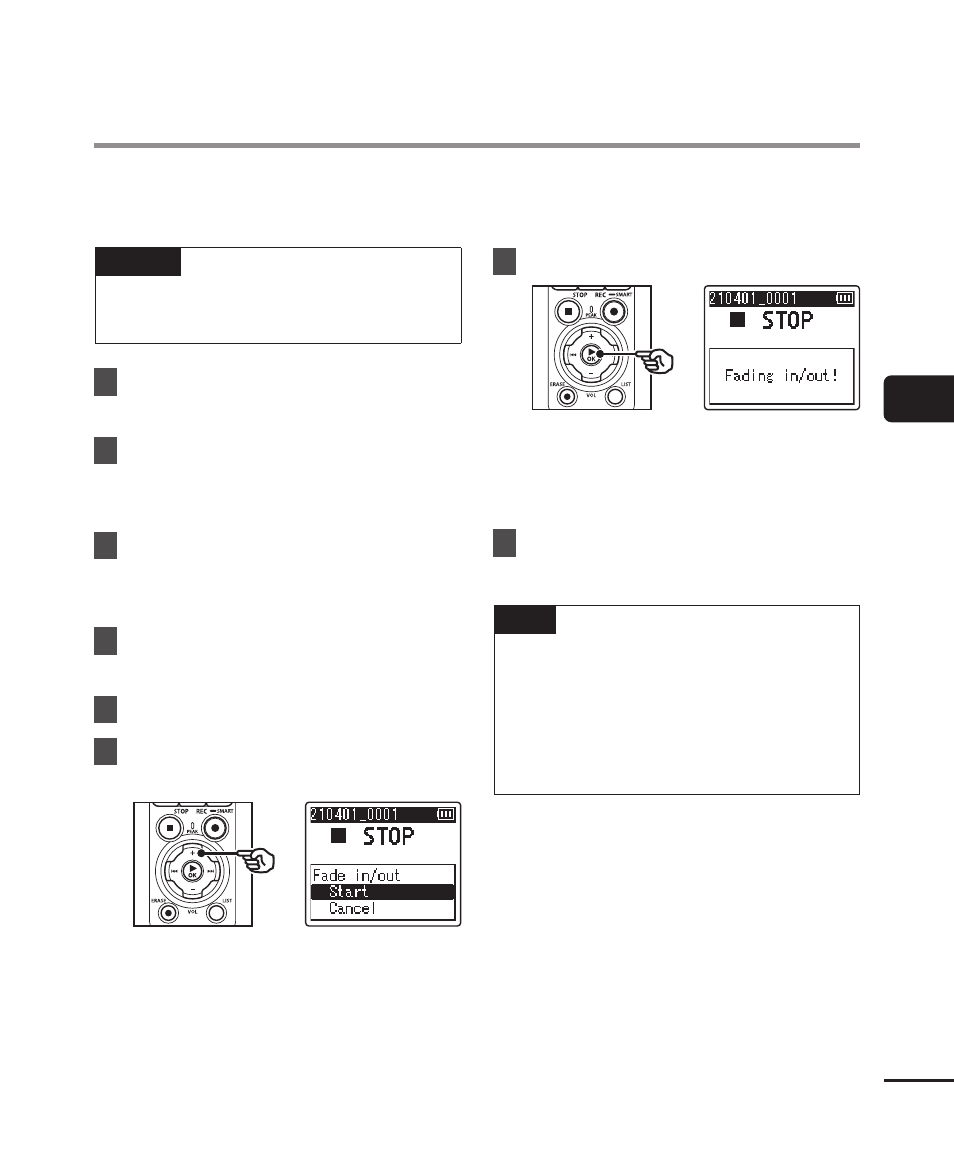
6
Press the
+
button to select
[Start].
7
Press the
`
OK
button.
•
[
Fading in/out!
] is displayed on
the screen, and the audio is faded
in and out. The process is finished
when [
Faded in/out
] is displayed.
8
Press the
STOP
(
4
) button to
exit the menu screen.
TIP
•
The file is given the name “
File
name_1
” after fade in/out effect is
applied.
•
If the current folder contains 200 files,
a new folder will be created to hold
the additional files.