Erasing a folder, Erasing files/folders – Olympus LS-P5 Linear PCM Recorder User Manual
Page 75
75
EN
3
Playback
Erasing files/folders
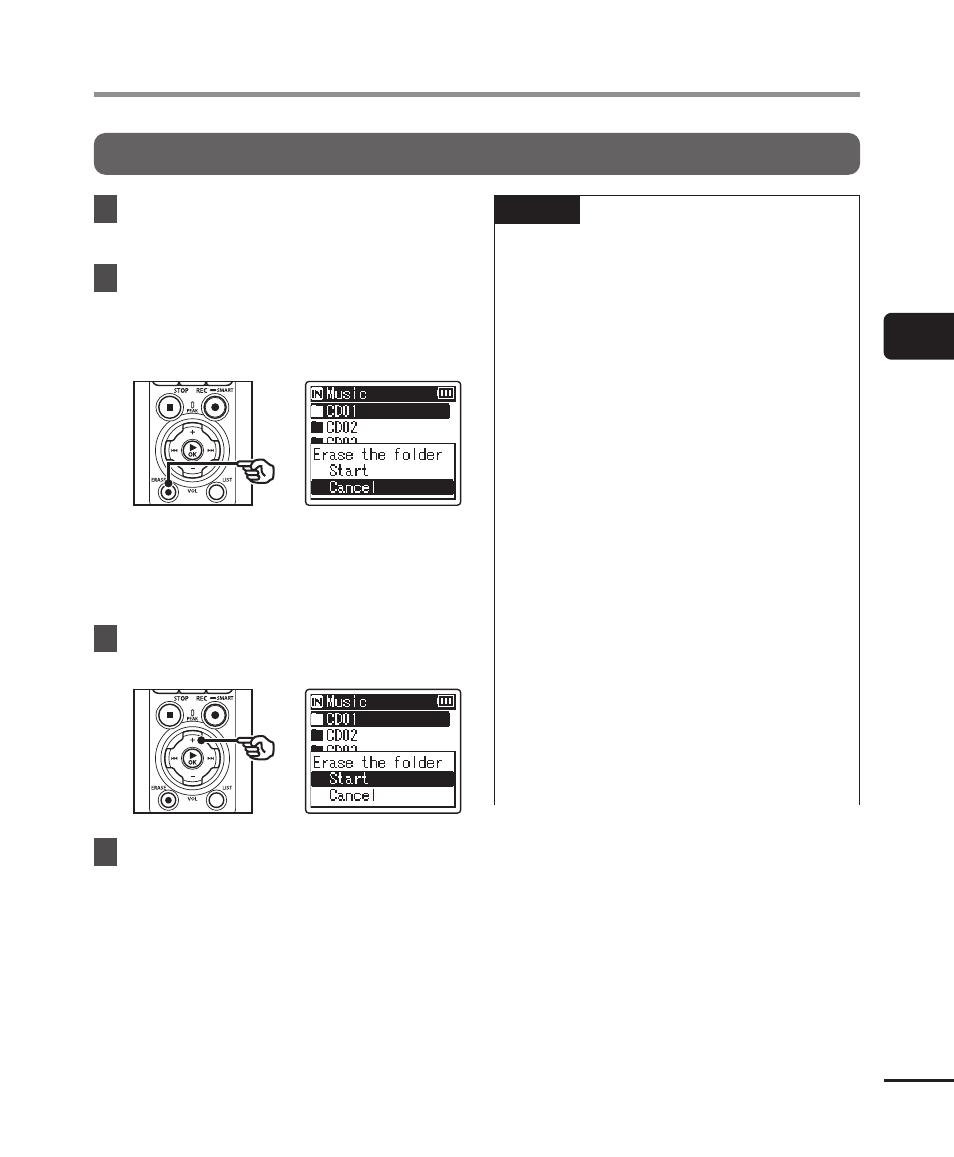
Erasing a folder
1
Select the folder you want to
erase (
☞
2
In the folder display screen,
press the
ERASE
button while
the voice recorder is in stop
mode.
•
The recorder will return to stop
mode when the
0
button is
pressed or if no operations are
performed for 8 seconds.
3
Press the
+
button to select
[Start].
4
Press the
`
OK
button.
•
[
Erasing!
] appears in the display,
and the erasing process starts.
[
Erased
] appears when the process
has finished.
NOTE
•
Files cannot be restored after being
erased, so please check carefully
before erasing a file.
•
When there is a microSD in the voice
recorder, be sure to check whether
the recording media being erased
is on the [
Internal memory
] or
[
microSD card
] (
☞
P.100).
•
Locked files and read-only files
cannot be erased (
☞
).
•
The voice recorder’s default
[
Recorder
] folders and [
Music
]
folder cannot be erased. Deleting
all sub-folders from the [
Recorder
]
folder creates a new sub-folder
named [
FOLDER01
].
•
[
Music
] folder subfolders other than
the [
Music
] can be erased.
•
Files unrecognizable to the voice
recorder will not be erased, nor will
folders containing these files. The
voice recorder must be connected to
a computer to erase these files and
folders.