Manually save a version set, View all photos in a version set – Adobe Elements Organizer 9 User Manual
Page 113
109
USING ELEMENTS 9 ORGANIZER
Managing files and catalogs
Last updated 9/12/2011
•
It’s possible to stack version sets. The stacked version sets appear as a single stack with the newest photo placed on
top. Although regular stacks are merged when stacked together, version sets are preserved when stacked together.
•
If the version set contains only the original and the edited version and you delete one of the two, the remaining
photo appears unstacked (not part of a version set) in the Media Browser. If the version set was nested in a stack,
the photo appears without the version set icon when you expand the stack.
•
To find all version sets, choose Find
> All Version Sets.
•
You can remove or delete individual photos from a version set, and you can convert the version set to individual
photos so that each photo in the set appears separately in your catalog.
•
You can access most version set commands by right-clicking or by using the Edit menu.
•
You can see the edit history of photos in a version set in the History tab of the Properties panel.
More Help topics
Manually save a version set
If you edit a file in the Elements
Organizer, a version set is automatically created for you. If you edit a file in the Editor
using either Full Edit or Quick Fix, you need to manually save the edits to a version set.
In the Editor, do one of the following:
•
Edit a file, and then choose File
> Save (when you first edit and save a photo, Elements
Organizer automatically
opens the Save As dialog box) or File
> Save As. Select the Save In Version Set With Original option, specify a name
for the file (or leave the default name), and click Save.
•
Re-edit a previously edited photo, and then choose File
> Save As to create a separate copy of the edited version.
Select the Save In Version Set With Original option, specify a name for the file and click Save.
The newly edited copy is placed at the top of the version set when viewed in the Media Browser.
View all photos in a version set
While viewing all photos in a version set, you can edit any photo, make a photo the topmost, delete any photo in the
version set, or add tags to any photo (when you add a tag to one photo in a set, it is applied to all photos).
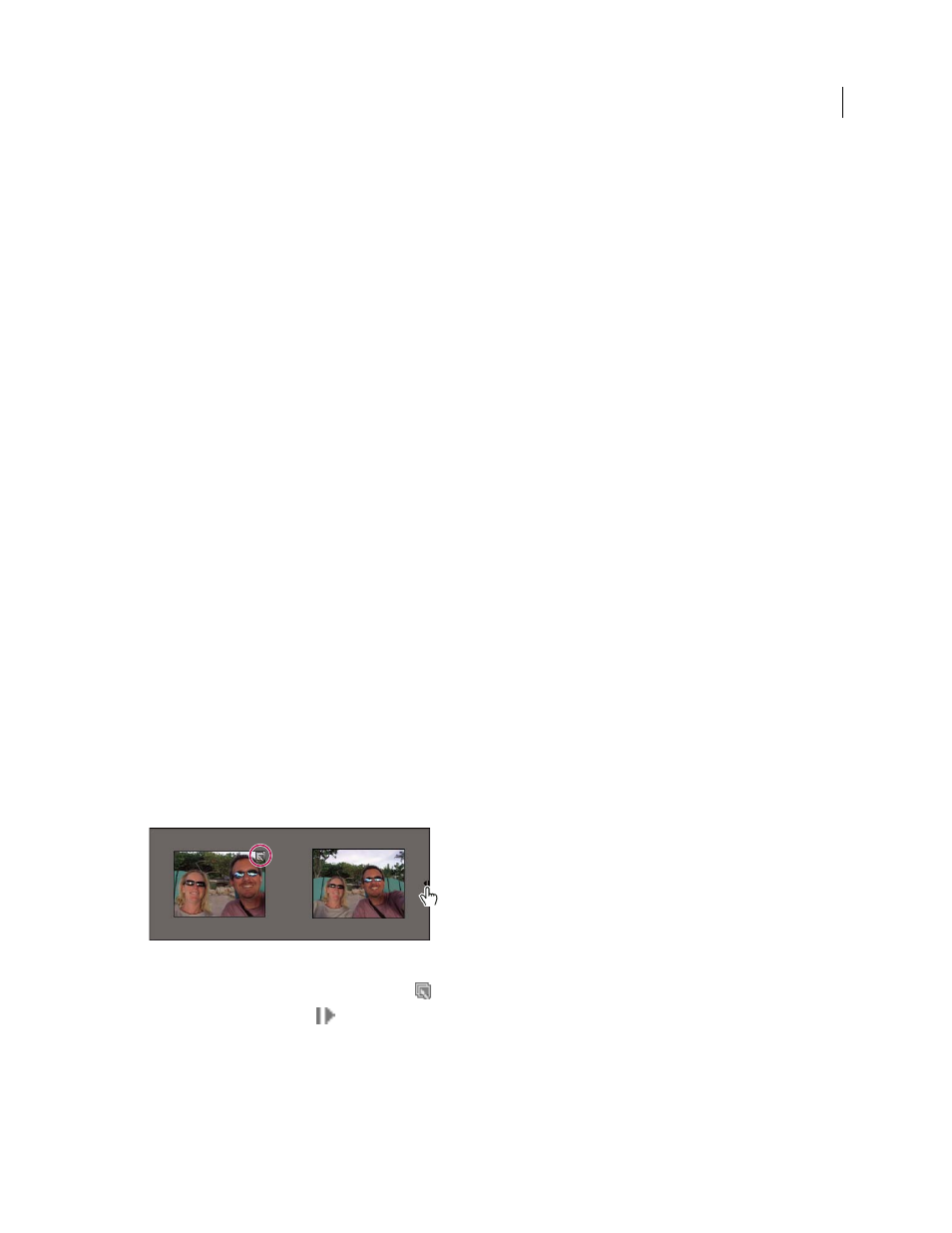
Expand and collapse a version set.
1 In the Media Browser, select a version set
and do one of the following:
•
Click the Expand button
beside the version set thumbnail.
•
Choose Edit > Version Set
> Expand Items In Version Set.
2 While viewing the expanded version set, do one or more of the following:
•
Rearrange, delete, or tag the photos.
•
Modify a photo using Quick Fix or Full Edit (and then save the file).