Daktronics GPR-12EV-RGB User Manual
Page 29
Diagnostics and Troubleshooting
23
•
Check/replace ribbon cables on the module.
•
If that does not help, the module may need to be replaced.
One or more LEDs on a single module will not turn off
•
Check/replace ribbon cables on the module.
•
If that does not help, the module may need to be replaced.
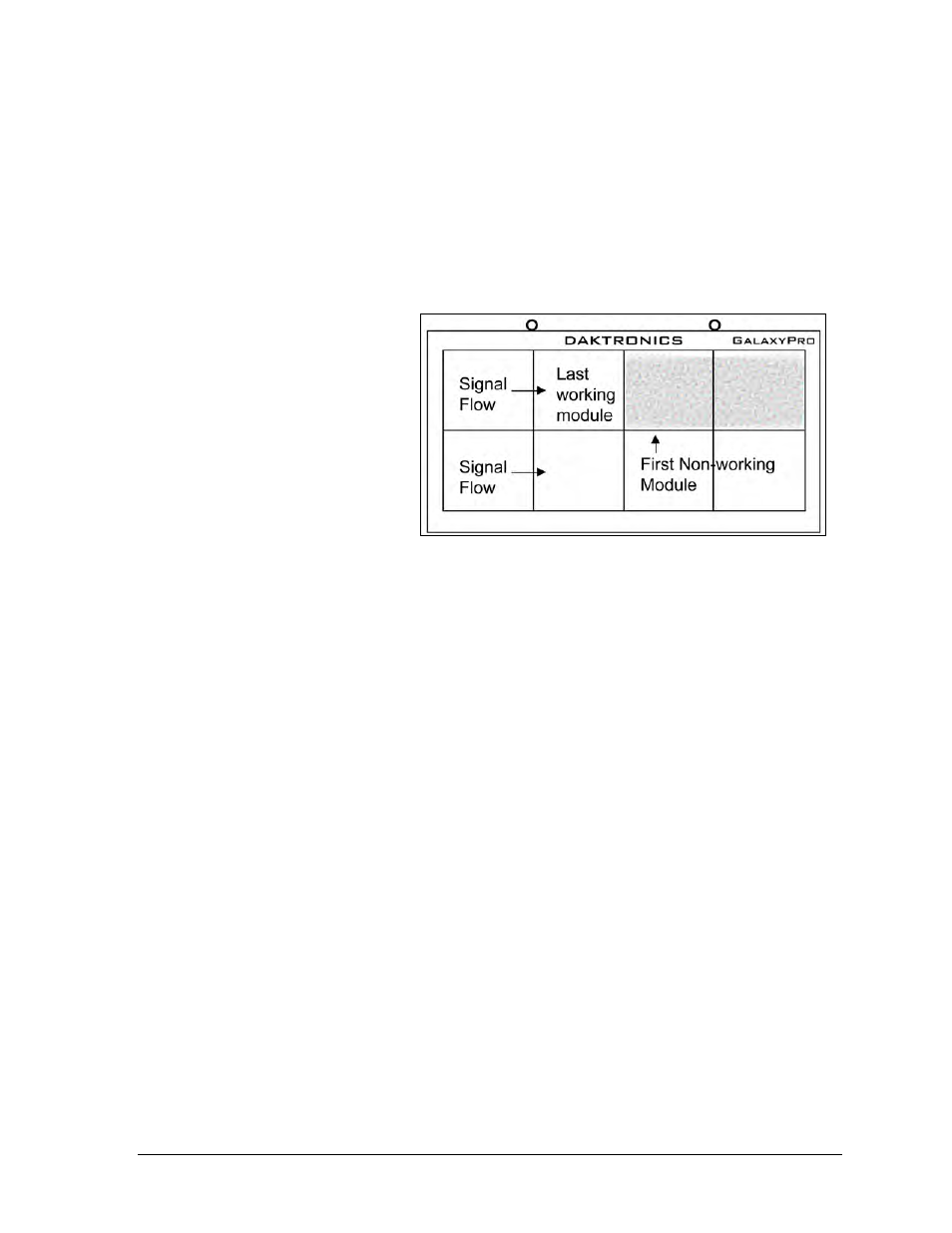
A section of the display is not working, as shown in Figure 25
•
Check/replace ribbon cables from the last working module in the row to the first
non-working module
next to it.
•
Move or replace the
first non-working
module, the one on
the far left of the non-
working section.
•
Move or replace the
first module to the
left of the non-
working modules.
•
Check the back of the
modules to see that
the power LEDs are
on.
•
Make sure the power cable to the module is connected.
One row of modules is not working or shows a distorted presentation
•
Check/replace the ribbon cables to and from the first non-working module.
•
Check for bent pins on the jack going to a non-working module.
•
Move or replace the modules that show distorted text.
•
Move or replace the first module to the left of the one that is not working.
•
Check the fuse from the output and replace if necessary.
A column of the display does not work
•
Check that the ribbon and power cables are plugged into the first module in the row.
•
While power is on, look at the back of the first malfunctioning module to see if the
diagnostic LED is off, implying a power supply problem.
Entire display fails to work
•
Check power to first module.
•
Check the breakers in the building connected to main power source.
•
Check the breakers in the power termination panel (bottom row, second module
from the left).
•
Check the fiber cables between the controller and the MLC.
•
Check the diagnostic LEDs on the controller for Power and Run (Section 7.1).
•
Check/replace the ribbon cable from the MLC to the modules.
•
Verify proper use of the software by checking the software manual.
Figure 25: Modules Not Working