Product - installation diagram, Switching between ports, Introduction – Smart Avi VNET+8P User Manual
Page 2: Features, Applications, Installation
Switching Between Ports
Front Panel Control
To switch ports using the front panel, press the button corresponding
to the desired port. The selected port number will be indicated on
the LED display.
Keyboard Control
To switch ports using the keyboard, two consecutive Scroll Lock
keystrokes should be pressed within 2 seconds and either the Up or
Down arrows within 2 seconds to switch ports.
On-Screen Display (OSD)
Mac
PC
Introduction
The VNET+8P is a cross-platform KVM capable of
sharing a WUXGA Display and USB Keyboard and
Mouse between eight computers.
Features
•
8-Port Rackmount USB KVM switch
•
Supports Mac, PC, Linux and Sun VGA
•
Supports High Resolution1920x1200 60Hz WUXGA
•
USB Console Keyboard and Mouse Support
•
Direct Channel Selection and Operation and
Keyboard Hot-keys
•
Supports RS-232 Control to Switch Between Ports
•
Front Panel Tactile Switch with Status LED Indicator
•
On Screen Display indicates current Channel
•
Supports Auto-scan Mode for Simple Discovery
•
Audible Sound for Hotkey and Port Switching
Confirmation
Applications
•
Server Colocation Racks
•
Digital Signage Deployment
•
Information Kiosks/Displays
•
Film/Recording Studios
The VNet+8P is designed to centralize the management
of up to 8 computers. It is deal for corporate, factory as
well as campus applications. It is hotplug capable so
that computers may be disconnected and reconnected
without powering them off.
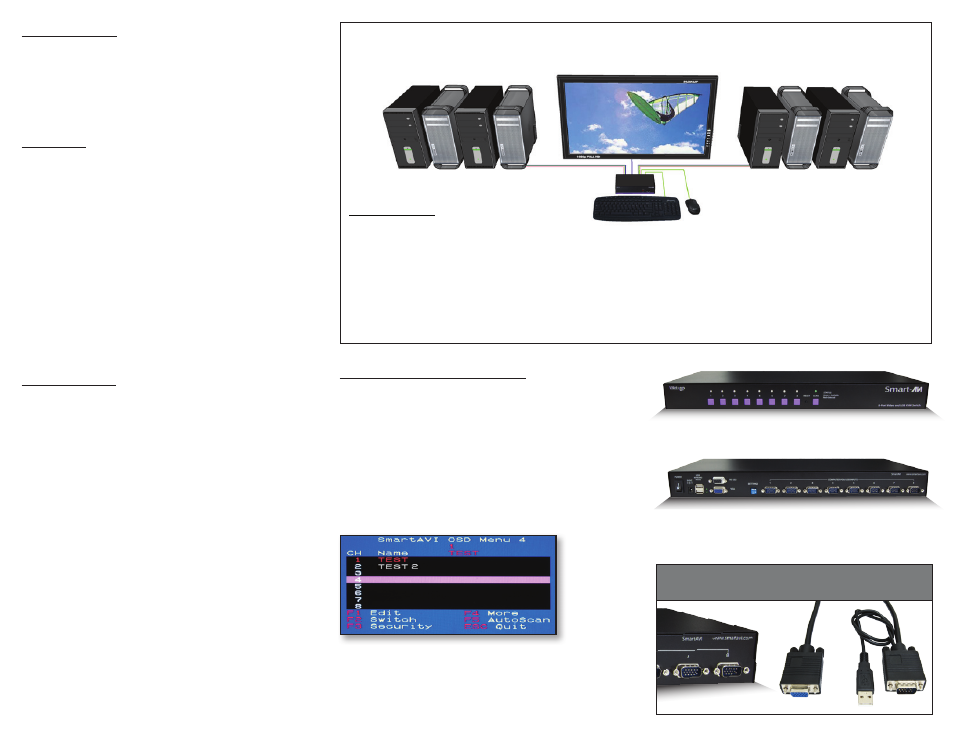
Product - Installation Diagram
Installation
1. Turn off all computers and the display.
2. Connect the VGA extension cables and USB cables to the computers and to the “IN” ports on the VNET+8P.
3. Connect the display to the “OUT” VGA connector on the VNET+8P.
4. Connect USB mouse and keyboard to the “OUT” USB connector on the VNET+8P.
5. Connect the power cord and power on the VNET+8P.
6. Power on the computers and the display.
7. Use the front panel buttons to select the desired input port.
VNET+8P
VNET+8P Front
VNET+8P Rear
We have simplified the output of the VNet+8P by
consolidating the VGA and USB input into one cable.