Airlink ATVUSB05 User Manual
Page 32
31
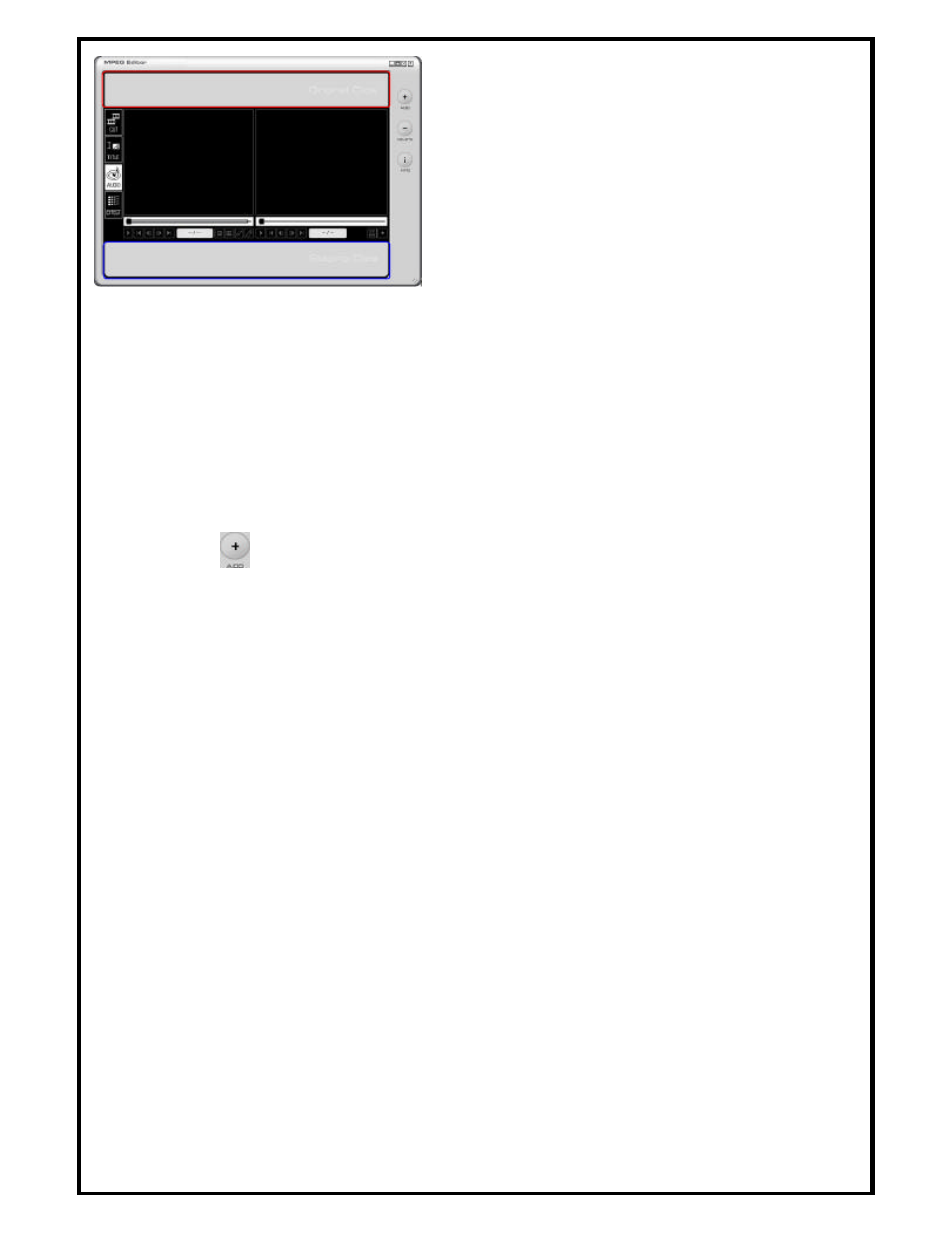
Original Clips (Top)
•
This is the area where video clips that need to be edited are added and managed.
•
Video clips can be dragged and dropped into the Original Clips area.
•
The sequence of video clips added can also be rearranged easily by dragging and
dropping.
1.1 How to add video clips
•
Use the
button in the menu area to browse and select video clips to add to the
Original Clips area.
•
Drag and Drop the vid eo files into the Original Clips area.
1.2 How to view and manage video clips in the Original Clips area:
•
To view a video clip in the Original Clips area, either double -click on the video or
drag-and-drop the video clip from the Original Clips area onto the Original Video
Display window.
•
Clicking on the right mouse button will bring up a popup menu. This menu performs
the following functions: copy, delete, and show property information.
Staging Clips (Bottom)
•
This is the area where video clips are added after frame ranges are specified.
•
Video clips can be managed for further editing in this area.
•
Editing, deleting, and sequence arranging are done here.
•
File properties for each video clip can be obtained by right mouse clicking on the
clip.
•
Edit the clips using the four application buttons on the left side of Video Editor:
"Cut", "Title", "Audio" and "Effect".