Grass Valley NV9000 Web Suite v.1.2 User Manual
Page 89
79
NV9000 Web Suite
User’s Guide
•
Display use information
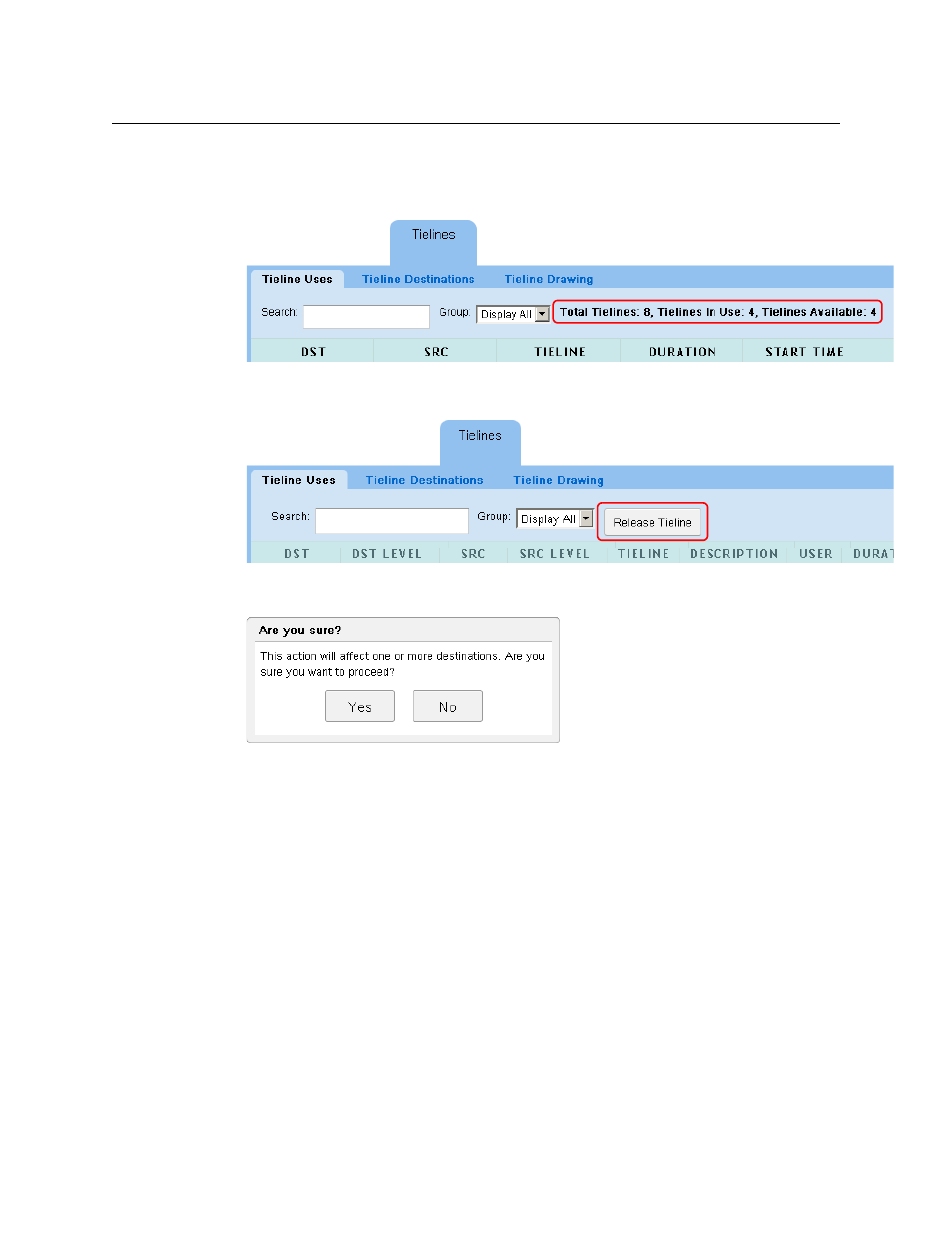
Checking this option causes the page to display the number of tielines that are in use and
the number that are available:
•
Releasing tielines enabled
Checking this option causes the page to display a ‘Release Tieline’ button:
When the ‘Release Tielines’ button is enabled, you can release tielines. To do so, select a
tieline path in the uses table and click the button. the software displays a warning:
Click ‘Yes’ to proceed or ‘No’ to cancel the release.
•
Display columns
These 11 check boxes let you select exactly what is displayed for each tieline row (or hop).
Each check box corresponds to a column in the ‘Tieline Uses’ table. (Figure 4-3 shows just a
few of these columns.)
These are the meanings of the optional columns of the table:
•
‘Dst’
—
the destination of this simple tieline.
•
‘Dst Level’
—
the physical level on which the tieline route is made, in the downstream
router.
•
‘Source’
—
the source of this simple tieline.
•
‘Src Level’
—
the physical level on which the tieline route is made, in the upstream router.
•
‘Tieline’
—
the name of the tieline.
•
‘Description’
—
a description of the tieline that was defined at the time the tieline was
defined in NV9000-SE Utilities.
•
‘User’
—
the user name assigned to the control panel at which the route was made.