Smart functions, Lg thinq application, Lg thinq application features – LG Studio 30 Inch Smart Double Electric Wall Oven Owners Guide User Manual
Page 41: Before using lg thinq application
41
SMART FUNCTIONS
EN
G
LIS
H
SMART FUNCTIONS
LG ThinQ Application
This feature is only available on models with Wi-Fi.
The
LG ThinQ
application allows you to
communicate with the appliance using a
smartphone.
LG ThinQ Application Features
•
EasyClean
- Allows you to set
EasyClean
alerts, read the
instruction guide, and simulate and compare
energy consumption when using
EasyClean
versus self clean cycles.
•
Settings
- Allows you to set various options on the oven
and in the application.
•
Smart Diagnosis
™
- This function provides useful information for
diagnosing and solving issues with the
appliance based on the pattern of use.
•
Monitoring
- This function helps you check the current
status, remaining time, cook settings and end
time in one place.
•
Product Notifications
- Turn on the Push Alerts to receive appliance
status notifications. The notifications are
triggered even if the
LG ThinQ
application is
not open.
•
Timer
- You can set the timer from the application.
•
Firmware Update
- Keep the appliance updated.
NOTE
• If you change your wireless router, Internet
service provider, or password, delete the
connected appliance from the
LG ThinQ
application and connect it again.
• This information is current at the time of
publication. The application is subject to change
for product improvement purposes without
notice to users.
Before Using LG ThinQ Application
1
Use a smartphone to check the strength of
the wireless router (Wi-Fi network) near the
appliance.
• If the appliance is too far from the wireless
router, the signal becomes weak. It may
take a long time to connect or fail to install
the application.
2
Turn off the
Mobile data
or
Cellular Data
on
your smartphone.
3
Connect your smartphone to the wireless
router.
NOTE
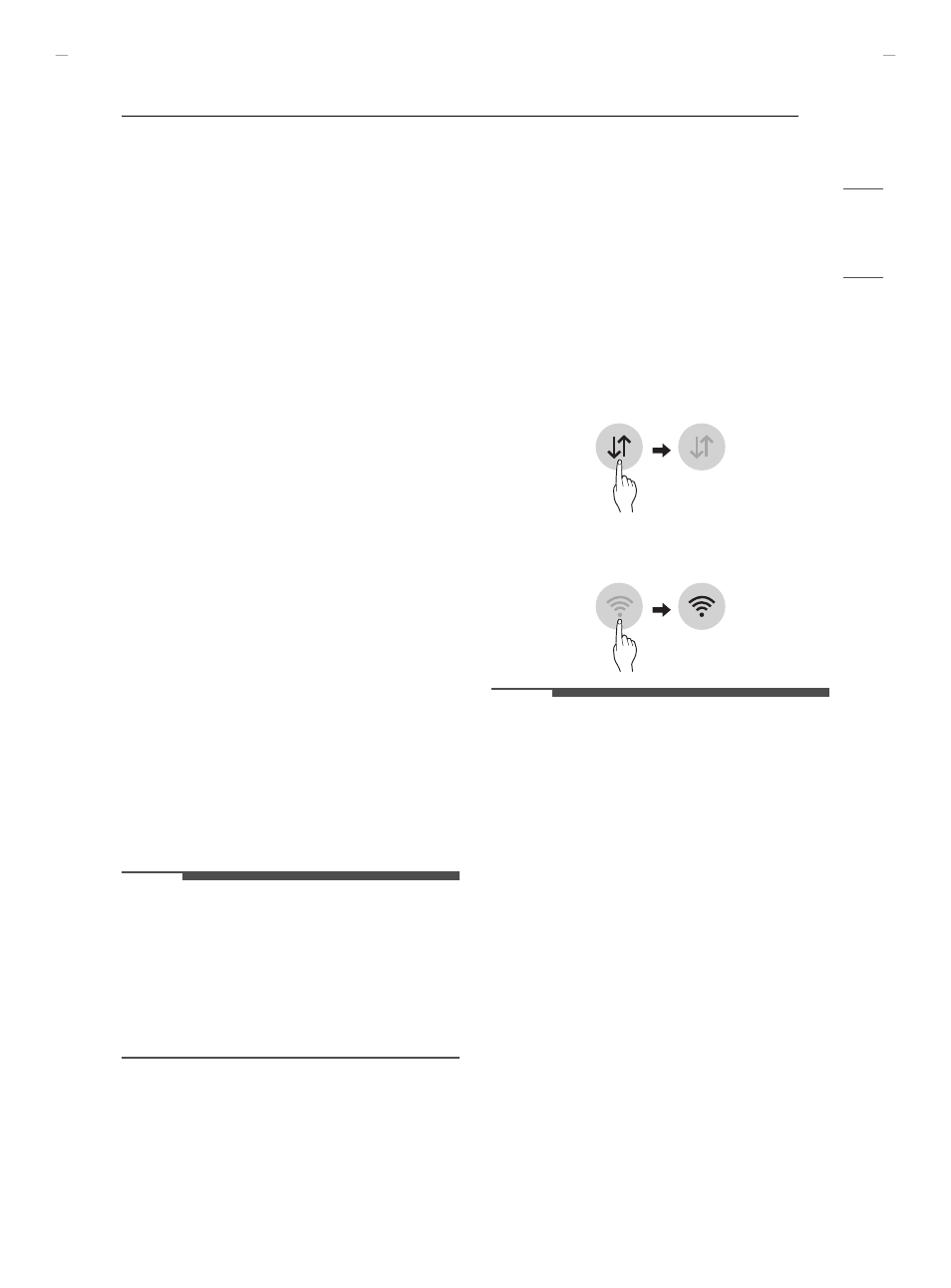
• To verify the Wi-Fi connection, check that the
f
icon on the control panel is lit.
• The appliance supports 2.4 GHz Wi-Fi networks
only. To check your network frequency, contact
your Internet service provider or refer to your
wireless router manual.
•
LG ThinQ
is not responsible for any network
connection problems or any faults, malfunctions,
or errors caused by network connection.
• The surrounding wireless environment can
make the wireless network service run slowly.
• If the appliance is having trouble connecting to
the Wi-Fi network, it may be too far from the
router. Purchase a Wi-Fi repeater (range
extender) to improve the Wi-Fi signal strength.
• The network connection may not work properly
depending on the Internet service provider.
• The Wi-Fi may not connect or the connection
may be interrupted because of the home
network environment.
UUGGwG[XGGm SGq GYZSGYWYXGGZaY^Gwt