Highlight alternate glyphs in the text, Create and edit custom glyph sets – Adobe InDesign CC 2015 User Manual
Page 247
242
Text
Last updated 6/6/2015
1
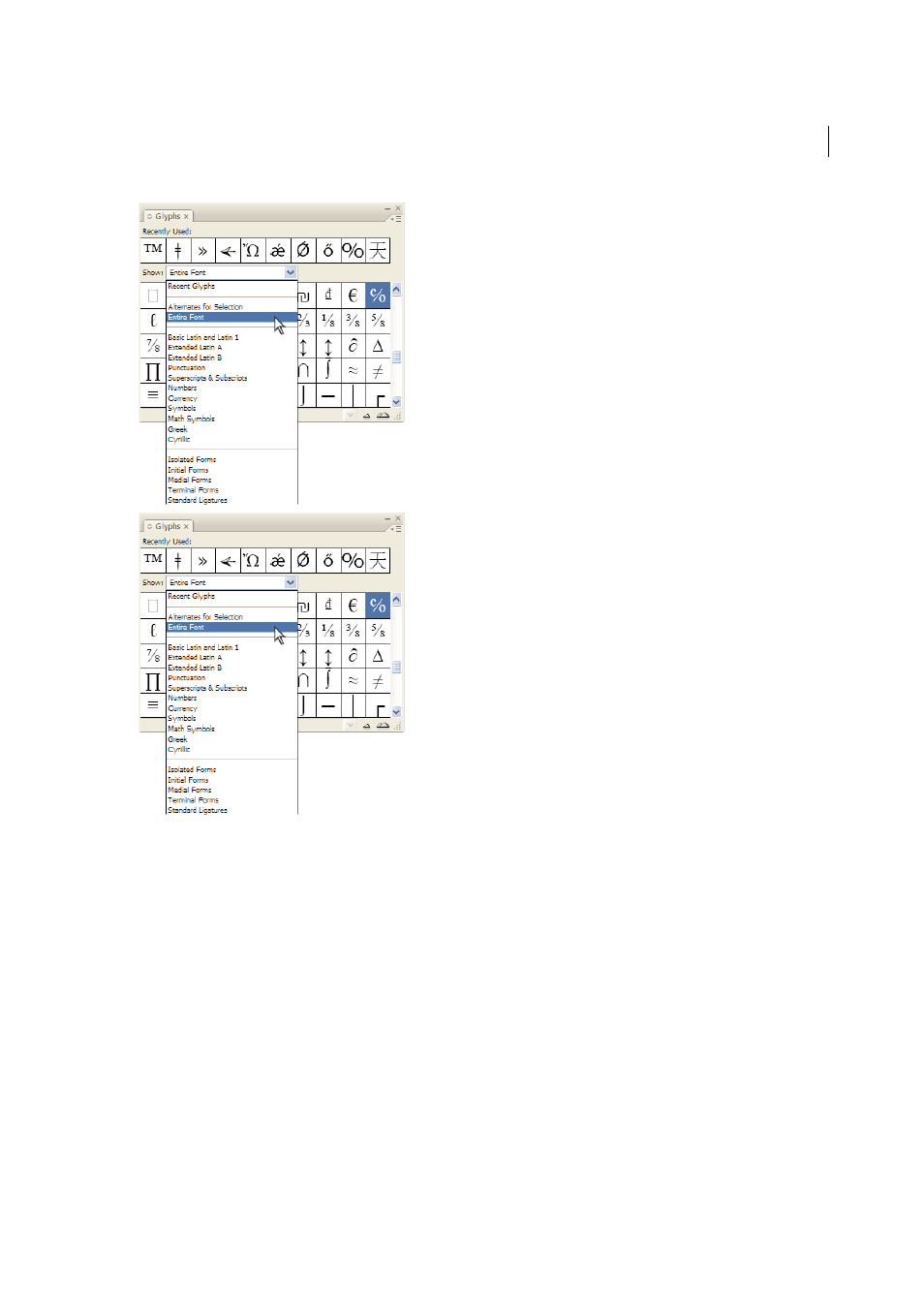
In the Glyphs panel, choose an OpenType font from the font list.
2
Choose an option from the Show menu.
The options displayed vary depending on which font is selected. For information on applying OpenType font attributes,
or more information on OpenType fonts, se
.
Highlight alternate glyphs in the text
1
Choose Edit > Preferences > Composition (Windows) or InDesign > Preferences > Composition (Mac OS).
2
Select Substituted Glyphs, and then click OK. Substituted glyphs in the text are highlighted in nonprinting yellow.
Create and edit custom glyph sets
A glyph set is a named collection of glyphs from one or more fonts. Saving commonly used glyphs in a glyph set prevents
you from having to look for them each time you need to use them. Glyph sets are not attached to any particular
document; they are stored with other InDesign preferences in a separate file that can be shared.