Adobe Premiere Pro CS3 User Manual
Page 118
ADOBE PREMIERE PRO CS3
User Guide
112
•
Select the boxed number above the center jog disk, type a negative number to trim both clips left or type a positive
number to trim both clips right, and press Enter (Windows) or Return (Mac OS).
•
Click the button that corresponds with the number of frames you want to edit. The –1 and –5 buttons trim both
clips left; +1 and +5 trim both clips right.
Note: The large trim offset number is 5 frames by default, but you can set it to any number by specifying a number in
the trim preferences. Choose Edit > Preferences > Trim (Windows) or Premiere Pro > Preferences > Trim (Mac OS).
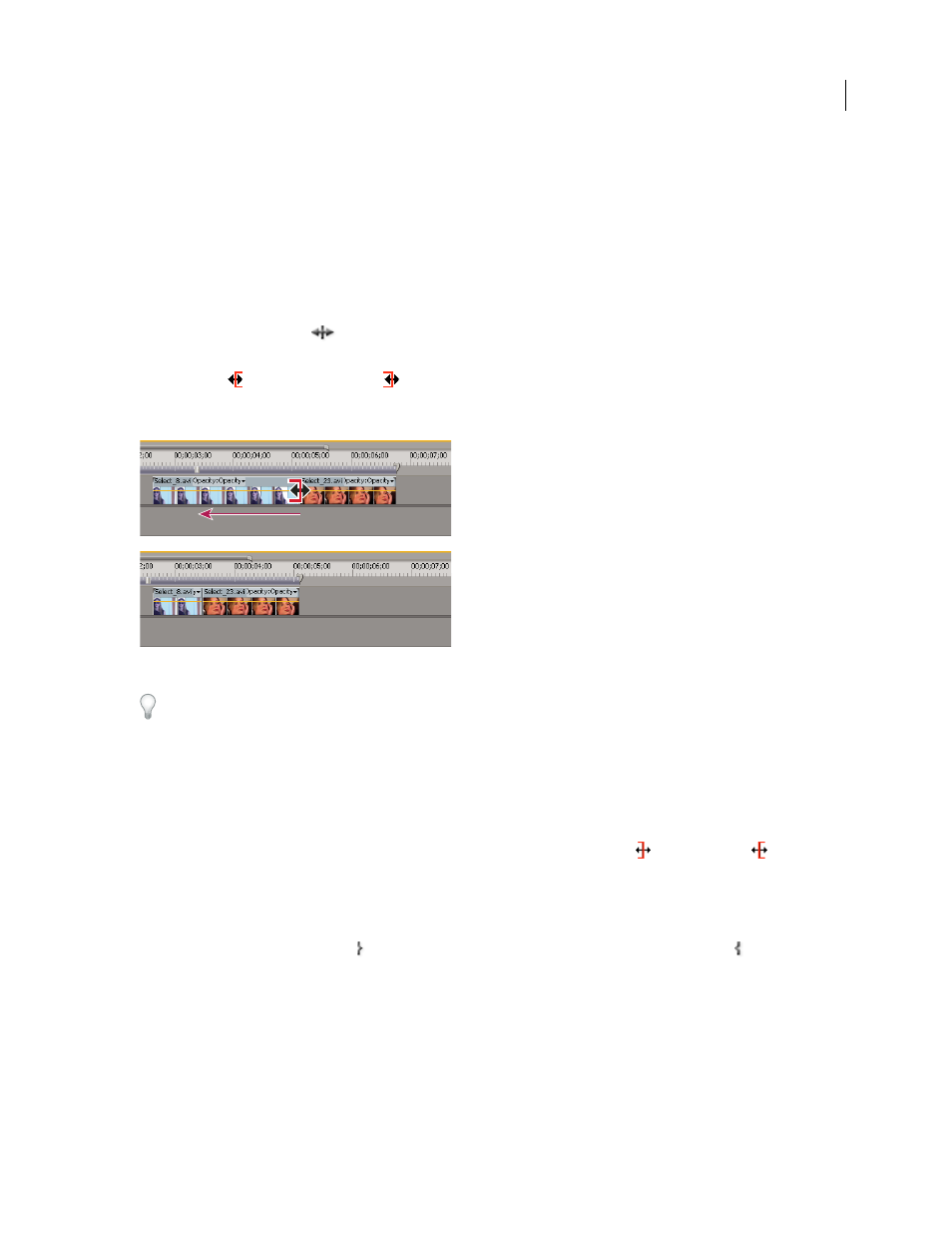
Perform a ripple edit using the Ripple Edit tool
1
Select the Ripple Edit tool
.
2
In the Timeline panel, position the pointer over the In or Out point of the clip you want to change until the
Ripple-in icon
or the Ripple-out icon
appears, and drag left or right. Subsequent clips in the track shift in
time to compensate for the edit, but their durations remain unchanged. Alt-drag (Windows) or Option-drag (Mac
OS) to affect only the video or audio portion of a linked clip.
Timeline panel during (above) and after (below) a ripple edit
When using the Selection tool, you can toggle from the Trim-in or Trim-out icon to a Ripple edit icon by pressing
the Ctrl (Windows) or Command (Mac OS) key. Release Ctrl (Windows) or Command (Mac OS) to revert to the
Selection tool.
Perform a ripple edit using the Trim Monitor
1
Display the edit point in the Trim Monitor.
2
Do any of the following:
•
Position the pointer in the left or right image so that it becomes the Trim-out icon
or
Trim-in
icon
respec-
tively, and drag left or right to ripple-edit the corresponding clip.
•
Drag the timecode display under the left or right image to trim the corresponding clip.
•
Drag the left or right jog disk to trim the corresponding clip.
•
Drag the Outgoing Out Point icon
in the left view’s time ruler, or drag the Incoming In Point icon
in
the
right
view’s time ruler.
•
Drag the Out Shift or In Shift timecode number left or right to ripple-edit the corresponding clip.
•
Click the left clip’s timecode display (for the left clip’s Out point) or the right clip’s timecode display (for the right
clip’s In point), type a valid timecode number to trim the corresponding clip to that frame, and press Enter
(Windows) or Return (Mac OS).
April 1, 2008