Custom installation – H3C Technologies H3C Intelligent Management Center User Manual
Page 24
17
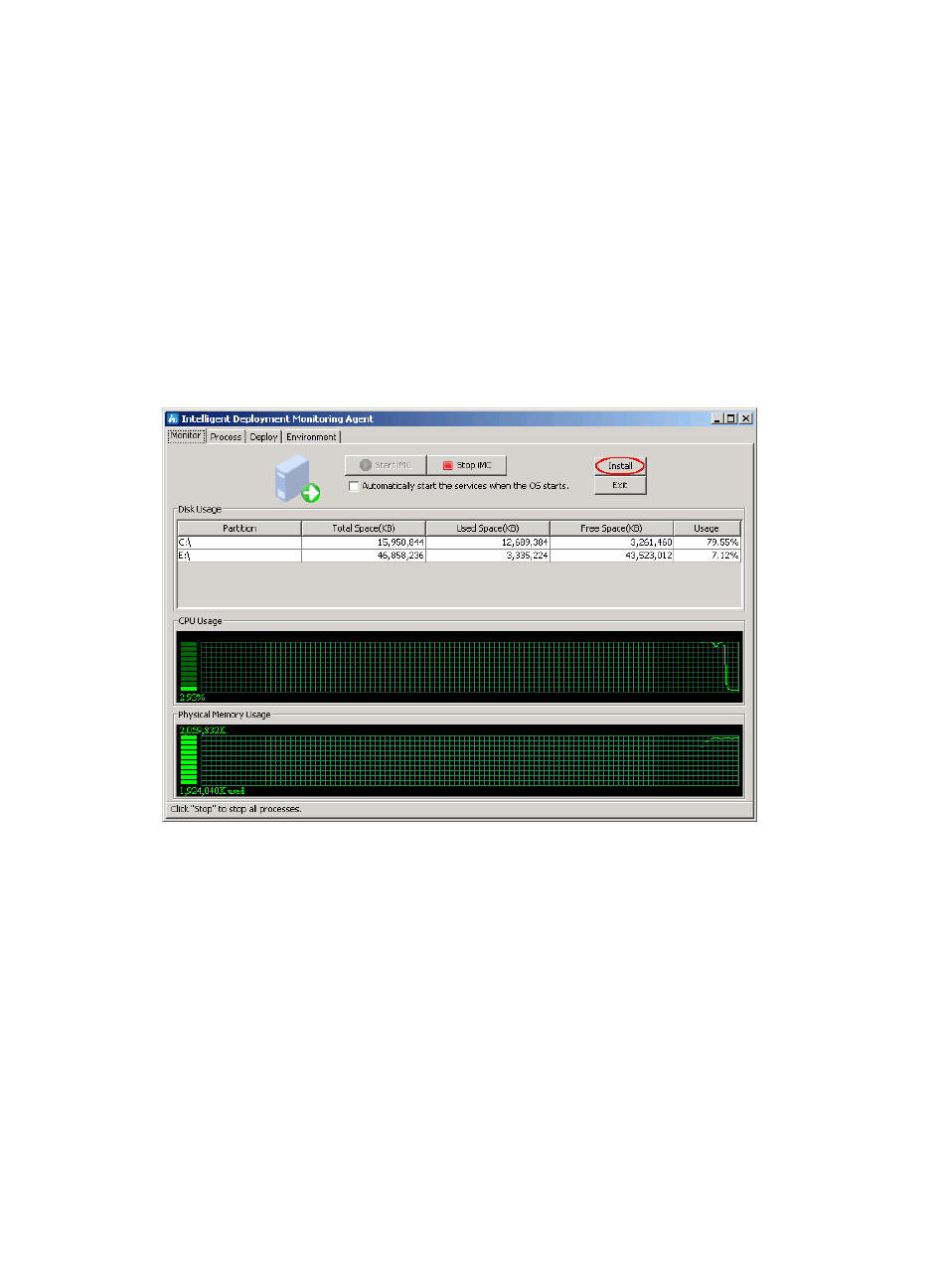
The Intelligent Deployment Monitoring Agent window allows you to perform the following operations:
•
Click the Deploy tab to view the deployed components.
•
Click the Process tab to view the running process information.
•
Click the Monitor tab to view the IMC startup information, as shown in
. When the startup
is complete, the Start IMCbutton is grayed out.
•
To disable IMC, click Stop IMC.
•
You can select Automatically start the services when the OS starts when you want IMC to
automatically start at the system startup.
•
To install new components, click Install, as shown in
, or right-click the Intelligent
Deployment Monitoring Agent icon on the Windows system tray, and then select Install from the
shortcut menu. For more information, see "
5 Installing and deploying IMC service components
."
Figure 7 Intelligent Deployment Monitoring Agent
Custom installation
If you select custom installation, you must manually deploy the desired subcomponents for the IMC
Platform after installation.
1.
In
, select the country or region and language, click Custom, and then click OK.
The window for checking installation environments appears and displays the check results, as
shown in
.