Grass Valley Aurora Browse v.6.5 Installation User Manual
Page 96
Advertising
96
Aurora Browse Installation and Configuration Guide
November 1, 2008
Chapter 3 Configuring the system
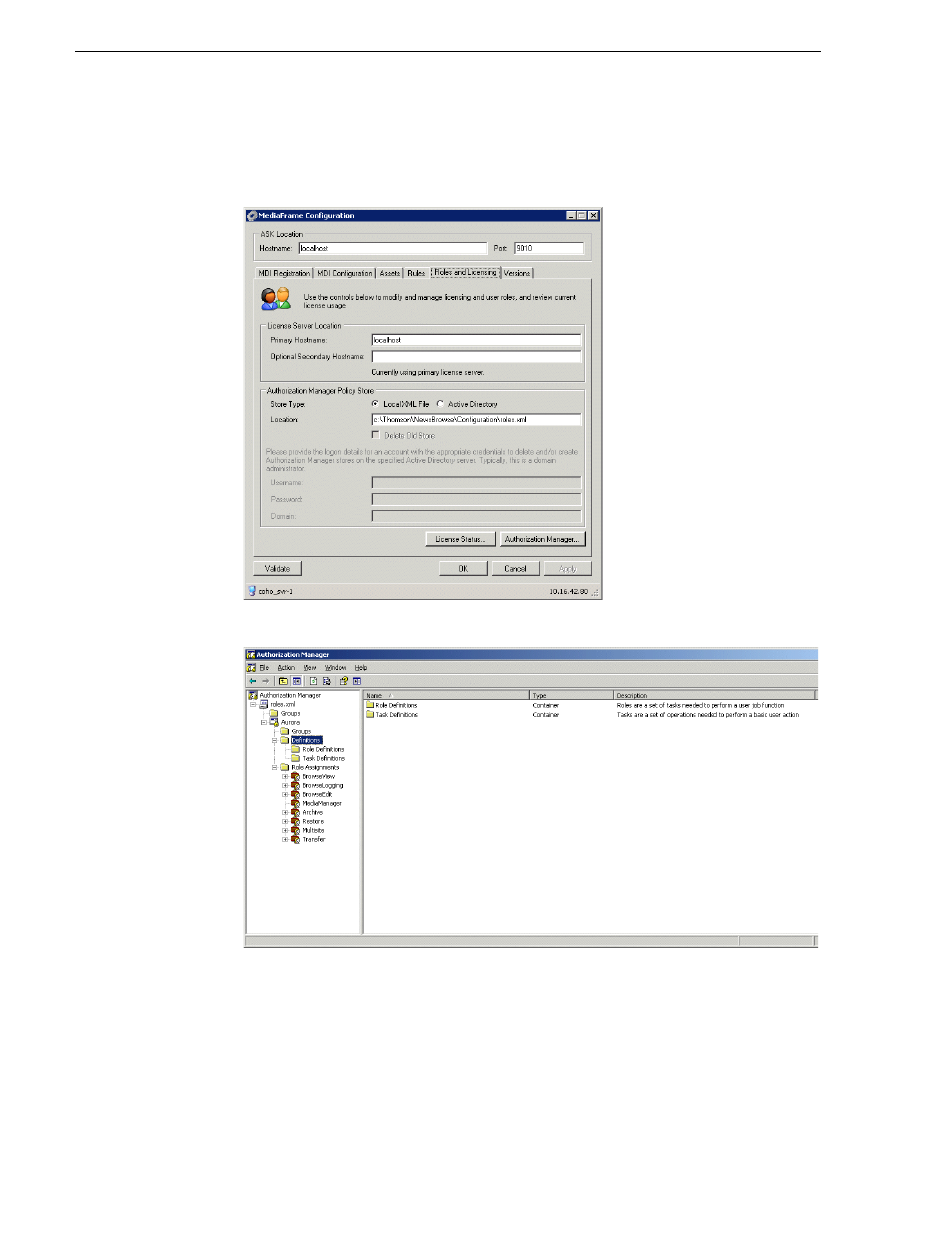
To configure for Aurora Browse licenses, do the following.
1. Select
Programs | Grass Valley | MediaFrame Config
and select the
Roles and
Licensing
tab.
2. To add users and assign roles, click the
Authorization Manager
button.
3. Configure according to the Microsoft Windows documentation: add a group, then
add users to that group.
4. Enter the following:
• Username — This must match the account with which the Aurora Browse client
accesses the Aurora Browse application.
• Roles — Select the Aurora Browse application functionality to which the user
Advertising