Grass Valley Maestro Master Control Installation v.2.4.0 User Manual
Page 320
320
MAESTRO — Installation and Service Manual
Section 8 — Software Installation
6.
From this point there are two possibilities:
•
A popup will show that the Processor update was successful.
Repeat
above if another Processor is present. Otherwise,
•
An error message may indicate that the “physical JTAG chain is
broken.” If this message appears, the FPGAs/CPLDs on the Pro-
cessor cannot be updated. Stop the installation process and then
contact Technical Support.
Updating FPGAs/CPLDs on the Hardware Control Panels
Follow these steps to update the FPGAs/CPLDs on the Hardware Control
panels
1.
In the board Status section of the screen, select the hardware control
panel to update.
2.
Right-click on the FPGA field for this control panel. The FPGA/CPLD
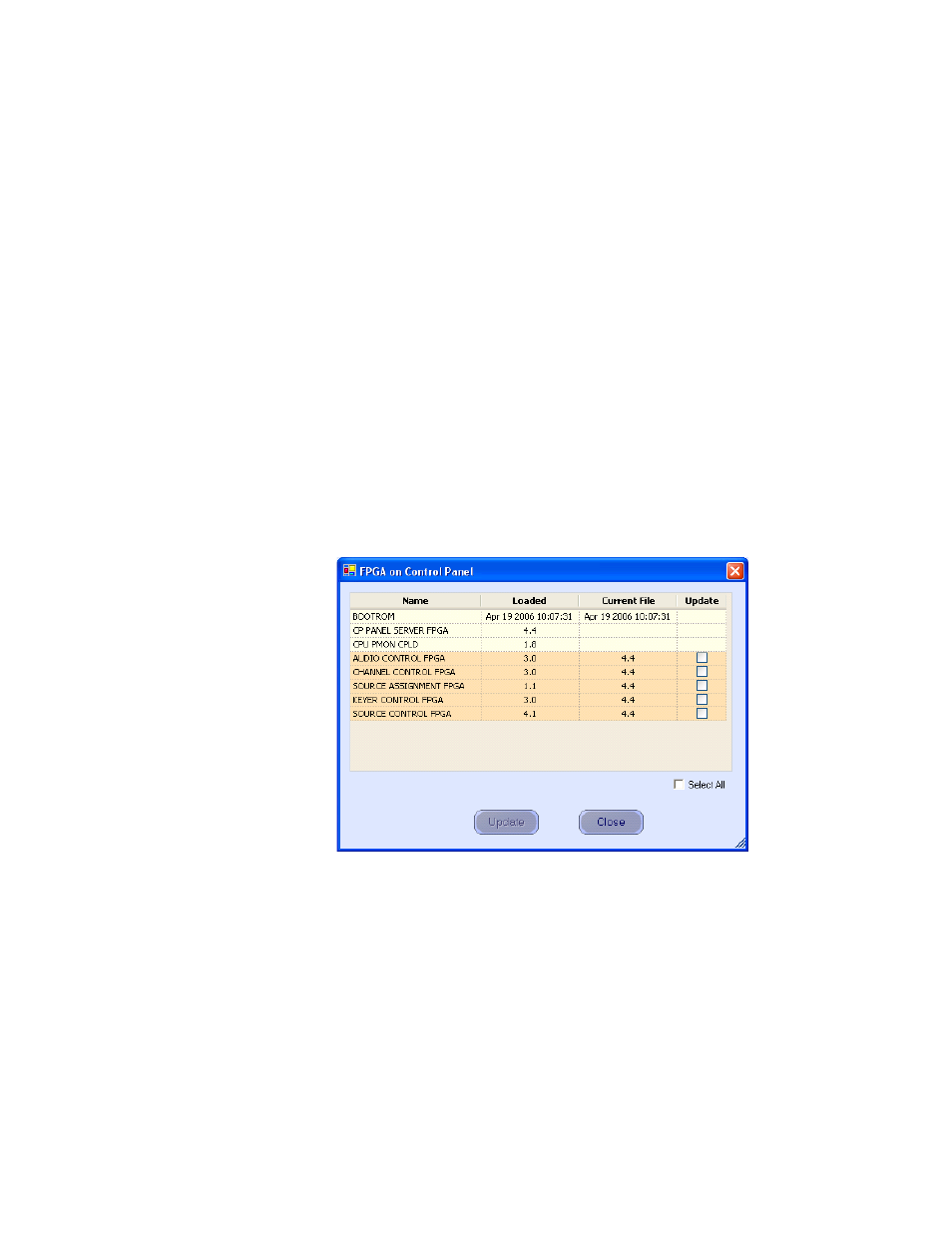
update menu will then appear. See
Figure 218. Control Panel FPGA/CPLD Update Menu
This menu shows the names of all FPGAs/CPLDs on the control panel
and the version number of the gateware now running (“loaded”) in
each device. Certain FPGA-type components and all of the CPLD-type
components can be updated using this menu. If a newer (“current”)
version of gateware is available for those components, the menu will
indicate the new version number and display a check box.
3.
Check the “Select All” box.
4.
Select
Update
. You will be asked to confirm the update.
- Concerto Routing Matrix v.1.7.6.1 Concerto Routing Matrix v.1.8.1 Concerto Routing Matrix v.1.7.5 Kayenne Installation v.4.0 Kayenne Installation v.3.0 Kayenne K-Frame Installation v.6.0 Kayenne K-Frame Installation v.7.0 Kayenne K-Frame Installation v.8.0 Karrera K-Frame S-Series Installation v.8.0 Karrera Video Production Center Installation v.6.0 Karrera Video Production Center Installation v.7.0 Karrera Video Production Center Installation v.4.1 Karrera Video Production Center Installation v.4.0 7600REF v5.0 7600REF v3.0.0.8 7600REF v5.0 Installation 7600REF v3.0.0.8 Installation 7620PX-5 Installation 2012 7620PX Installation 2012 KayenneKayenne v.2.0 v.2.0 Maestro Master Control Installation v.2.3.0 Maestro Master Control Installation v.2.0.0 Maestro Master Control v.2.3.0 7620PX 2012 7620PX-5 2012 7620PX 2008 MVMC 3G VMCR 3G 8900F GeckoFlex Frames Concerto Compact Routing System GPIO-4848 Jupiter Maestro Master Control v.2.2.0 Maestro Master Control v.2.0.0 Maestro Master Control v.2.4.0 Maestro Master Control Installation v.2.2.0 Maestro Master Control Installation v.1.5.1 Maestro Master Control Installation v.1.7