3 performing the required operation at the scanner, 3performing the required operation at the scanner – TA Triumph-Adler DC 2116 User Manual
Page 21
3-1
3
Performing the Required Operation at the
Scanner
Scanning under the Scan to PC and Send E-mail functions
Before using the Scan to PC function
When performing the Scan to PC function, perform the following settings in advance.
1
Install the Scanner File Utility in the destination computer.
2
Run the Scanner File Utility and register the destination folder for the scanned image data.
3
Register the IP address, the registration name, and the destination number of the destination
computer in the scanner using a web browser or Address Editor.
Note
Be sure to enter the same number in the Save folder No. field here as the save folder number (001
– 100) that was registered in the Scanner File Utility.
Refer to the On-Line Manual <Functions Edition> for more detailed information.
Before using the Send E-mail function
Register the destination name and the email address in the scanner using a web browser or
Address Editor.
How to scan under Scan to PC and Send E-mail
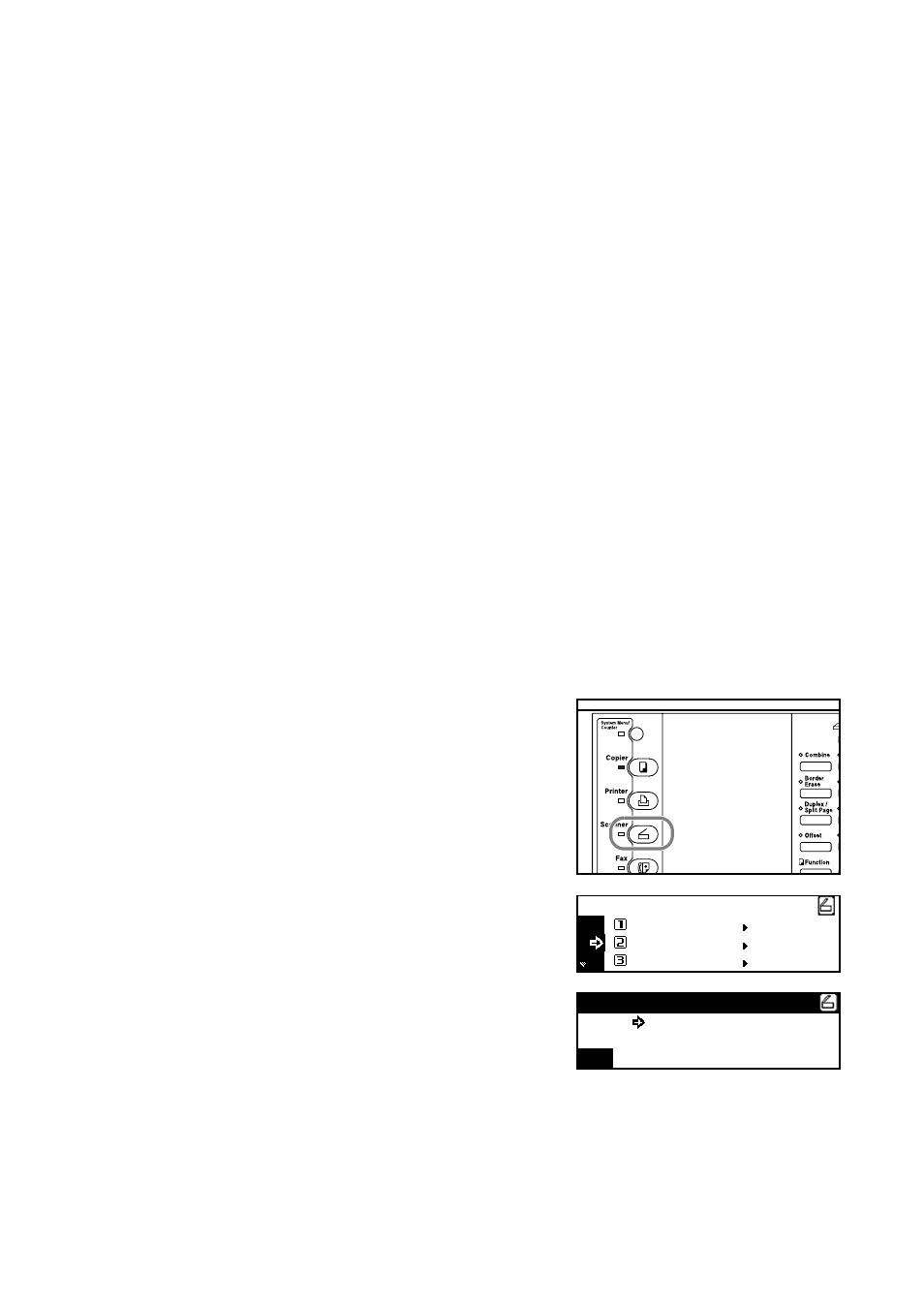
1
Press the Scanner key to display the Select Scanner
Function screen.
2
Use the
S and T keys to select 1 Scan to PC
(SEND TO PC) or 2 Send E-mail.
3
Use
the S and T keys to move
D
to select your user
name and press the Enter key.
Notes
•
If a password has been registered for the selected user, you must enter the password. Enter
the password using the numeric keys and press the Enter key.
•
If your user name is not displayed even if the
S and T keys are pressed, use a web browser
or AddressEditor to check to see if your user name has been registered.
Scan to PC
Send E-mail
Select function.
TWAIN
Select Sender (User)
001 USER ABCDE
#---