Smart functions, Lg thinq application, Lg thinq application features – LG Studio 36 Inch Induction Cooktop Owners Guide User Manual
Page 31: Before using lg thinq application
31
SMART FUNCTIONS
EN
G
L
IS
H
SMART FUNCTIONS
LG ThinQ Application
This feature is only available on models with Wi-Fi.
The
LG ThinQ
application allows you to
communicate with the appliance using a
smartphone.
LG ThinQ Application Features
•
Monitoring
- This function helps you check the current
status, remaining time, cook settings and end
time in one place.
•
Product Notifications
- Turn on the Push Alerts to receive appliance
status notifications. The notifications are
triggered even if the
LG ThinQ
application is
not open.
•
Interworking Function
- The
LG ThinQ
automatically turns on/off the
vent fan when paired with the cooktop. Both
products must be connected to the
LG ThinQ
application and have an interworking funtion.
•
Firmware Update
- Keep the appliance updated.
NOTE
• If you change your wireless router, Internet
service provider, or password, delete the
connected appliance from the
LG ThinQ
application and connect it again.
• To disconnect the appliance from the
Wi-Fi
network, delete the cooktop from the list of
connected products in the
LG ThinQ
application.
• The appliance is not intended to be operated by
means of remote control system.
• This information is current at the time of
publication. The application is subject to change
for product improvement purposes without
notice to users.
Before Using LG ThinQ Application
1
Check the distance between the appliance
and the wireless router (Wi-Fi network).
• If the appliance is too far from the router,
the signal strength becomes weak. It may
take a long time to connect or installation
may fail.
2
Turn off the
Mobile data
or
Cellular Data
on
your smartphone.
3
Connect your smartphone to the wireless
router.
NOTE
• To verify the Wi-Fi connection, check that the
f
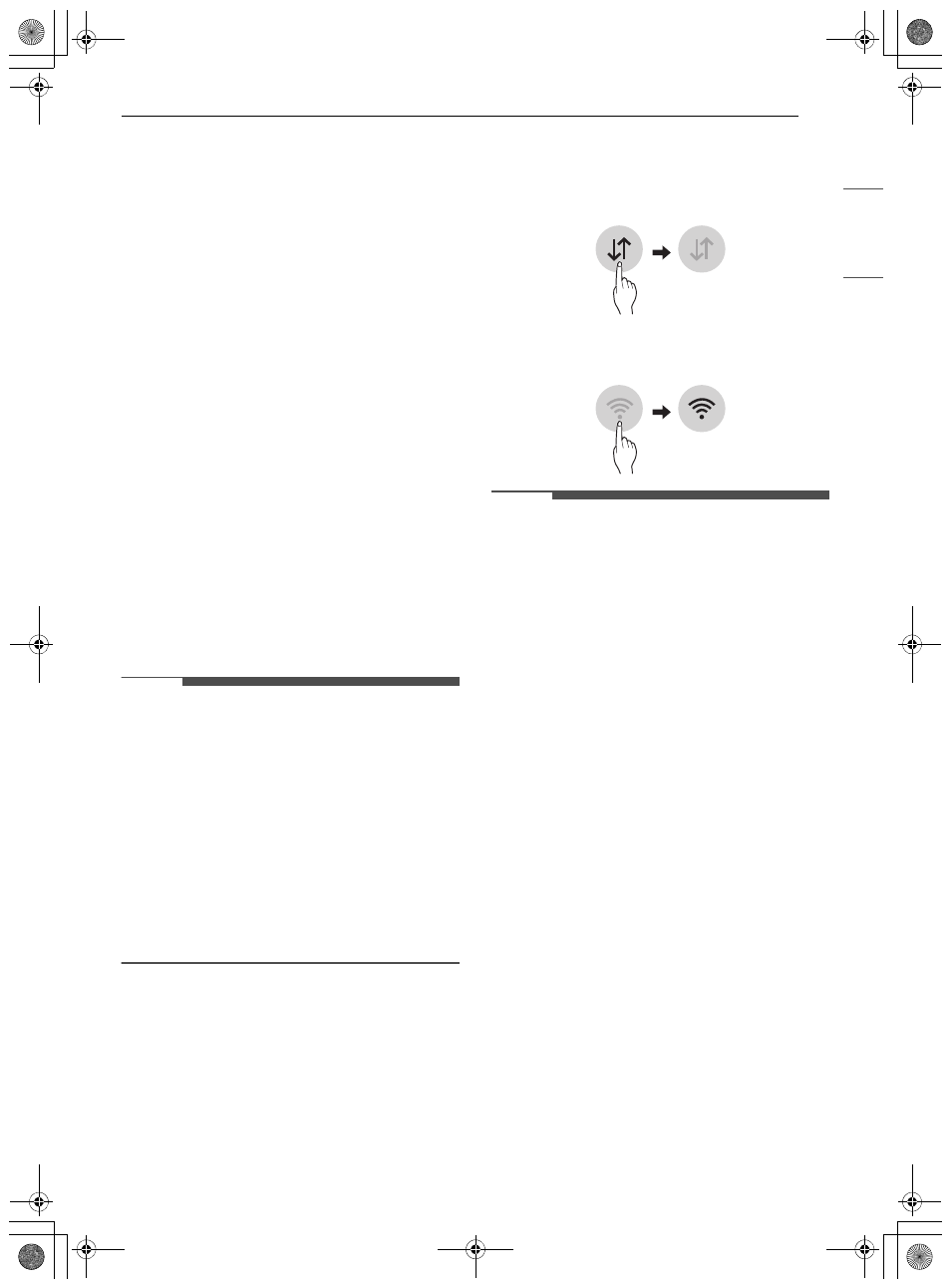
icon on the control panel is lit.
• The appliance supports 2.4 GHz Wi-Fi networks
only. To check your network frequency, contact
your Internet service provider or refer to your
wireless router manual.
•
LG ThinQ
is not responsible for any network
connection problems or any faults, malfunctions,
or errors caused by network connection.
• If the appliance is having trouble connecting to
the Wi-Fi network, it may be too far from the
router. Purchase a Wi-Fi repeater (range
extender) to improve the Wi-Fi signal strength.
• The Wi-Fi connection may not connect or may be
interrupted because of the home network
environment.
• The network connection may not work properly
depending on the Internet service provider.
• The surrounding wireless environment can
make the wireless network service run slowly.
• If the appliance cannot be connected due to
problems with the wireless signal transmission,
unplug the appliance and wait about a minute
before trying again.
• If the firewall on your wireless router is enabled,
disable the firewall or add an exception to it.
• The wireless network name (SSID) should be a
combination of English letters and numbers. (Do
not use special characters.)
• Smartphone user interface (UI) may vary
depending on the mobile operating system (OS)
and the manufacturer.
us_main.book.book Page 31 Friday, August 19, 2022 2:09 PM