Menu bar – service (firmware/fpga upgrading) – Xtramus NuTEA-551 V1.2 User Manual
Page 30
30
5.1.4. Menu Bar – Service (Firmware/FPGA Upgrading)
Service
The System Upgrade function located on the Menu Bar allows you to upgrade
NuTEA-551’s firmware and FPGA. The following section will demonstrate how to
upgrade NuTEA-551’s firmware.
Please note NuTEA-551 must be power-on and connected to your PC all the time when
upgrading its firmware/FPGA. Please refer to 4.2. Starting NuTEA-551 Utility
Software & Demo Mode for more information regarding to connect NuTEA-551 and
your PC.
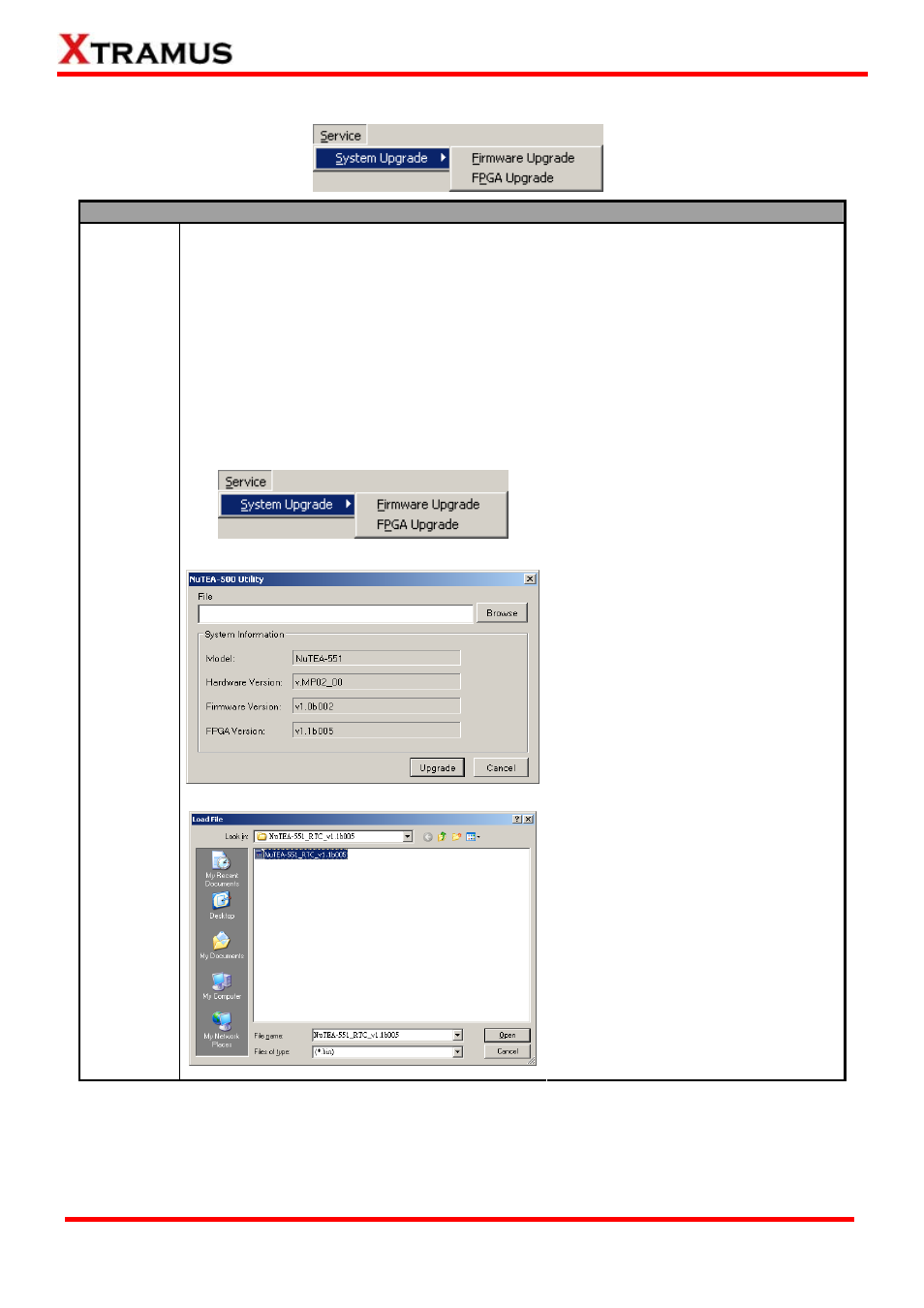
The following section will show you how to upgrade NuTEA-551’s firmware. The
processes for upgrading firmware and FPGA are quite the same and can be related.
1. Please click Service → System
Upgrade → Firmware Upgrade on
the Menu Bar. If you want to
upgrade FPGA, please choose
FPGA Upgrade.
2. A NuSet-MiniTAP window will pop
up. Please click the Browse button.
System
Upgrade
3. A Load File window will pop up.
Please choose the firmware file
saved on your PC. The
firmware/FPGA file should be in the
format of “*.bin”. Click Open after
you’ve chosen the file.
E-mail: [email protected]
Website: www.Xtramus.com
XTRAMUS TECHNOLOGIES
®