Show or hide toolbars, Move toolbars, Return toolbars to their default configuration – Adobe Acrobat 9 PRO Extended User Manual
Page 33
27
USING ACROBAT 9 PRO EXTENDED
Workspace
Last updated 9/30/2011
Note: If several PDFs are open, you can customize the toolbars for each PDF independently. The different customized
states persist as you switch between PDFs.
More Help topics
Show or hide toolbars
•
To open a toolbar, choose View > Toolbars > [toolbar name]. A check mark next to the toolbar name indicates that
the toolbar is displayed.
•
To hide all toolbars, choose View > Toolbars > Hide Toolbars.
•
To change a toolbar that is either shown or hidden, right-click the toolbar area, and choose the toolbar you want to
show or hide.
•
To change the visibility of several toolbars, choose Tools > Customize Toolbars or View > Toolbars > More Tools.
Then, select and deselect toolbars. (Check marks by the toolbar names indicate which ones are currently visible.)
Note: Whether a new toolbar opens as a floating toolbar or docked in the toolbar area depends on its default position or
where it appeared in your previous configuration of the work area, if any.
Move toolbars
•
To rearrange the docked toolbars, use the toolbar grabber bars to drag them from one position to another.
•
To move a floating toolbar, drag it by its title bar or grabber bar to another location in the work area.
•
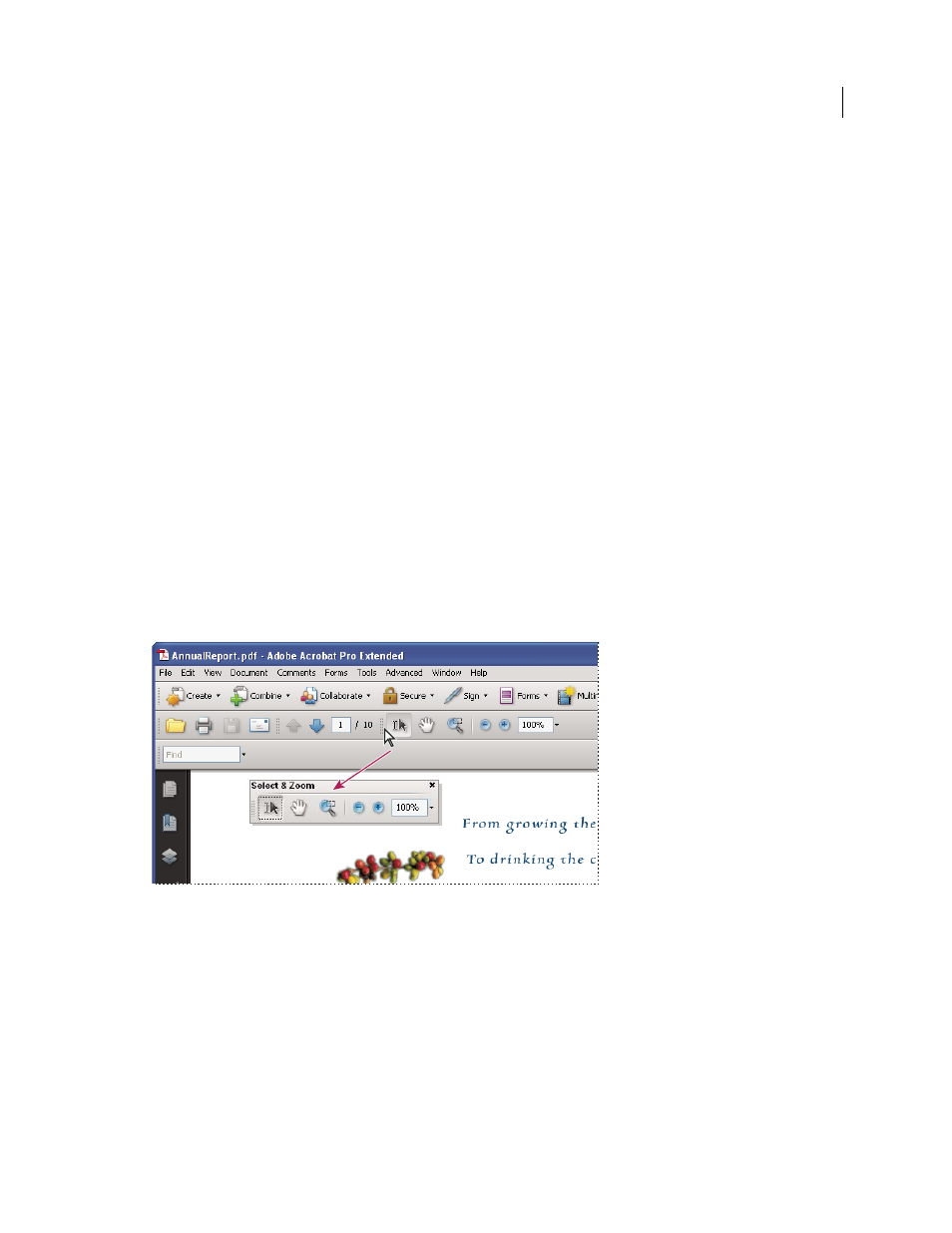
To float a docked toolbar, drag it by its grabber bar from the toolbar area.
Use the title bar to move a section of tools from the toolbar area.
•
To dock a floating toolbar, drag it by its title bar or grabber bar to the toolbar area.
•
To move all floating toolbars to the toolbar area, choose View > Toolbars > Dock Toolbars.
Rows may be added to or removed from the toolbar area as you move the toolbars in and out.
Return toolbars to their default configuration
❖
Choose View > Toolbars > Reset Toolbars.