Repeat tabs, Move, delete, and edit tab settings, Move a tab setting – Adobe InDesign CS5 User Manual
Page 277: Delete a tab setting, Change a tab from one alignment to another
271
USING INDESIGN
Typography
Last updated 11/16/2011
To insert a tab character in a table, choose Type > Insert Special Character
> Other
> Tab.
Repeat tabs
The Repeat Tab command creates multiple tabs based on the distance between the tab and the left indent or the
previous tab stop.
1 Click an insertion point in the paragraph.
2 In the Tabs panel, select a tab stop on the ruler.
3 Choose Repeat Tab from the panel menu.
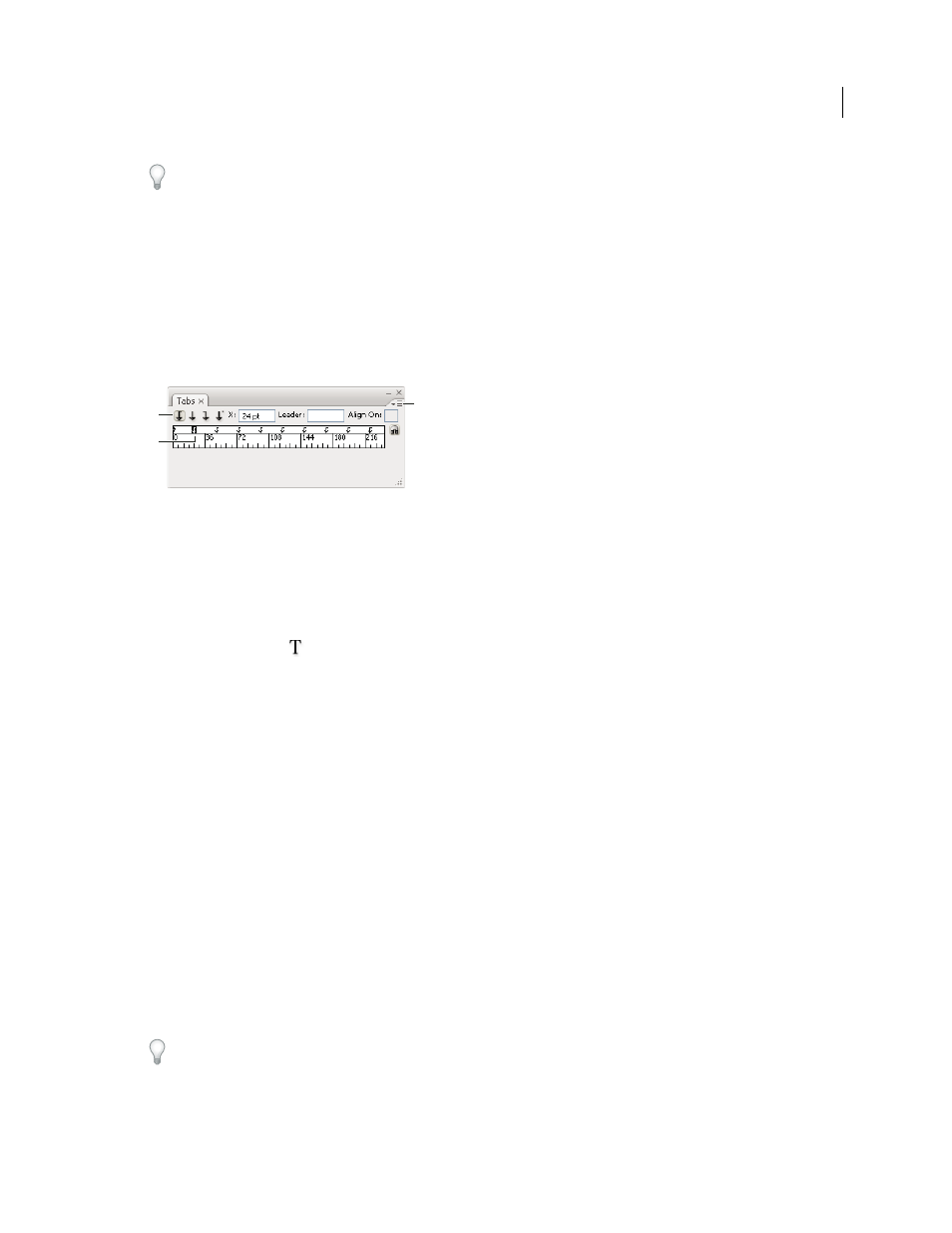
Repeated tabs
A. Tab-alignment buttons B. Tab stop on the ruler C. Panel menu
Move, delete, and edit tab settings
Use the Tabs dialog box to move, delete, and edit tab settings.
Move a tab setting
1 Using the Type tool
, click an insertion point in the paragraph.
2 In the Tabs dialog box, select a tab on the tab ruler.
3 Do one of the following:
•
Type a new location for X and press Enter or Return.
•
Drag the tab to a new location.
Delete a tab setting
1 Click an insertion point in the paragraph.
2 Do one of the following:
•
Drag the tab off the tab ruler.
•
Select the tab, and choose Delete Tab from the panel menu.
•
To return to the default tab stops, choose Clear All from the panel menu.
Change a tab from one alignment to another
1 In the Tabs dialog box, select a tab on the tab ruler.
2 Click a tab-alignment button.
You can also hold down Alt (Windows) or Option (Mac OS) while clicking the tab setting to cycle through the four
alignment options.
C
B
A