Apply the last used color, Remove fill or stroke color – Adobe InDesign CS5 User Manual
Page 472
466
USING INDESIGN
Color
Last updated 11/16/2011
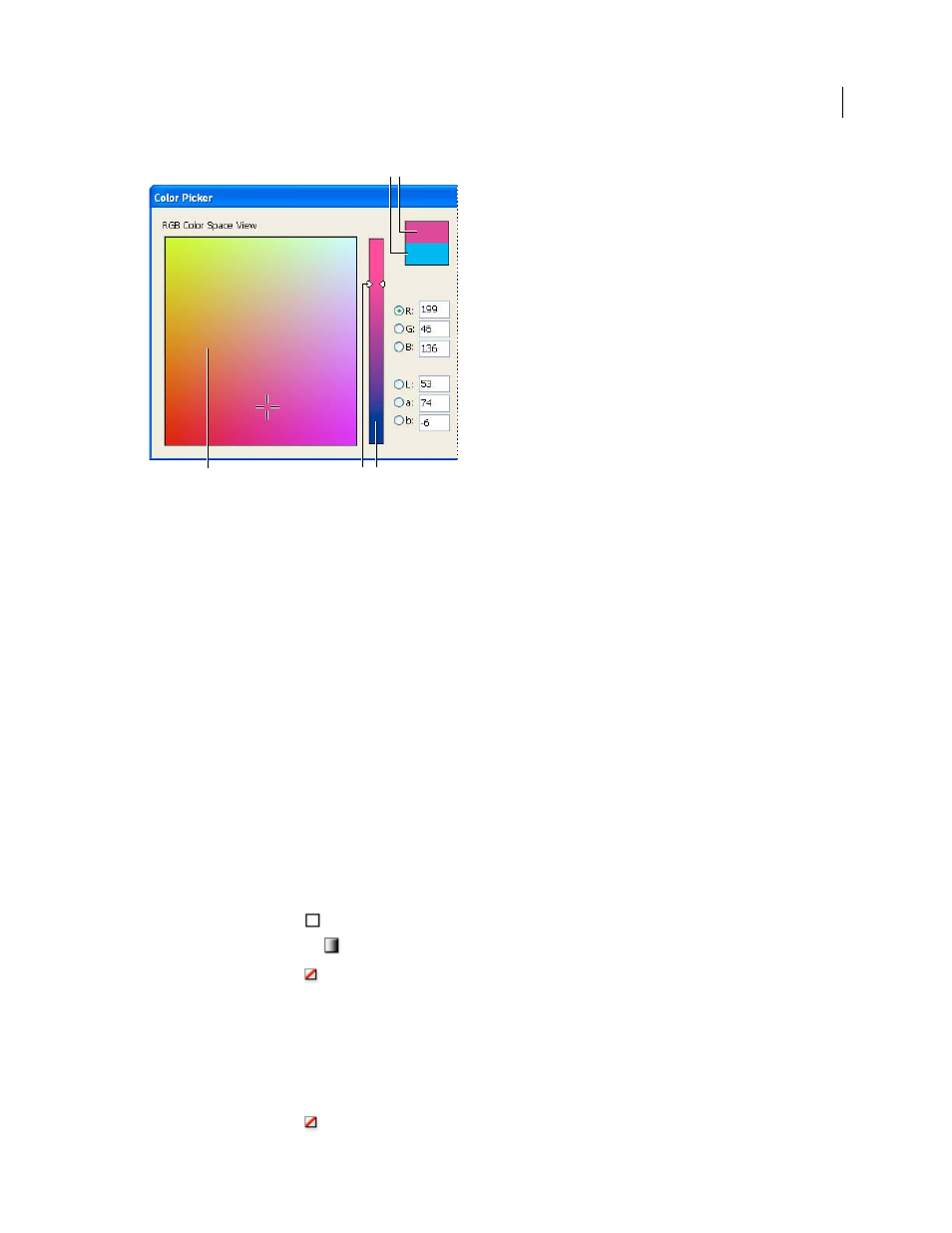
Color Picker
A. Original color B. New color C. Color field D. Color slider triangles E. Color spectrum
3 To define a color, do any of the following:
•
Click or drag inside the color field. Cross-hairs indicate the color’s position in the color field.
•
Drag the color slider triangles along the color spectrum or click inside the color spectrum.
•
Enter values in any of the text boxes.
4 To save the color as a swatch, click Add CMYK Swatch, Add RGB Swatch, or Add Lab Swatch. InDesign adds the
color to the Swatches panel, using the color values as its name.
5 Click OK.
Apply the last used color
The Toolbox displays the last color or gradient you applied. You can apply this color or gradient directly from the
Toolbox.
1 Select the object or text you want to color.
2 In the Toolbox, click the Fill button or Stroke button depending on which portion of the text or object you want to
color.
3 In the Toolbox, do one of the following:
•
Click the Color button
to apply the last selected solid color in the Swatches or Color panel.
•
Click the Gradient button
to apply the last selected gradient in the Swatches or Gradient panel.
•
Click the None button
to remove the object’s fill or stroke.
Remove fill or stroke color
1 Select the text or object whose color you want to remove.
2 In the Toolbox, click the Fill button or Stroke button depending on which portion of the text or object you want to
change.
3 Click the None button
to remove the object’s fill or stroke.
C
D
E
A B