Adjust the position or shape of curved segments, Delete a segment, Delete the handle of an anchor point – Adobe InDesign CS5 User Manual
Page 359: Extend an open path
353
USING INDESIGN
Drawing
Last updated 11/16/2011
Adjust the position or shape of curved segments
1 With the Direct Selection tool, select a curved segment, or an anchor point on either end of the curved segment.
Direction lines appear, if any are present. (Some curved segments use just one direction line.)
2 Do any of the following:
•
To adjust the position of the segment, drag the segment. Shift-drag to constrain the adjustment to multiples of 45°.
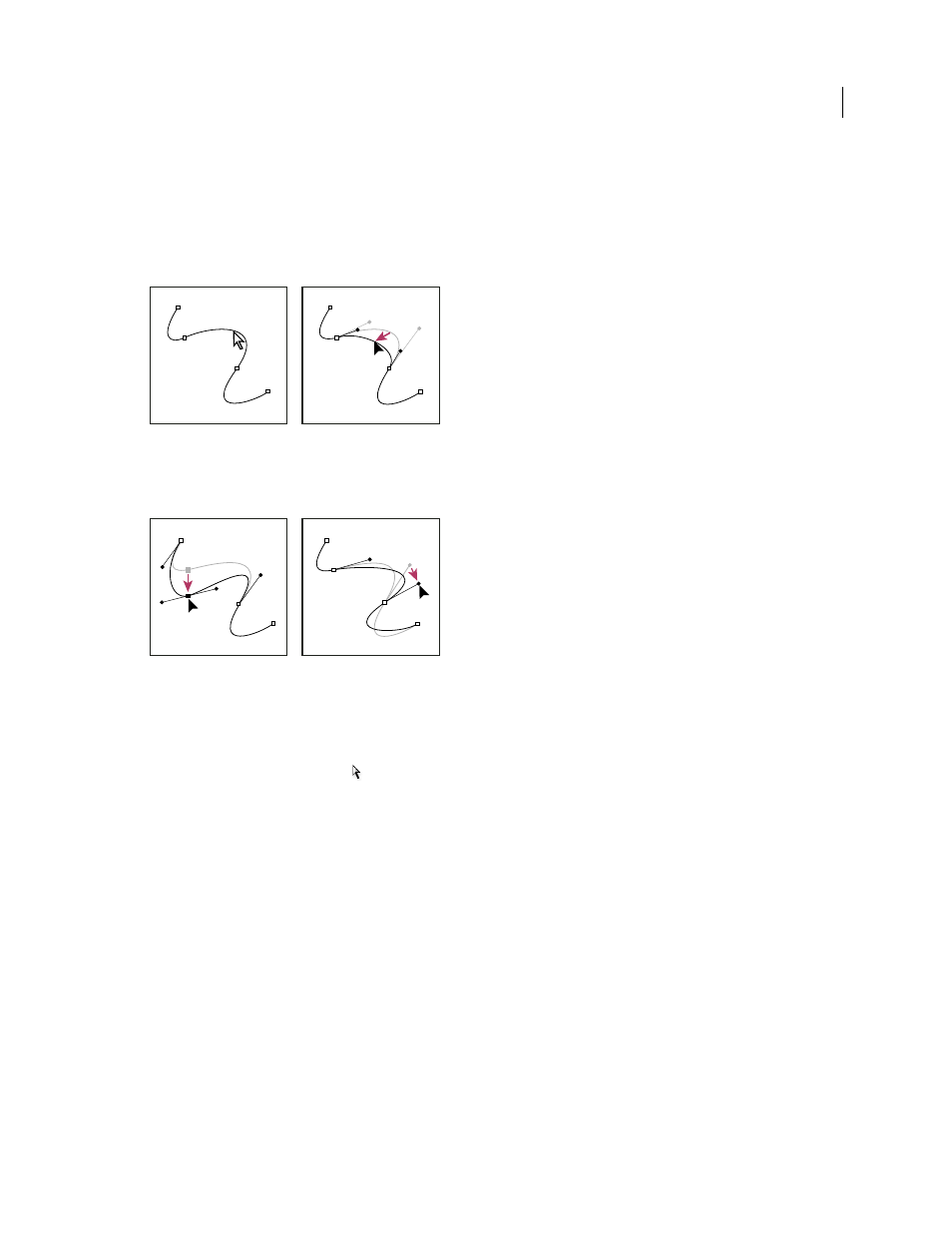
Click to select the curve segment. Then drag to adjust.
•
To adjust the shape of the segment on either side of a selected anchor point, drag the anchor point or the direction
point. Shift-drag to constrain movement to multiples of 45°.
Drag the anchor point, or drag the direction point.
Note: You can also apply a transformation, such as scaling or rotating, to a segment or anchor point.
Delete a segment
1 Select the Direct Selection tool
, and select the segment you want to delete.
2 Press Backspace (Windows) or Delete (Mac
OS) to delete the selected segment. Pressing Backspace or Delete again
erases the rest of the path.
Delete the handle of an anchor point
•
Using the Convert Anchor Point Tool (Illustrator) or the Convert Direction Point Tool (InDesign), click the
anchor point of the handle.
•
Drag the direction point and drop it onto the anchor point.
Extend an open path
1 Using the Pen tool, position the pointer over the endpoint of the open path you want to extend. The pointer changes
when it’s precisely positioned over the endpoint.
2 Click the endpoint.
3 Do one of the following:
•
To create a corner point, position the Pen tool where you want to end the new segment, and click. If you are
extending a path that ends at a smooth point, the new segment will be curved by the existing direction line.