Managing paths, Paths palette overview, Create a new path in the paths palette – Adobe Photoshop CS3 User Manual
Page 376: Create a new work path
PHOTOSHOP CS3
User Guide
369
Managing paths
Paths palette overview
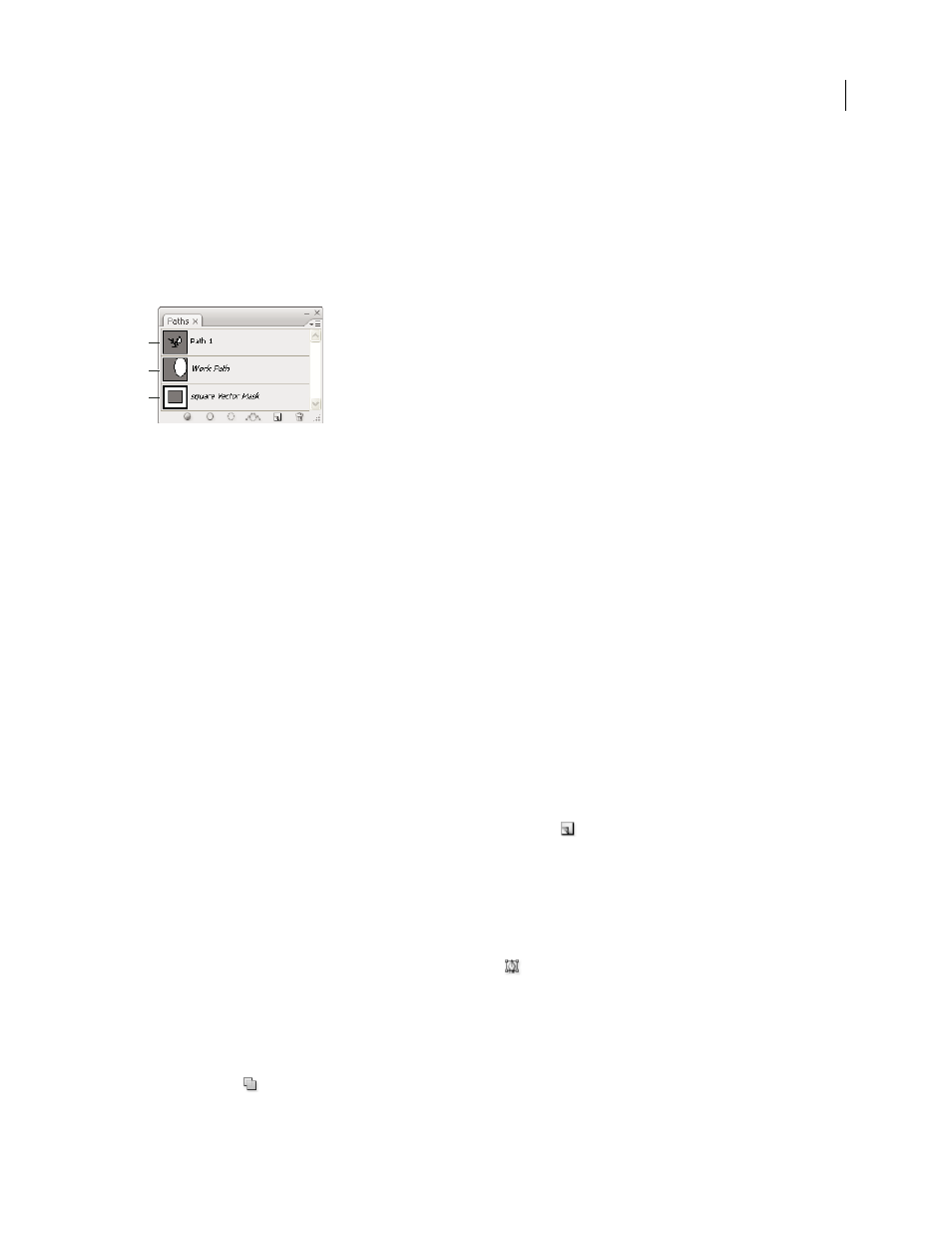
The Paths palette (Window > Paths) lists the name and a thumbnail image of each saved path, the current work path,
and the current vector mask. Turning thumbnails off can improve performance. To view a path, you must first select
it in the Paths palette.
Paths palette
A. Saved path B. Temporary work path C. Vector mask path (appears only when shape layer is selected)
Select a path
❖
Click the path name in the Paths palette. Only one path can be selected at a time.
Deselect a path
❖
Click in a blank area of the Paths palette or press Esc.
Change the size of path thumbnails
Choose Palette Options from the Paths palette menu, and select a size, or select None to turn off the display of
thumbnails.
Change a path’s stacking order
❖
Select the path in the Paths palette, and drag the path up or down. When the heavy black line appears in the desired
location, release the mouse button.
Note: You cannot change the order of vector masks or working paths in the Paths palette.
Create a new path in the Paths palette
•
To create a path without naming it, click the Create New Path button
at the bottom of the Paths palette.
•
To create and name a path, make sure no work path is selected. Choose New Path from the Paths palette menu, or
Alt-click (Windows) or Option-click (Mac OS) the New Path button at the bottom of the palette. Enter a name for
the path in the New Path dialog box, and click OK.
Create a new work path
1
Select a shape tool or a pen tool, and click the Paths button
in the options bar.
2
Set tool-specific options, and draw the path. For more information, see “Shape tool options” on page 362 and
“About the Pen tools” on page 363.
3
Draw additional path components if desired. You can easily switch between drawing tools by clicking a tool button
in the options bar. Choose a path area option to determine how overlapping path components intersect:
Add To Path Area
Adds the new area to overlapping path areas.
A
B
C