Revising a presentation – BrightSign HD2000 Network Manager Guide User Manual
Page 13
Managing Presentations
9
•
•
•
•
•
•
Revising a presentation
If your presentation does not play as you intended, or you simply want to make enhancements,
you can revise your presentation.
NOTE: Once you create a delivery schedule for you presentation, you cannot change the content
in your presentation unless you cancel the schedule.
1
Open the presentation you want to revise:
a
Sign into your BrightSign Network Manager account (see
“Signing into BrightSign Network
for details).
b
Click the My Files tab.
c
Click the Presentations list and select the presentation you want to revise.
2
Do any of the following:
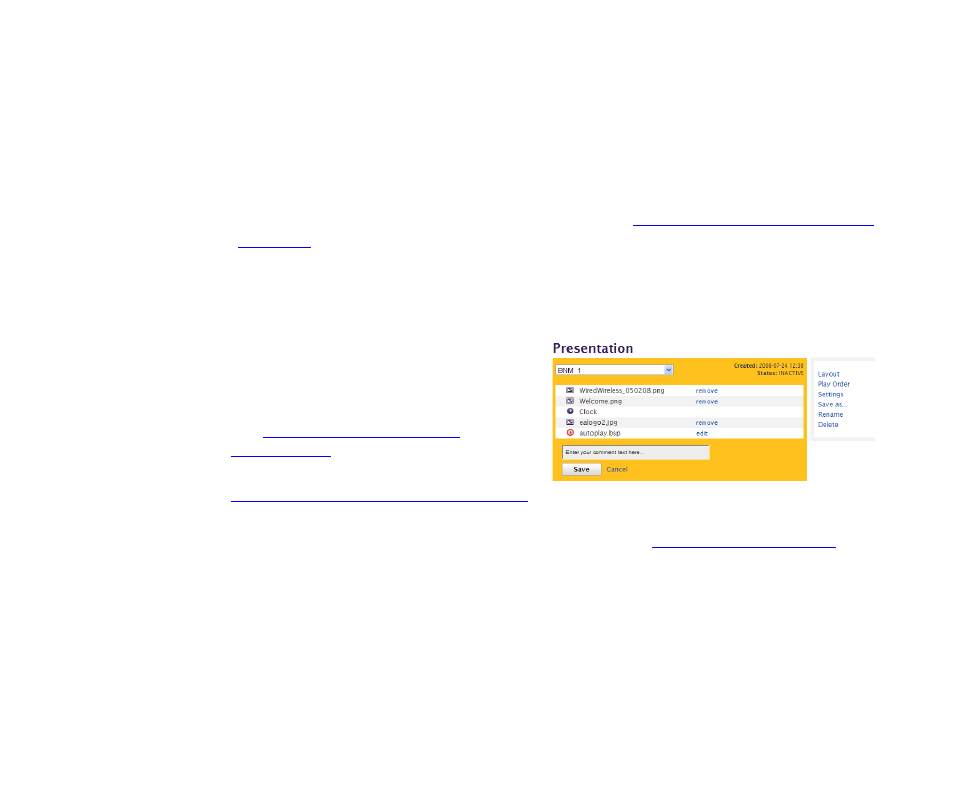
• Remove a file from the presentation. Under
Presentation, click remove next to the file
name.
• Assign files to a specific area on the screen
(see
for details.)
• Set the order in which the files play (see
“Arranging the files in your presentation”
for details.)
• Add a file, widget, text, or comment to the presentation (see
for details).
• Edit a text widget on a Windows PC. Under Widgets, highlight the text on the screen and then
press Ctrl + C. Open Notepad and paste the text into a new note by pressing Ctrl + P. Revise
the note in Notepad, and then highlight all of the text and press Ctrl + C. Return to the
BrightSign Network Manager screen, and under Presentation, click remove next to Text.
Under Widgets, click Text Widget, and then press Ctrl + P to paste the revised text into the
text widget. Click Add to accept the revised text.