Step 9 (save information and output window), Usage – Honestech Easy Video Editor 2.0 User Manual
Page 21
21. Easy Video Editor 2.0
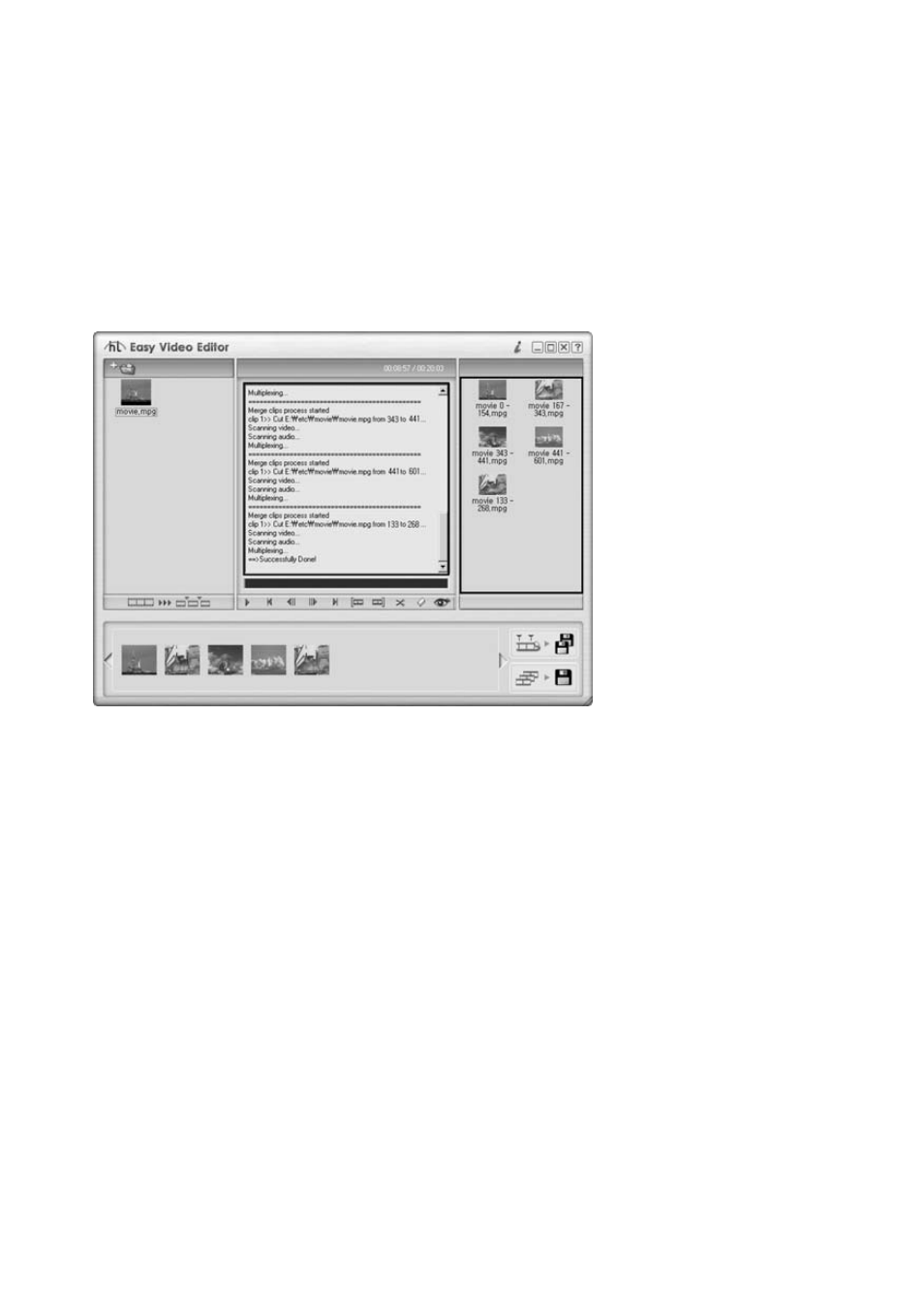
5.10. Step 9 (Save Information and Output Window)
5.10.1. The “Save” progress will be displayed.
•
You may choose to stop the recording process by clicking “Stop Recording” button.
5.10.2. The saved files are displayed as image icons in the “Output Window”.
•
Play an output file by double-clicking the clip.
•
Right-click on the clip to delete the file, see the property, and etc.
5.11. Usage
5.11.1. Converting video clip file format.
•
Click “Cut Without Setting Frame Range” button (see Step 3). The whole range will be
selected.
•
Click “Recording” (Split or Join) button.
•
Select User Setting, and choose the desired output format.
5.11.2. Converting video clip file format, method for MPEG format only:
• Select
the
Auto-Split
button.
•
The “Automatic Split Select” dialog will be displayed with the following options:
a) Make the split playtime larger than the playtime.
b) Set the number of split files to one.
c) Make the size of the split file bigger than the file size.
•
Select one, and click [OK].