Store data [and view file data, Store data [and view file data]…… 7, Store data – Measurement Computing WaveView User Manual
Page 9: Option
WaveView
03-05-02
WaveView, pg. 7
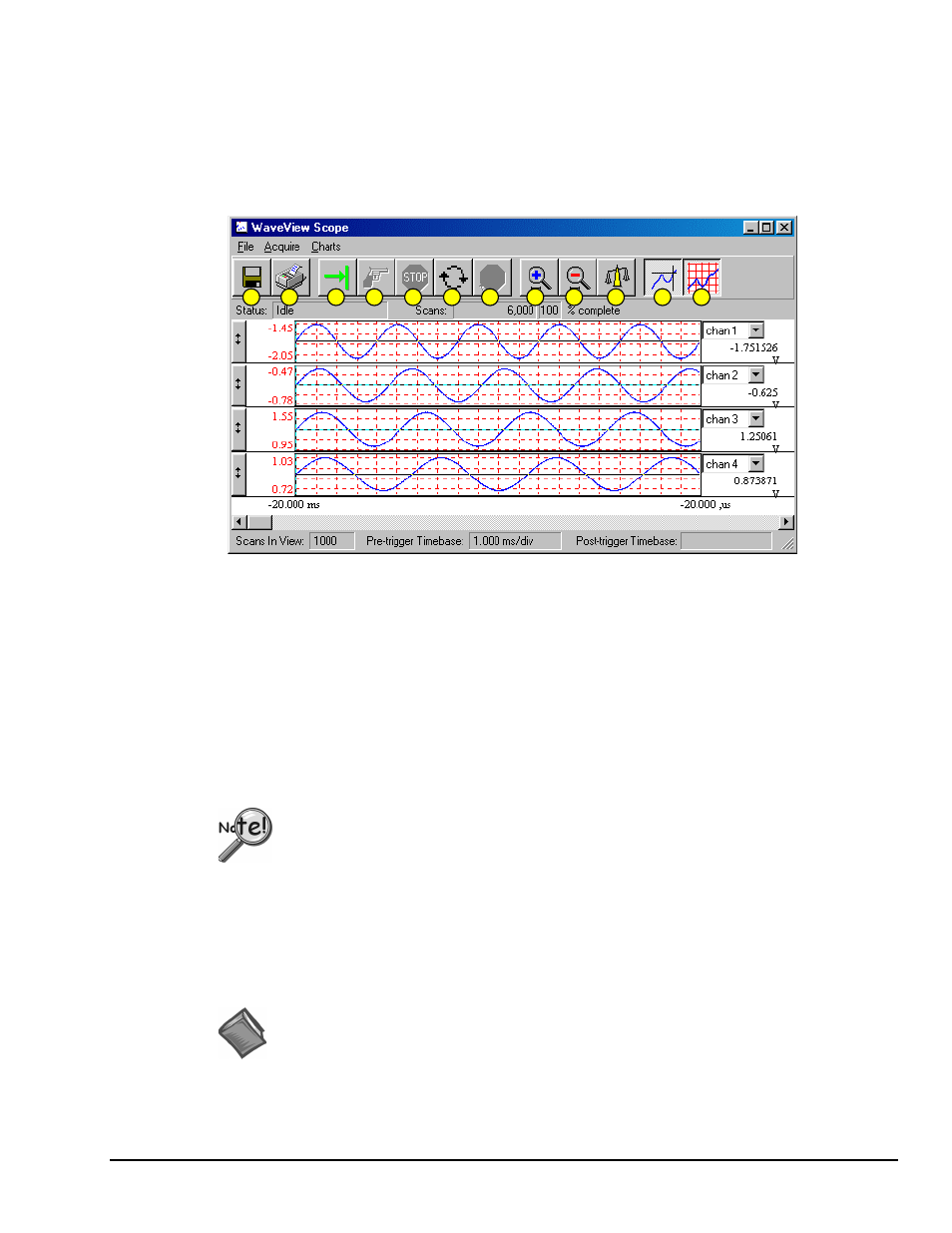
If desired, you may modify the current Scope window display as follows:
•
View additional channels (up to 8) simultaneously by changing the entry in the Number of Charts
menu.
•
Change the channels viewed. Use the channel select list box at the right of the waveforms to display
waveforms of other active channels.
•
To scale the waveforms, click on the Scale All Charts button. All 4 waveforms should then be visible.
•
Examine the waveforms at any point along the timeline by using the horizontal scroll-bar.
•
Vary the number of scans displayed by using the Zoom In or Zoom Out buttons.
..
6
7
8
9
10
11
12
5
4
3
2
1
WaveView Scope Window
Item
Description
Item
Description
1
Save
7
Stop Rearming
2
Print Window
8
Zoom In
3
Arm
9
Zoom Out
4
Trigger
10
Scale All Charts
5
Stop Acquiring
11
Toggle Cross Hairs
6
Auto-Rearm
12
Toggle Grids
Store Data
[and View File Data],
Option
Data to be viewed with the post acquisition data viewer must be in the appropriate
binary format. From WaveView, you can select the format by navigating as follows:
WaveView Main Window
⇒ File ⇒ Data Conversion Preferences and check the
appropriate box.
Save collected data to disk by clicking on the Save button ("floppy disk" or left-most button) of the
WaveView Scope window, and then giving the file a name. Note that you can analyze the saved data with a
post-acquisition data-viewer program, such as PostView, DIAdem, or eZ-View.
To open an installed post-acquisition data viewer application, return to the WaveView Configuration main
window then click on the View File Data toolbar button (button 9 in the following figure).
Reference Note:
For detailed information regarding post acquisition data analysis programs, refer to the
applicable document module(s), e.g., DIAdem, PostView, or eZ-View.