Setting camera video parameters, Page 36 – Grass Valley CONTROL Center CameraMan Rev.B User Manual
Page 39
Page 36
Installation and Operations Manual
Setting Camera Video Parameters
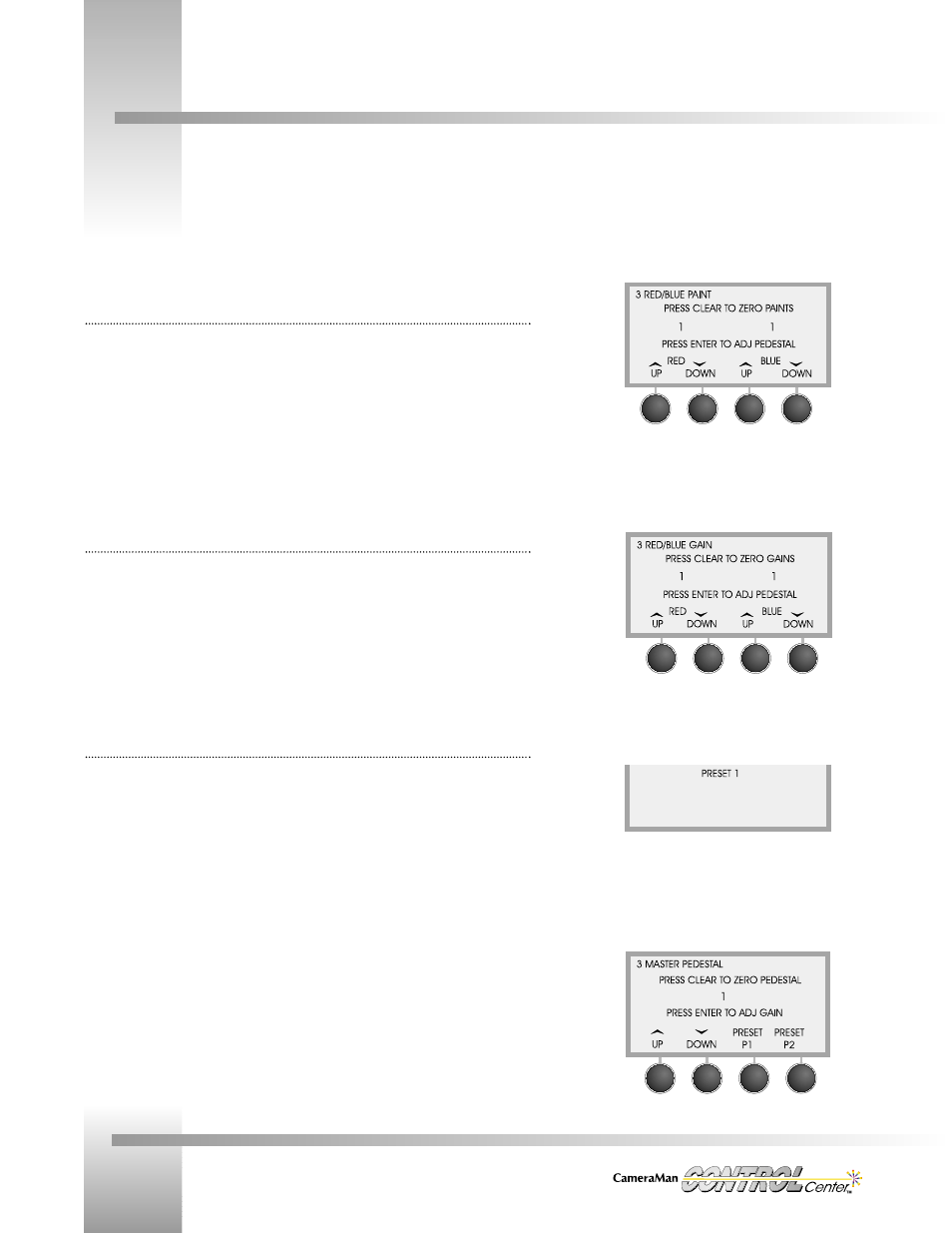
Red/Blue Paint Menu
(for AWB or ATW)
Display Path: MENU > CAMERA ADJUST > MORE > WHITE BALANCE > AUTO or ATW >
MORE
Increases and decreases the red and blue levels in the video image to compensate for
inadequate lighting or the subject’s color characteristics.
• RED UP or DOWN: Used to adjust the Red Paint.
• BLUE UP or DOWN: Used to adjust the Blue Paint.
• Range: -7 to +7.
• Clear: Sets both Paint settings to zero.
• Enter: Toggles between Paint and Master Pedestal (see below).
Red/Blue Gain Menu
(for Manual WB)
Display Path: MENU > CAMERA ADJUST > MORE > WHITE BALANCE > MANUAL > MORE
Increases and decreases the red and blue levels in the brightest area of the video image.
• RED UP or DOWN: Used to adjust the Red Gain.
• BLUE UP or DOWN: Used to adjust the Blue Gain.
• Range: -99 to +99.
• Clear: Sets both Gain settings to zero.
• Enter: Toggles between Gain and Master Pedestal menus.
Master Pedestal Menu
Display Path 1: MENU > CAMERA ADJUST
Display Path 2: MENU > CAMERA ADJUST >MORE > WHITE BALANCE > MORE > ENTER
Lightens and Darkens the level of the black component of the video picture.
• UP: Lightens the level of the black component and decrease the overall picture
contrast.
• DOWN: Darkens the level of the black component and increase the overall picture
contrast.
• Range: -99 to +99.
• P1 or P2: Recalls pedestal presets for the selected camera.
To store pedestal presets:
1. Adjust the Master pedestal using the Up/Down keys.
2. Press and hold P1 or P2 for 3 seconds (you will hear a beep).
3. Release the Preset key (A confirmation displays *DIRECTOR DATA SAVED*).
To recall a preset:
1. Press and release the desired preset function command button.
Master Pedestal/Paint Menu
Master Pedestal/Gain Menu
Paint Menu
Gain Menu