FastRawViewer Software 2.0 (Download) User Manual
Page 22
FastRawViewer
– user manual
Page 22 of 175
Copyright © 2014-2016, LibRaw LLC,
Menu – View – Switch to single image.
Navigation by using the “arrowkeys” in the main window or the bottom “Filmstrip” bar and
pressing Enter.
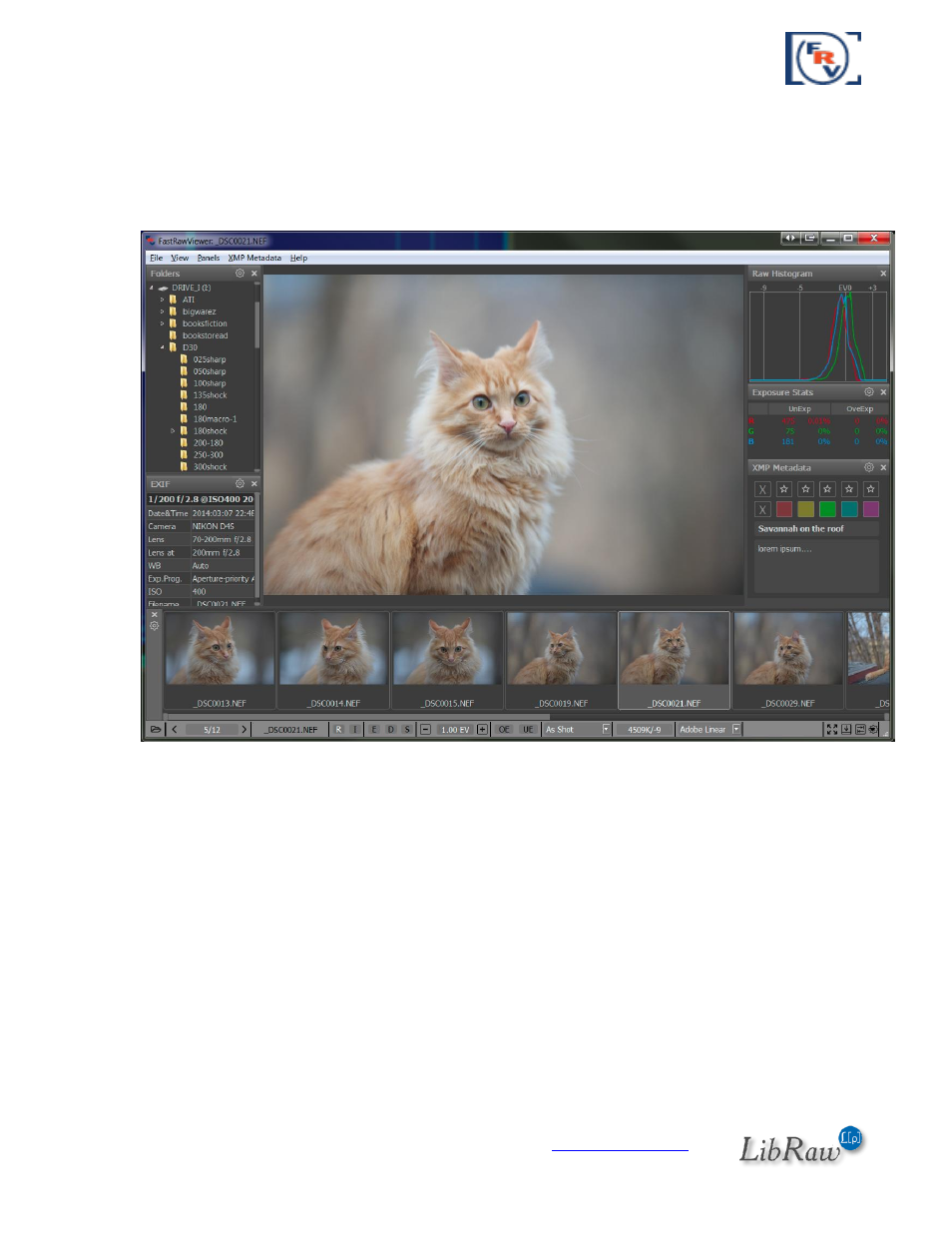
The program will switch to a Single-File View mode (Single File view):
Switching back to Grid mode:
Menu – View – Switch to image Grid (or press G).
Menu – View – Close single image (or Esc; Esc/close single image also exits full screen mode).
On the program main screen:
On top, as usual, there is the menu that allows access to almost all features, excluding those
actions, which can only be performed with the mouse.
o
File – navigating through the files (opening files and folders, moving to the next file,
moving files to different folders, sending the currently displayed file to an external
program / raw converter).
o
View – controls image display mode (full-color or per-channel viewing; outline the highly
detailed areas and areas containing high-contrast edges (focus peaking), etc.).