Use indent to here – Adobe InDesign CS4 User Manual
Page 261
253
USING INDESIGN CS4
Typography
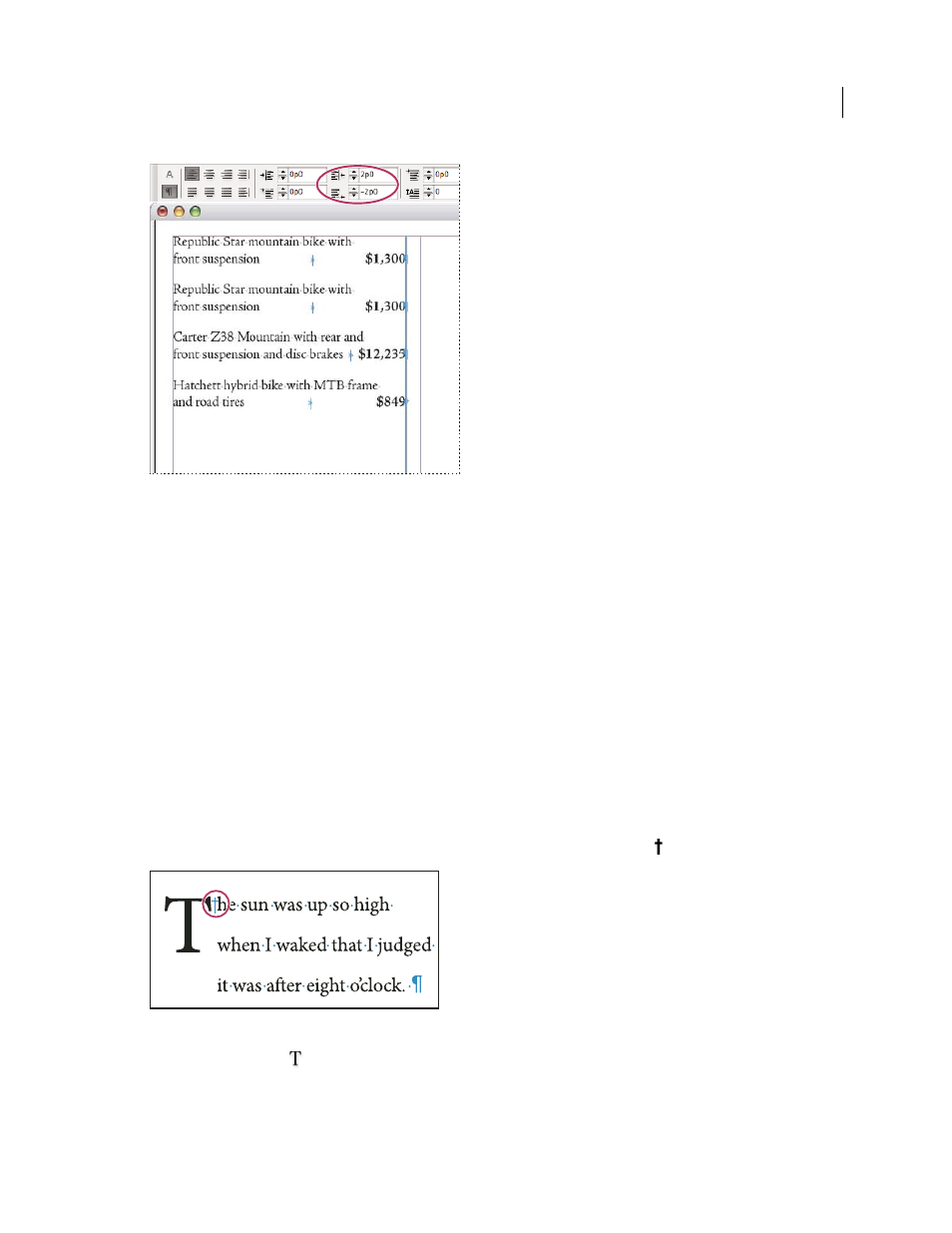
Last line right indent
1 Type your paragraphs. In the last line of each paragraph, place the insertion point before the text to be indented,
and choose Type > Insert Special Character
> Other
> Right Indent Tab.
2 Select the paragraphs.
3 To create a right indent for paragraphs, specify a value (such as 2p) in the Right Indent field of the Paragraph panel
or Control panel.
4 To offset the right indent value for the text that follows the tab, type a negative value (such as -2p) in the Last Line
Right Indent field of the Paragraph panel or Control panel.
Use Indent To Here
You can use the Indent To Here special character to indent lines in a paragraph independently of a paragraph’s left
indent value. The Indent To Here special character is different from the paragraph’s left indent in the following ways:
•
Indent To Here is part of the text flow, as if it were a visible character. If text reflows, the indent moves with
it.
•
Indent To Here affects all lines after the line where you’ve added its special characters, so you can indent just some
of the lines in a paragraph.
•
When you choose Type > Show Hidden Characters, the Indent To Here character
is visible.
Indent To Here special character
1 Using the Type tool
, click the insertion point where you would like to indent.
2 Choose Type > Insert Special Character
> Other
> Indent To Here.
Updated 18 June 2009