Add an automatically updated section marker, Define section numbering, Change the format of page and chapter numbering – Adobe InDesign CS4 User Manual
Page 95
87
USING INDESIGN CS4
Layout
Add an automatically updated section marker
1 Define sections in your document. (See “
2 On a page or master that you’re using in a section, drag the Type tool to create a text frame large enough for the
section marker text, or click in an existing frame.
3 Choose Type > Insert Special Character
> Markers > Section Marker.
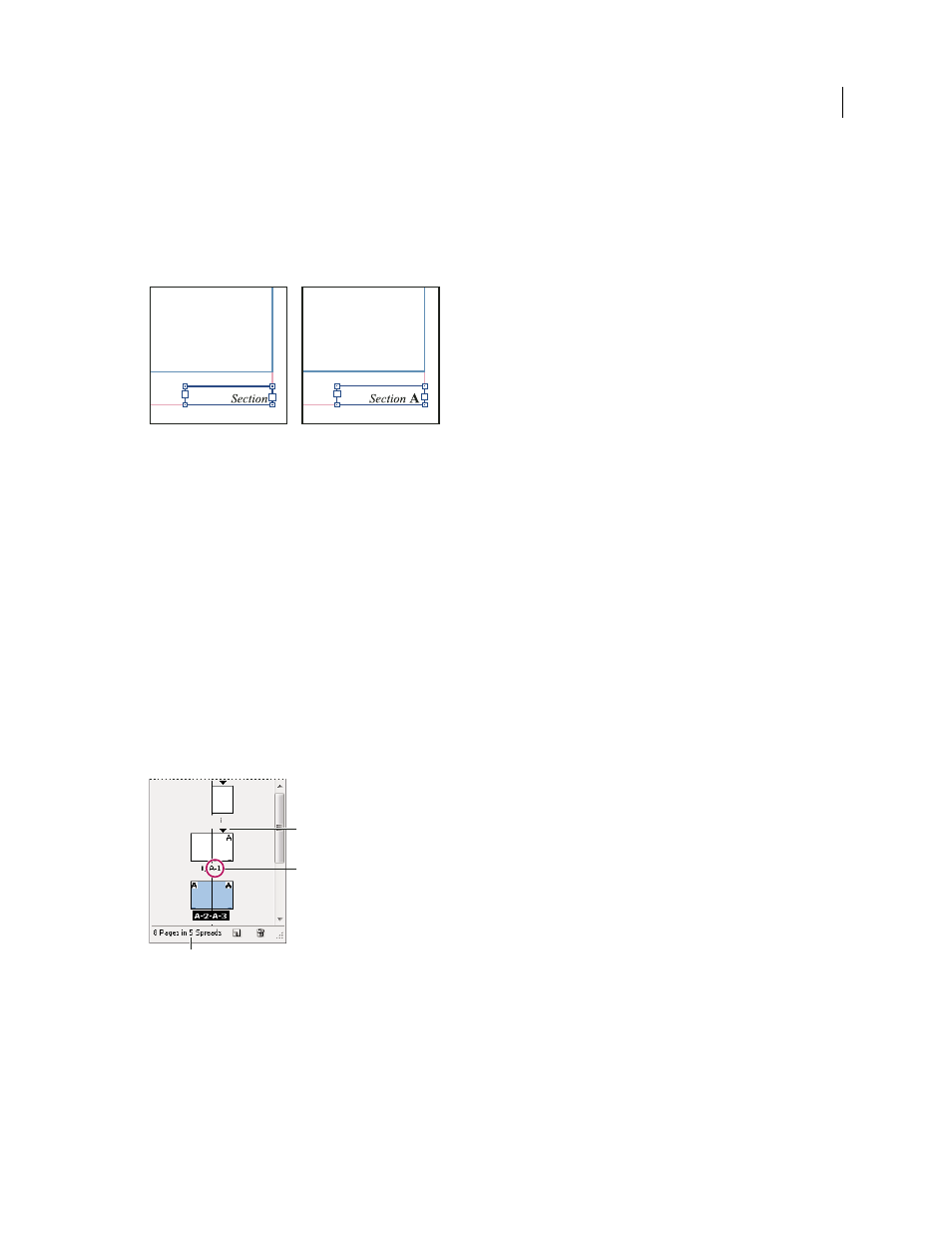
On master page A, section marker (left) and section marker with page number marker inserted (right)
Change the format of page and chapter numbering
1 Choose Layout > Numbering & Section Options.
2 Under Page Numbering or Document Chapter Numbering, select a new number format for Style.
3 Click OK.
Define section numbering
By default, page and chapter numbers in a book are numbered consecutively. Using Numbering & Section Options,
you can restart page numbering at a specified page, add prefixes to page numbers, and change the numbering style of
both pages and chapters.
You can define a section prefix to label section pages automatically. For example, if you specify A– for Section Prefix
on page 16 of a document and include the section prefix, the page will appear in the table of contents or index as A–
16. Text you type for a section marker appears when you choose Type > Insert Special Character
> Markers > Section
Marker.
Pages panel
A. Section indicator icon shows start of section B. Page number is changed for new section C. Status bar displays document length
See also
Add page, section, and chapter numbering
Number pages, chapters, and paragraphs in a book
A
B
C
Updated 18 June 2009