Saving the custom thread table to usb media – Baby Lock Destiny (BLDY) Instruction & Reference Guide-Part2 User Manual
Page 32
EDITING PATTERNS
225
Bas
ic Em
b
ro
ide
ry
5
e
Repeat the previous steps until all desired
thread colors are specified.
*
To delete a specified color from the palette, press
.
*
To delete all the specified color from the palette,
press .
f
Press .
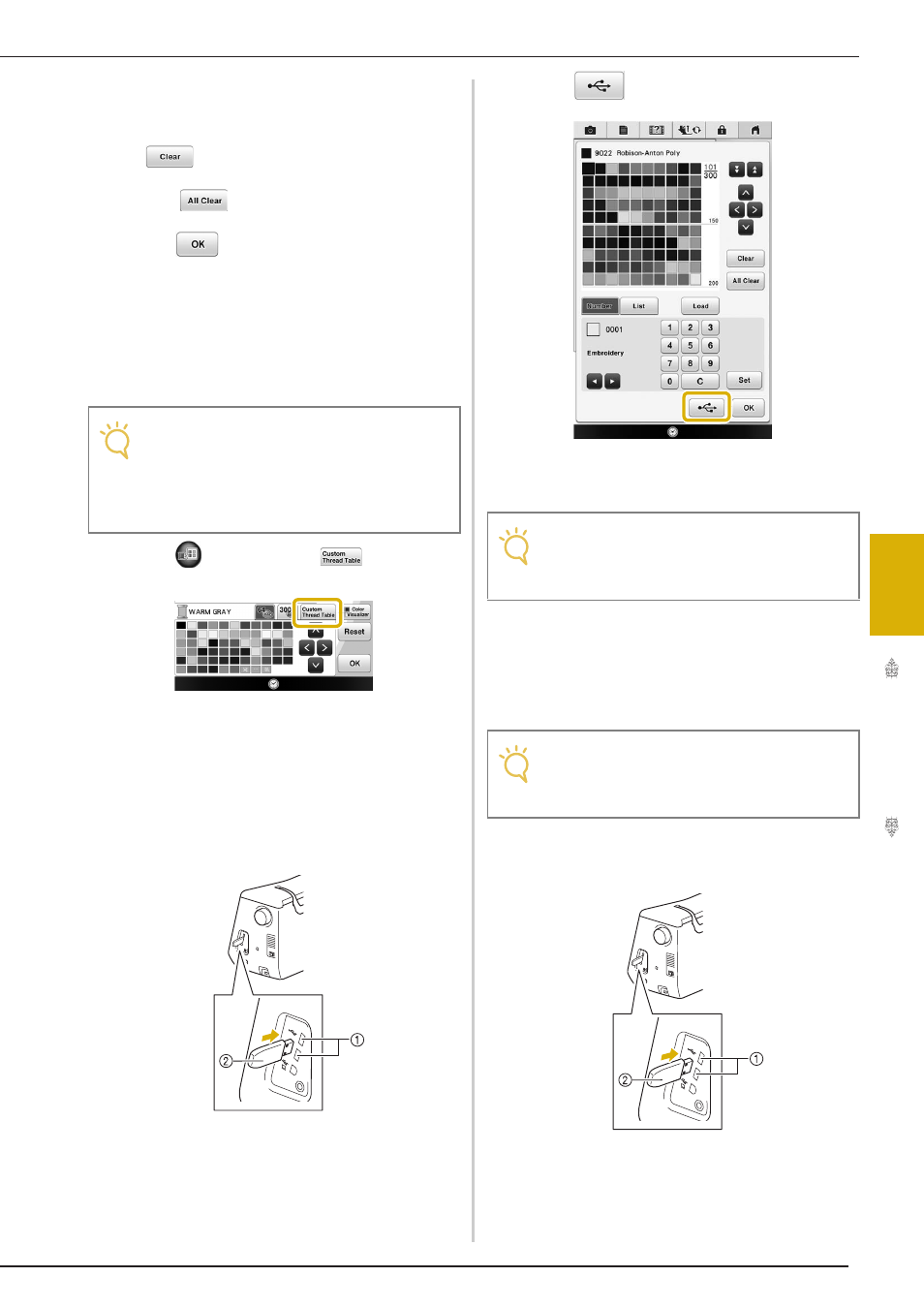
■ Saving the Custom Thread Table to
USB media
You can save a custom thread table data file to USB
media.
a
Press
and then press
.
b
Set your desired colors in the custom thread
table according to the procedure in
“Creating a Custom Thread Table” on
page 223.
c
Insert the USB media into the USB port on
the machine.
a USB port
b USB media
d
Press .
→ Select the USB port, and then the “Saving” screen is
displayed. When the data is saved, the display
returns to the original screen automatically.
■ Recalling the Custom Thread Table
data from USB media
You can recall a custom thread table data from USB
media.
a
Insert the USB media containing the custom
thread table data into the USB port.
a USB port
b USB media
Note
• Custom thread table data can only be saved
to USB media. You cannot save the data in
the machine’s memory or to your computer.
• Custom thread table data is saved as “.pcp”
data file.
Note
• Do not insert or remove USB media while
“Saving” screen is displayed. You will lose
some or all of the data you are saving.
Note
• Do not store two or more “.pcp” data file in
USB media. You can only recall one custom
thread table data at a time.