Camera was not detected or recognized – Sumix SMX-160x User Manual
Page 17
Installation and Update
17
SMX-160 Series USB2.0 Camera User Guide
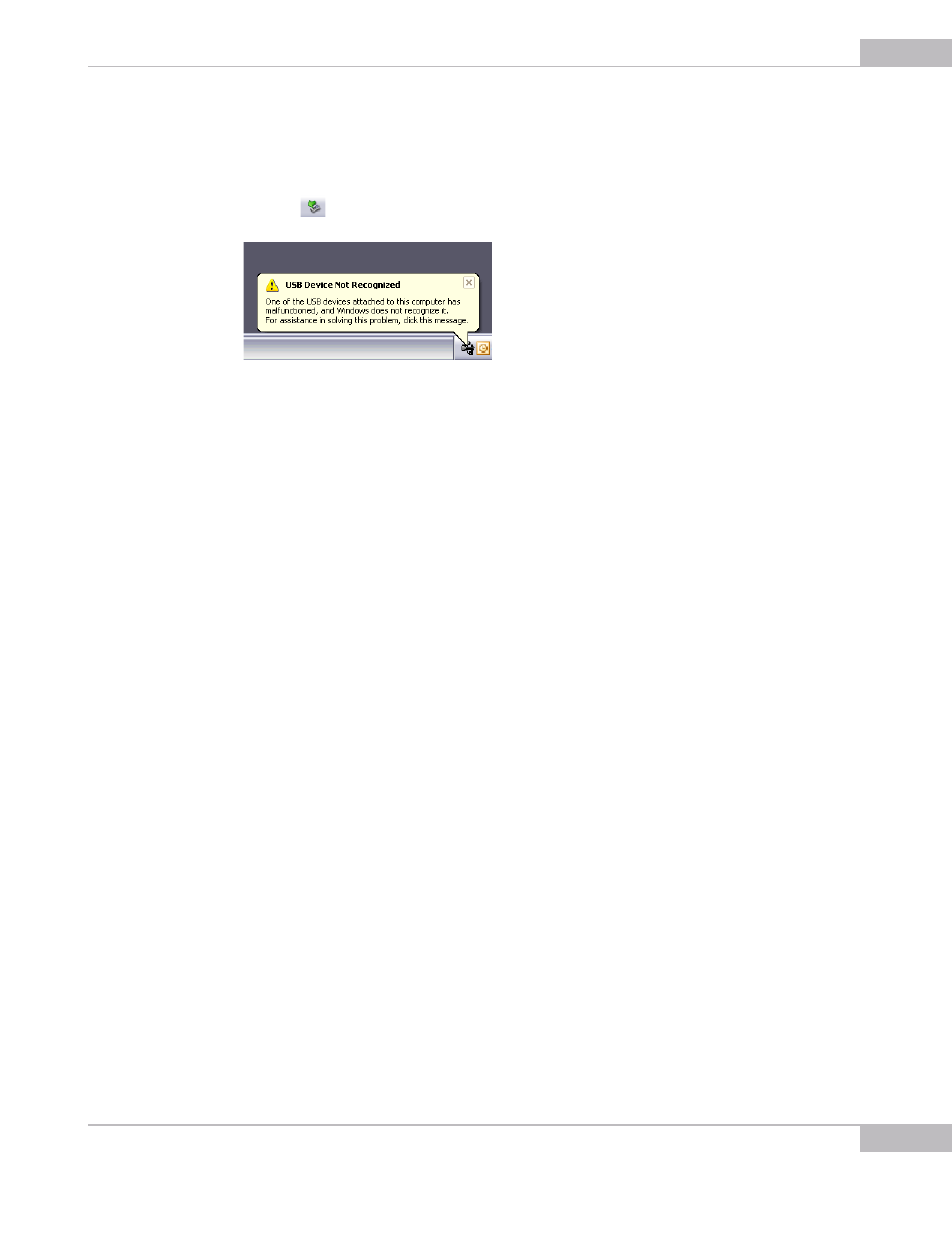
Camera Was Not Detected or Recognized
If after connecting the camera to your computer the system does not detect it: there is
no icon
on the Taskbar or the camera was not recognized by the system:
Try doing the following:
●
Check if the device was installed successfully: open system folder WINDOWS\
system32\drivers and check if there is the SMX160A.sys file (normally it is located on
the C: hard disk). If not, run the Driver installation again. Be sure that no camera is
connected during installation.
●
If the problem still persists, manually save the SMX160A.sys file to the \WIN-
DOWS\system32\drivers folder (the SMX160A.sys file is located in the \Sumix\SMX160
USB2.0 Camera\Drivers folder).
If the problem still persists, try one of the following:
●
Reconnect the camera.
●
Use other USB2.0 port of your computer - the problem might be due to the USB2.0
port malfunction.
●
Use another USB2.0 cable - the problem might be due to the USB2.0 cable malfunc-
tion.
●
Connect other SMX-160 camera (if any) to the same USB2.0 port - the problem might
be due to the camera malfunction.
●
Disconnect the camera and restart your computer.
If any of the above steps did not help and the device is not recognized yet, try the
following:
1
Connect the problematical camera to the computer.
2
Open the Device Manager window (right-lick My Computer desktop icon, select
Properties, select Hardware tab, and then click Device Manager).
3
In Device Manager, double-click Universal Serial Bus controllers.
4
In Device Manager, select one of the following:
●
Imaging devices> SMX-160 Series USB2.0 Camera with Warning status, if it is
available there: