6 – application guide, Cubase le 5, Windows xp and windows media player – Teac US-200 User Manual
Page 22
22
TASCAM US-200
In this chapter, we explain how to set some
audio applications for use with this unit.
Cubase LE 5
For details see the included Cubase LE 5
Quick Start Guide.
Windows XP and Windows
Media Player
1 Close all applications and then open
the Control Panel from the Start menu.
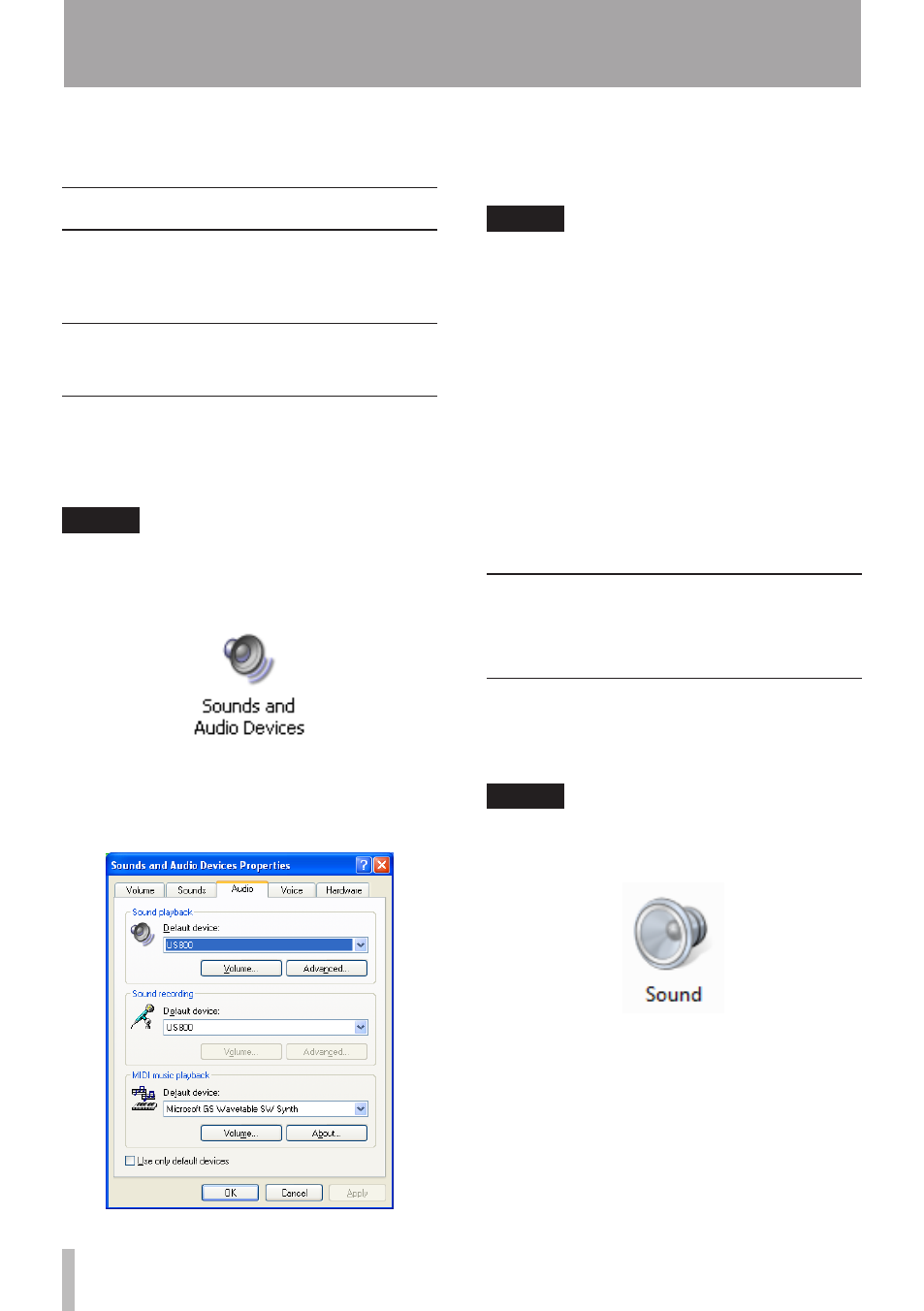
2 Open Sounds and Audio Devices.
NOTE
If you do not see the above item, click Sounds,
Speech, and Audio Devices and it should
appear.
3 Click the Audio tab, and set the Default
device: for Sound playback to TASCAM US-
200.
4 Click OK.
5 Start Windows Media Player, select an
audio file and begin playback.
NOTE
If you change this setting while Windows
•
Media Player is running, the software will
not recognize that the device has been
changed. In this case, restart Windows
Media Player.
If you still cannot hear sound after
•
making the setting and completing the
procedures above, restart the computer.
After making this setting, sound will be
•
output through this unit, but no sound
will be output by the computer’s speakers
or headphone jacks.
Windows Vista or Windows
7 and Windows Media
Player
1 Close all applications and then open
the Control Panel from the Start menu.
2 Open Sound.
NOTE
If the above item does not appear, click
Hardware and Sound and it should appear.
3 Click the Playback tab, click Speakers
TASCAM US-200 and click the Set Default
button. This moves the green check
mark to Speakers TASCAM US-200.
6 – Application Guide