Configuration procedure – H3C Technologies H3C SecPath F1000-E User Manual
Page 280
5
•
Configure Device as the HTTPS server and apply a certificate for Device.
•
Apply a certificate for the HTTPS client Host for Device to authenticate it.
The name of the CA (Certificate Authority) that issues certificate to Device is new-ca.
NOTE:
•
In this configuration example, Windows Server serves as CA and you need to install Simple Certificate
Enrollment Protocol (SCEP) component.
•
Before the following configurations, ensure that there is an available route between Device, Host and
CA.
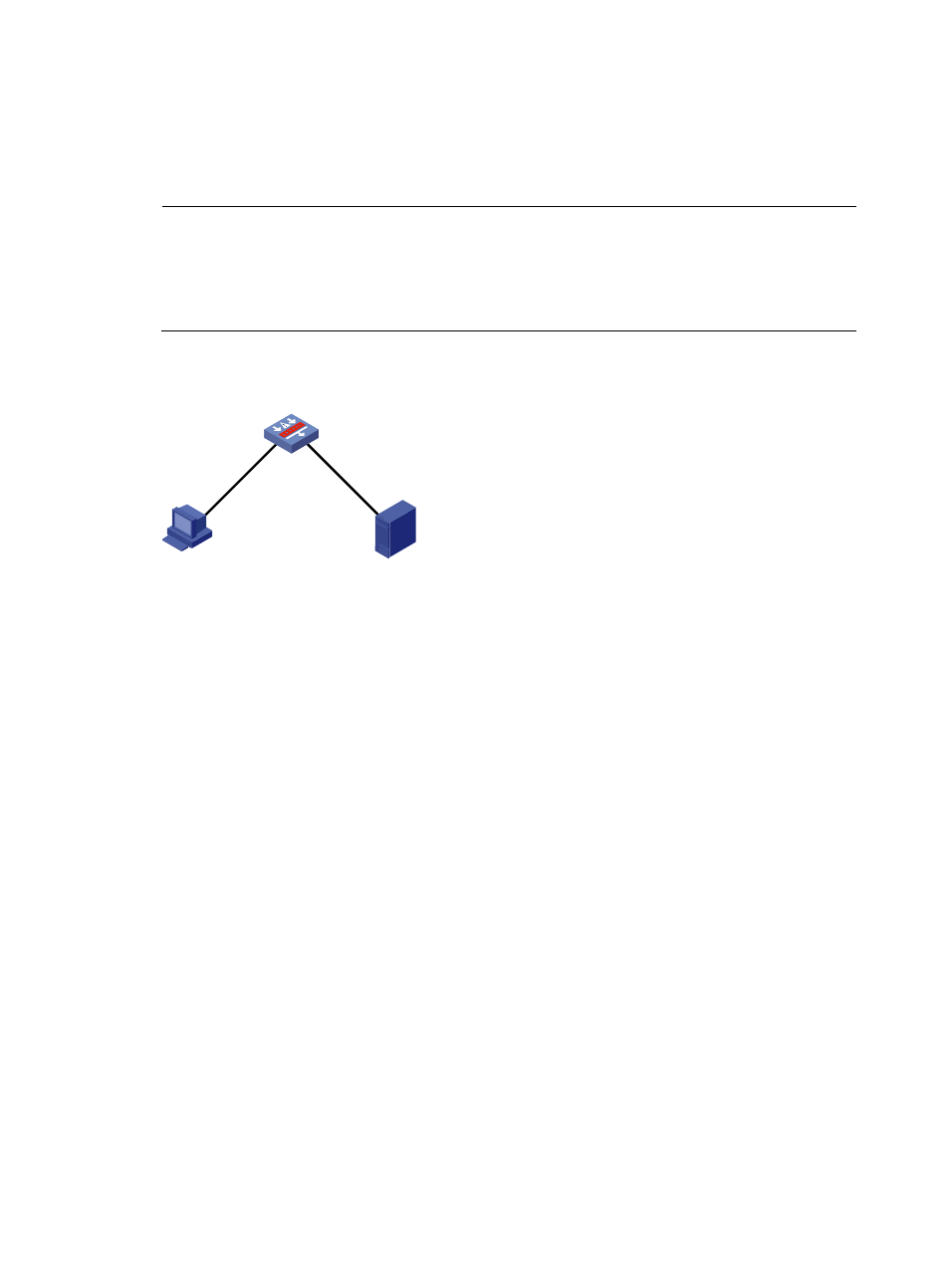
Figure 2 Network diagram for HTTPS configuration
10.1.1.1/24
10.1.2.1/24
Host
CA
10.1.1.2/24
10.1.2.2/24
Device
Configuration procedure
Step1
Configure the HTTPS server Device.
# Configure PKI entity en, and specify its common name as http-server1, and FQDN as
ssl.security.com.
<Device> system-view
[Device] pki entity en
[Device-pki-entity-en] common-name http-server1
[Device-pki-entity-en] fqdn ssl.security.com
[Device-pki-entity-en] quit
# Configure PKI domain 1, specify the trusted CA as new-ca, the URL of the server for certificate
request as http://10.1.2.2/certsrv/mscep/mscep.dll, the authority for certificate request as RA,
and the entity name as en.
[Device] pki domain 1
[Device-pki-domain-1] ca identifier new-ca
[Device-pki-domain-1] certificate request url http://10.1.2.2/certsrv/mscep/mscep.dll
[Device-pki-domain-1] certificate request from ra
[Device-pki-domain-1] certificate request entity en
[Device-pki-domain-1] quit
# Generate a local RSA key pair.
[Device] public-key local create rsa
# Retrieve a CA certificate.