Grass Valley DD10 part 3 User Manual
Page 86
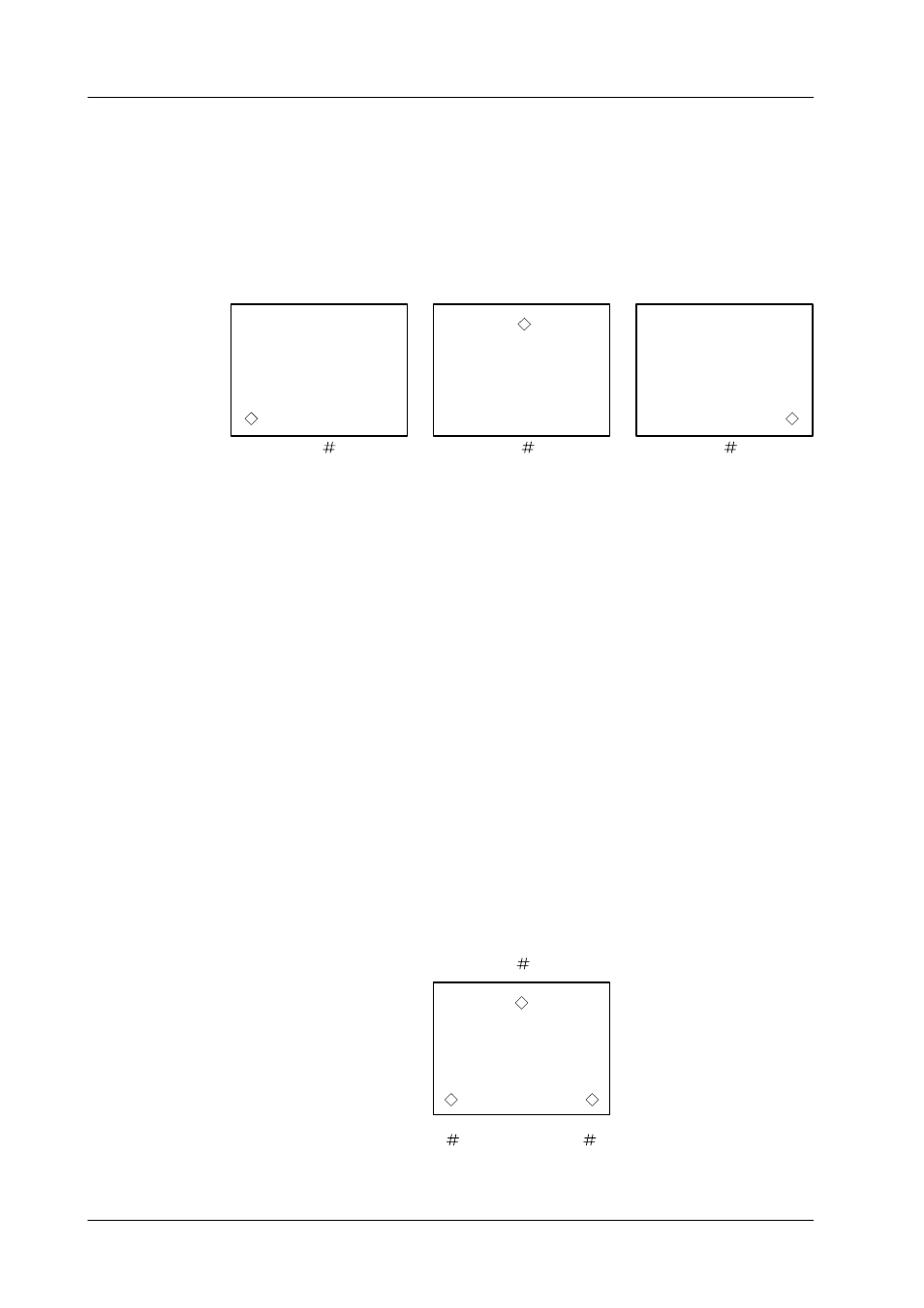
act
1
act
2
act
3
act
2
act
1
act
3
4.7 Trajectory
Diamond digital DD10
306
To describe how Smooth Trajectory mode works and how the user can modify it,
the following example describes a timeline with 3 keyframes in which the wipe posi-
tion e.g. of ME1 changes (the positions are shown below).
Wipe = small rhombus
–
Set ME1 so that the monitor shows the positioned wipe as displayed above
in act#1.
–
Select EXTRA menu.
–
Verify that ME1 is enabled in DEFINE MEMO.
–
Verify that TIME is not 0 (try 12 frames).
–
Set all trajectory modifiers to normal.
–
Set the trajectory type to SMOOTH.
–
Press Learn and select a storage location (hotkey).
–
Set ME1 so that it corresponds to the above act#1.
–
Press STORE to enter the first keyframe.
–
Set positioner so that it corresponds to the above act#2.
–
Press STORE to enter the second keyframe.
–
Set positioner so that it corresponds to the above act#3.
–
Press STORE to enter the third keyframe.
–
Press Learn to complete the storing of the timeline.
–
Play the timeline.
In order to display the resulting trajectory, the three keyframes are combined in one
picture. Use the STORE-function in the menu.