Casio FX-CG10 User Manual
Page 474
14-27
5. Press
w.
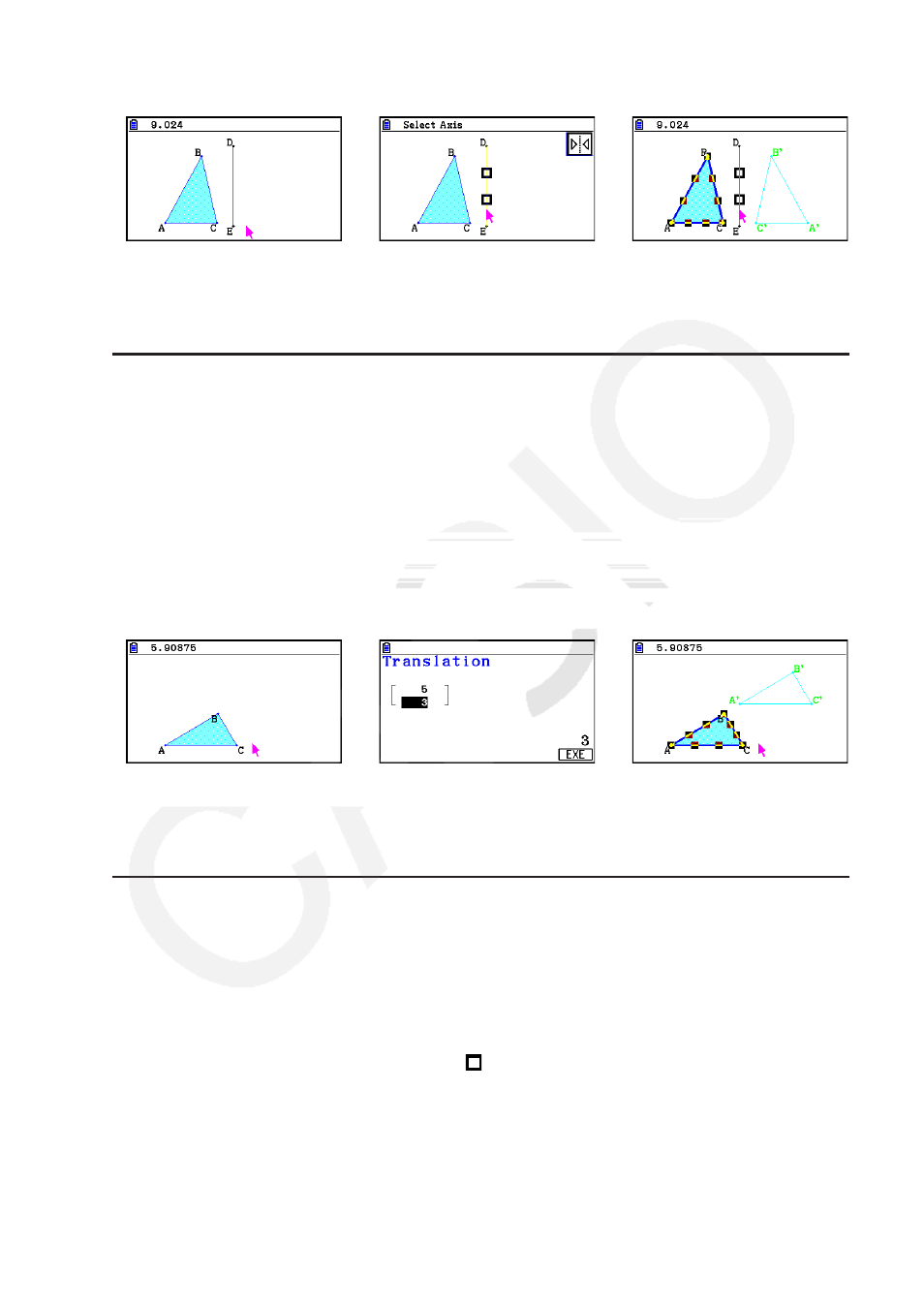
• This reflects the object using the line segment as the axis.
→
→
Note
You can specify a line segment, line, ray, one side of a polygon, or the
x
-axis or
y
-axis as the
axis of reflection.
u To translate an object by specified values
1. Draw the object you want to translate. Here, we will use a triangle.
2. Perform the following operation:
5(Transform) – 2:Translation.
• This displays the Translation screen.
3. Input vector format values to specify the distance of parallel translation.
• The value in line 1 is the translation distance along the X-axis, while the value in line 2 is
the distance along the Y-axis.
4. After the values are the way you want, press
w.
• This performs parallel translation of the object by the distance specified by the values you
input in step 3.
→
→
Note
If you select only part of an object before performing step 2 of the above procedure, only the
selected part will be translated.
u To translate an object using an existing vector
1. Draw the object you want to translate. Here, we will use a triangle. Next, draw the vector
you want to use for parallel translation.
2. Perform the following operation:
5(Transform) – 3:Trans(Sel Vec).
• This will cause the message “Select Vector” to appear.
3. Move the pointer close to the vector you want to use for the parallel translation.
• Move the pointer towards the vector until marks appears on it.