Advanced installation p.16, P.16, Advanced installation – Sharp MX-6070N User Manual
Page 16
16
Related topics
• Windows/Display the software selection
screen (common procedure) P.12
• Standard installation P.14
• Custom installation P.18
• Installing others P.24
Troubleshooting
• Cannot install P.41
• Cannot detect this machine P.42
• How to check the IP address of this
Advanced installation
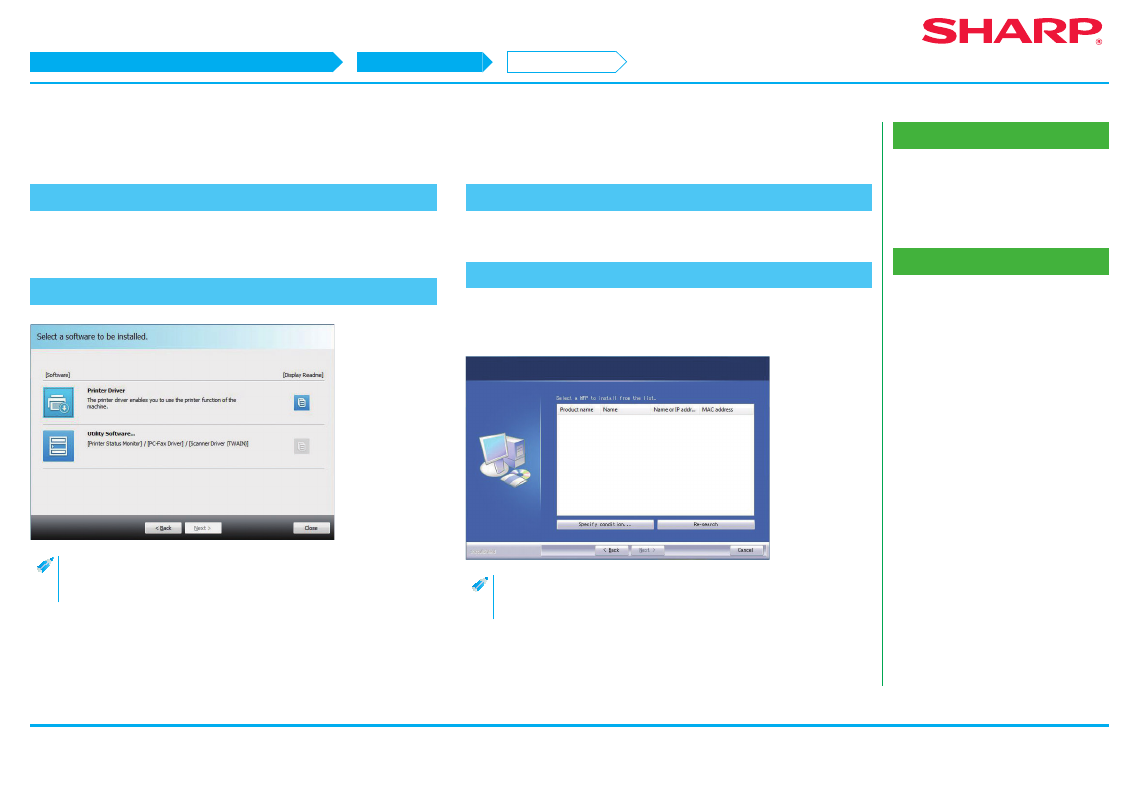
1. Display the "Software selection" screen
Refer to "
Windows/Display the software selection screen (common procedure)
" on how to display the "Software selection" screen.
2. Click the [Printer driver] button
• When installing the PC-Fax Driver, click the [Utility Software...] button,
then click the [PC-Fax Driver] button.
3. Click the [Advanced installation] button
Printers connected to the network are detected.
4. Select this machine, and click the [Next] button
When you click the [Specify conditions] button, you can input the name of this
machine (host name) or IP address, change the time out time, and search.
As a result of the search, if only one instance of this machine is found,
this screen is not displayed.
STEP 1-4/8
Windows/Display the software selection screen (common procedure)
Printer Driver installation
Advanced installation